
July 2026: SMS, Per diem, and more
The July 2026 release introduces several major enhancements across the MobiClocks platform. A new SMS Messaging module enables organizations to communicate with employees, users, and external contacts through text messaging. The release also includes a complete rebuild of the Per Diem module and a new Early Payroll Approval feature. Workforce receives several usability improvements, while additional enhancements include production quantity improvements, expanded cost coding capabilities, a pinned job site indicator on the Timelogs screen, and a streamlined pay class assignment experience.
🆕 New
SMS Messaging
MobiClocks now includes SMS messaging capabilities that let you communicate directly with employees, users, and external contacts through text messages. This new module provides template management, contact list organization, message scheduling, delivery tracking, and phone number validation to help you coordinate workforce activities and distribute important information efficiently. The SMS module is available as an optional add-on with usage-based pricing that may vary by message volume. Please contact your MobiClocks representative for details on pricing and availability.
Message composition and sending
Create and send SMS messages with flexible recipient selection, built-in quality checks, and scheduling options:
-
Recipient selection: Choose recipients through multiple methods: select individuals by searching employee names, use role-based selection to target employees by their role and optionally filter by company, or use job site-based selection to reach all employees at a specific job site with optional filtering by company and role. You can also include external contacts associated with job sites.
-
Contact list integration: Select saved contact lists to quickly add predefined groups of recipients without manual selection.
-
Message templates: Choose from saved templates to populate message content instantly, or compose custom messages for one-time communications.
-
Message checks: Verify message content with built-in quality checks before sending. The rude words check detects and removes inappropriate language, while the grammar check analyzes messages for errors and suggests improvements to enhance readability.
-
Recipient management: Access detailed recipient lists showing names, phone numbers, and contact information to verify selections before sending.
-
Send now or schedule: Choose to send messages immediately or schedule them for future delivery. When scheduling, specify the sending date and time, and optionally configure recurrence settings to repeat messages at regular intervals (daily, weekly, or monthly) with flexible end conditions.
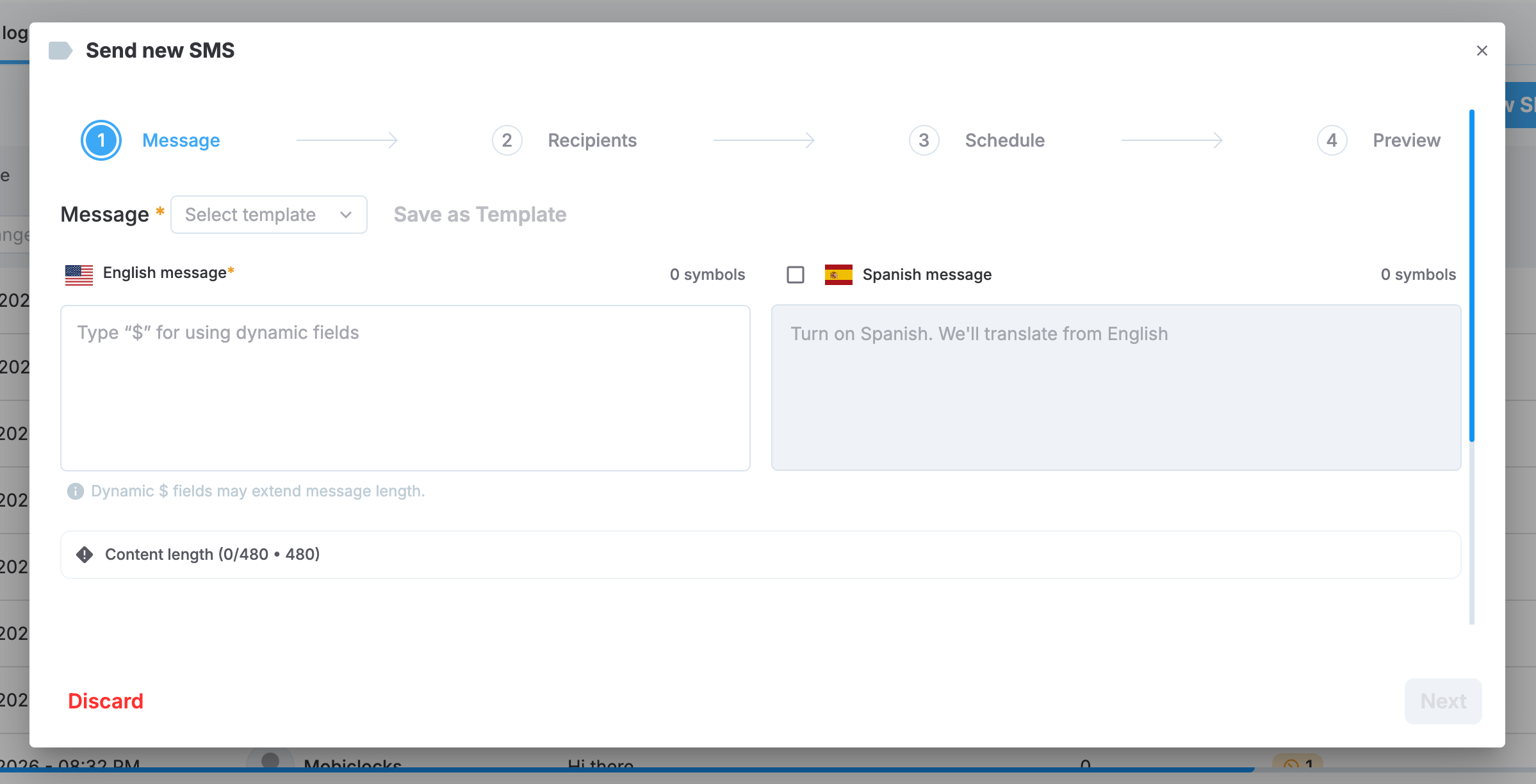
SMS composing dialog
Delivery tracking and logs
Monitor message delivery through comprehensive tracking and detailed logs:
-
SMS log board: Access a complete history of sent messages in a searchable, filterable table showing sent date and time, sender, message content, SMS segments used, contacts, and delivery details. Filter messages by date range or search by sender name.
-
SMS segments: Track the number of message segments used for each SMS. Longer messages are automatically split into multiple segments.
-
Detailed delivery logs: Select any message to view recipient-level delivery information including recipient name and ID, phone number, opt-out status, resent status, external contact designation, delivery status, and issue descriptions for failed deliveries.
-
Delivery status tracking: Monitor messages through multiple delivery stagess such as pending (message queued for sending), sent (message left MobiClocks system), failed (delivery unsuccessful with error description), and delivered (carrier confirmed successful delivery).
-
Delivery diagnostics: Identify delivery issues such as missing or invalid phone numbers, opt-out status preventing delivery, or carrier errors requiring attention.
Phone number validation and consent management
Verify phone number validity and manage recipient consent through comprehensive tracking and reporting:
-
Phone number status views: Monitor all phone numbers in your environment through two dedicated views. The Employee/Users view displays phone numbers for internal personnel, and the External Contacts view shows phone numbers for job site-associated external contacts.
-
Validation status tracking: View real-time validation status for each phone number with multiple status indicators. The statuses include Valid (ready to receive messages), Not Valid (cannot receive messages, delivery blocked), Opted Out (contact opted out of SMS communications), Suspended (SMS capability suspended), and Not Opted Out (eligible to receive messages).
-
Consent state monitoring: Track consent invitation status for each contact showing whether consent invitations have been sent, are pending response, or have been confirmed. View complete consent history to maintain compliance records.
-
Consent invitation workflow: Send consent requests to eligible contacts who haven't provided explicit opt-in for recurring messages. Select individual contacts or use bulk selection to send multiple invitations simultaneously. The system automatically removes contacts from the invitation dialog once invites are sent.
-
Suspension management: Respond to spam detection with environment-level SMS suspension that displays a banner notification when active. Access suspension and unsuspend actions for individual contacts when needed.
-
SMS Contact Health report: Download comprehensive contact readiness reports in Excel format showing all contacts with their phone number validity, opt-out status, and suspension flags.
Benefits
Efficient workforce communication: Reach field workers directly through SMS, ensuring important information reaches employees regardless of their location or access to other communication channels.
Reduced administrative overhead: Automate routine communications through templates and scheduled messages, eliminating manual phone calls or individual text messages and freeing up management time for higher-priority operational tasks.
Consistent messaging across teams: Maintain standardized communication through reusable templates and shared contact lists, ensuring all workforce coordinators deliver the same information with approved language and formatting.
Message quality assurance: Verify message content before sending with built-in checks for inappropriate language and grammatical errors, maintaining professional communication standards across all workforce interactions.
Comprehensive delivery visibility: Track message delivery at the recipient level with detailed status information and error diagnostics, enabling quick resolution of delivery issues and confirmation that critical information reached intended recipients.
Compliance and data quality: Maintain clean contact data through phone number validation, consent tracking, and opt-out management. Ensure SMS communications comply with regulatory requirements while protecting your organization from spam-related suspensions through proactive contact health monitoring.
See SMS messaging for more information.
Per diem
Per diem has been completely rebuilt from the ground up, touching everything from environment-level configuration to job site rates, employee-level tracking, cost coding, and Personal App visibility. It's the most comprehensive change to per diem MobiClocks has ever shipped, and it gives you precise control over how per diem is calculated, paid, billed, and displayed at every level of your organization.
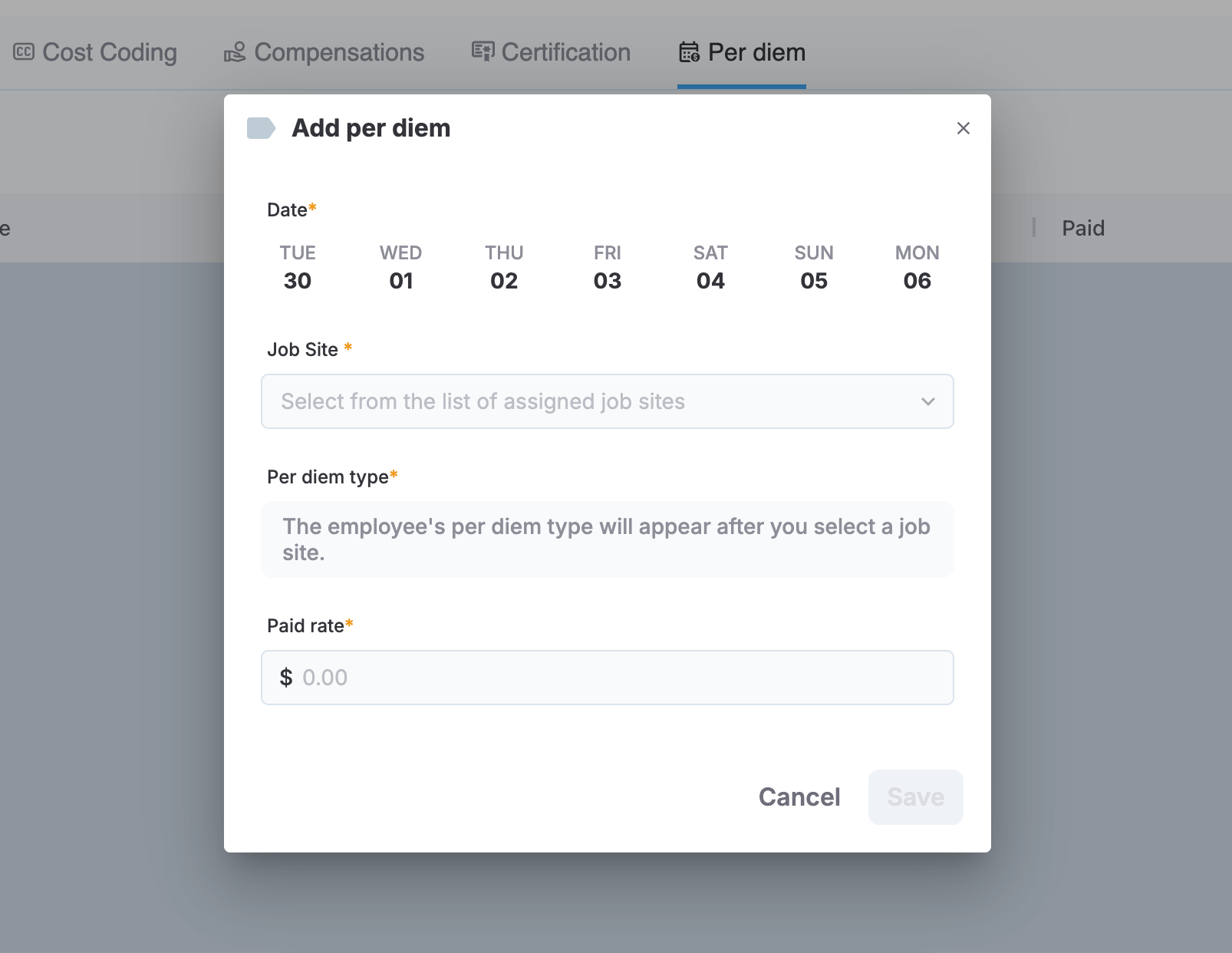
Adding per diem for the employee
What's new:
- Employee per diem tab: A new Per diem tab on the employee page shows every generated and calculated per diem record for that employee. Per diem no longer appears in employee timelogs.
- Daily and weekly display: Daily per diem shows as one row per day per job site. Weekly per diem shows as a single row dated to the last day of the payroll week.
- Paid vs. billable rates: Per diem rates can now be set up as a single paid rate, or split into separate paid and billable amounts. The paid rate is what the employee is paid, while the billable rate is what can be billed back to the project. Both amounts are tracked independently across rate setup, cost coding, and reporting.
- Manual adjustments: With the new Per Diem Adjustment permission, you can add a per diem entry for any job site, remove a calculated entry, or adjust a calculated amount directly from the employee's Per diem tab.
- Recalculation protection: When you manually edit an employee's per diem for a payroll week, that employee and week are skipped during the next recalculation, so your manual changes aren't overwritten.
- Job site level configuration: You can now enable or disable per diem for each job site, choose which of daily and weekly per diem are available there, and set rates by job title or as a job site default. Rate changes are effective-dated, and a full history is available, so you can see exactly what changed and when.
- Per diem cost coding: A new Per diem tab in the Cost coding module lets you assign cost codes to per diem entries, including on days with no worked hours. Each job site can be set to code per diem using labor cost codes or a default per diem cost code by job title or job site, and cost codes are assigned automatically with the option to manually override any entry.
- Payroll changes: Per diem is now included in payroll calculations, and the Payroll card for a job site includes a dedicated per diem paid amount column, so you can see exactly what each employee earned in per diem alongside their labor pay.
- Personal App visibility: Employees can now see their earned per diem on the Timecard screen in Personal App, alongside their daily and weekly hours. Daily per diem appears on the day it's earned, while weekly per diem appears once, dated to the last day of the payroll week. Each entry shows the job site that generated it.
- Paid-only display for employees: On Personal App, employees see only the paid amount, even when a job site uses paid and billable rates. Billable amounts never appear on Personal App.
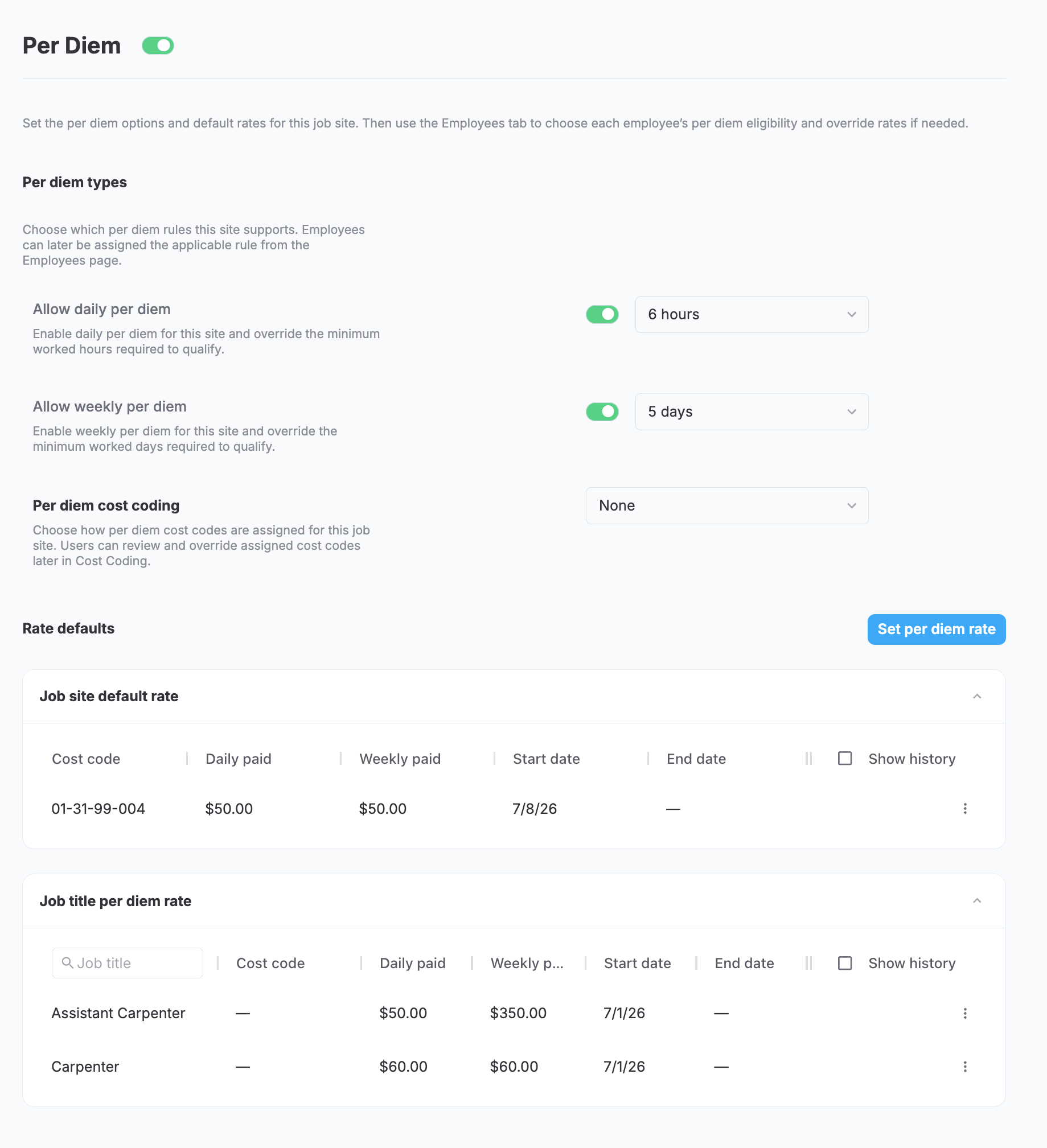
Job site per diem settings
Benefits
You get a single, dedicated place to review and correct an employee's per diem history without digging through timelogs, and your manual corrections stick instead of being overwritten by the next recalculation. Your field employees gain visibility into per diem they've earned without having to ask, which cuts down on payroll questions and helps them trust their paycheck.
See Per diem for more information.
Workforce module updates
This release brings several improvements to Workforce, including control over which job titles appear in planning and scheduling, a new exceptions view for spotting schedule mismatches, and refinements based on customer feedback.
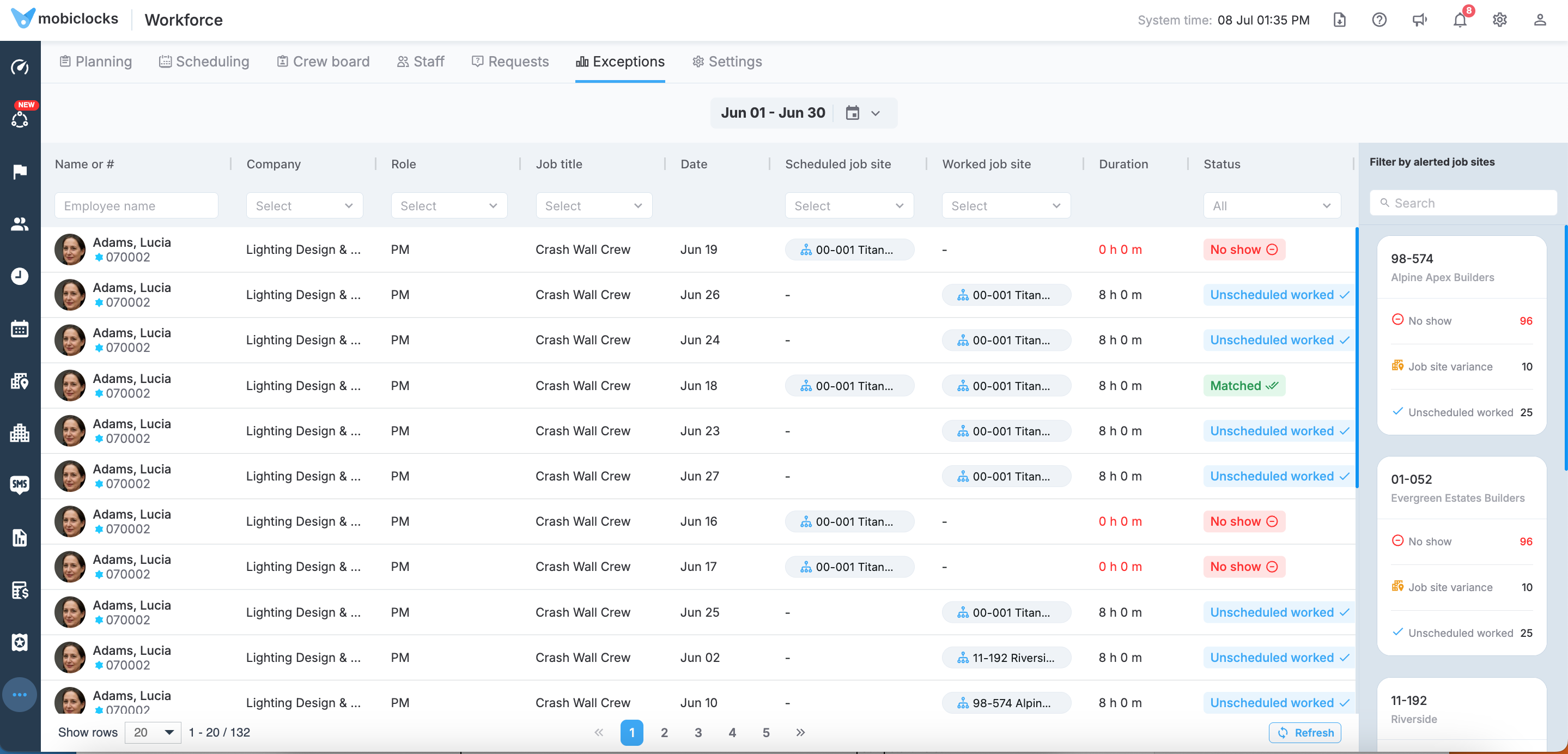
Exceptions tab
What's new:
- Job title visibility: A new settings sub-tab lets you control which job titles appear in Workforce planning and scheduling. Employees with a hidden job title are removed from the Planning tab, filters, dropdowns, and scheduling selections. A job title can't be hidden in a scope where an employee already has a schedule, so existing schedules are never orphaned.
- Scheduled vs. worked exceptions: A new read-only Exceptions tab in the Workforce module compares scheduled and worked job sites for a selected date range and flags each employee-day-job site combination as no show, matched, job site variance, or unscheduled worked. You can filter by employee, company, role, job title, job site, and status, or select a job site from the sidebar to see its exceptions across both columns. Results are exported to XLSX with all filters applied.
- Historical schedules on the baseball card: The baseball card now shows an employee's historical schedules, so you can quickly reference where they were scheduled last.
- Disabled employees stay visible on past schedules: Employees who are disabled remain visible on schedules they were already assigned to, for historical reference. They can't be selected or edited going forward.
- Reduced visual noise on Scheduling: The "no schedules" section is now collapsed by default, while employees with assigned schedules stay visible.
Benefits
You get a Workforce module that matches how your organization actually operates: schedulers only see job titles that are relevant to each org unit, and mismatches between scheduled and worked time surface in real time instead of after the fact in a report.
Early payroll approval for employees
You can now process an employee's payroll early for a specific week, right from MobiClocks, without risking duplicate payment later in the standard payroll run.
What's new:
- Early approval: From the Employee Timelogs screen, payroll personnel can approve an employee's timelogs for the current week ahead of the regular payroll cycle. Approval runs the same validations as a standard payroll run, including cost codes and payroll item mapping, and is blocked if any validation fails.
- Locked timelogs: Once a week is early approved, no time can be added or edited for that employee for that week.
- Undo: Early approval can be undone within the current week, as long as the job site's payroll hasn't fully processed. Undoing an approval unlocks the timelogs, restores their pre-approval state, and clears the check number and issued date.
- Check details: After approval, you can record a check number and check issued date from the Employee Timelogs screen. These fields stay editable for past weeks, too.
- Payroll card visibility: The job site payroll card shows a label when at least one employee has an active early approval, and those employees are highlighted in the job site payroll view.
Note: If your organization uses custom payroll reports, or if you require custom employee reports that exclude employees who were paid early, please contact MobiClocks Support to review compatibility with the Early payroll approval feature.
On-site vs. off-site designation for cost coding
You can now designate individual cost-coded time allocations as on-site or off-site, so payroll tax treatment can follow where an employee actually worked instead of the job site's location.
What's new:
- Administration setting: A new setting under Administration > Payroll > Payroll settings turns on-site/off-site designation on or off for your environment.
- Pay ID eligibility: Each pay ID has an Eligible for offsite setting, so you can control which pay IDs are marked off-site.
- Allocation-level designation: When enabled, an On-site/Off-site checkbox appears on each cost-coded allocation in the Cost coding module. This lets you split a single day's timelog, for example, marking the worked portion on-site and a sick pay portion off-site, even when both are coded to the same job site.
- Default designation: Allocations default to on-site unless marked otherwise.
- Payroll visibility: The Payroll detail view shows an On-site/Off-site column reflecting each allocation's on-site or off-site status, whenever the feature is enabled.
- History and permissions: Designation changes are recorded in the allocation's coding history. Setting the designation follows your existing cost coding edit permissions, and the master toggle and pay ID eligibility settings follow existing payroll and administration permissions.
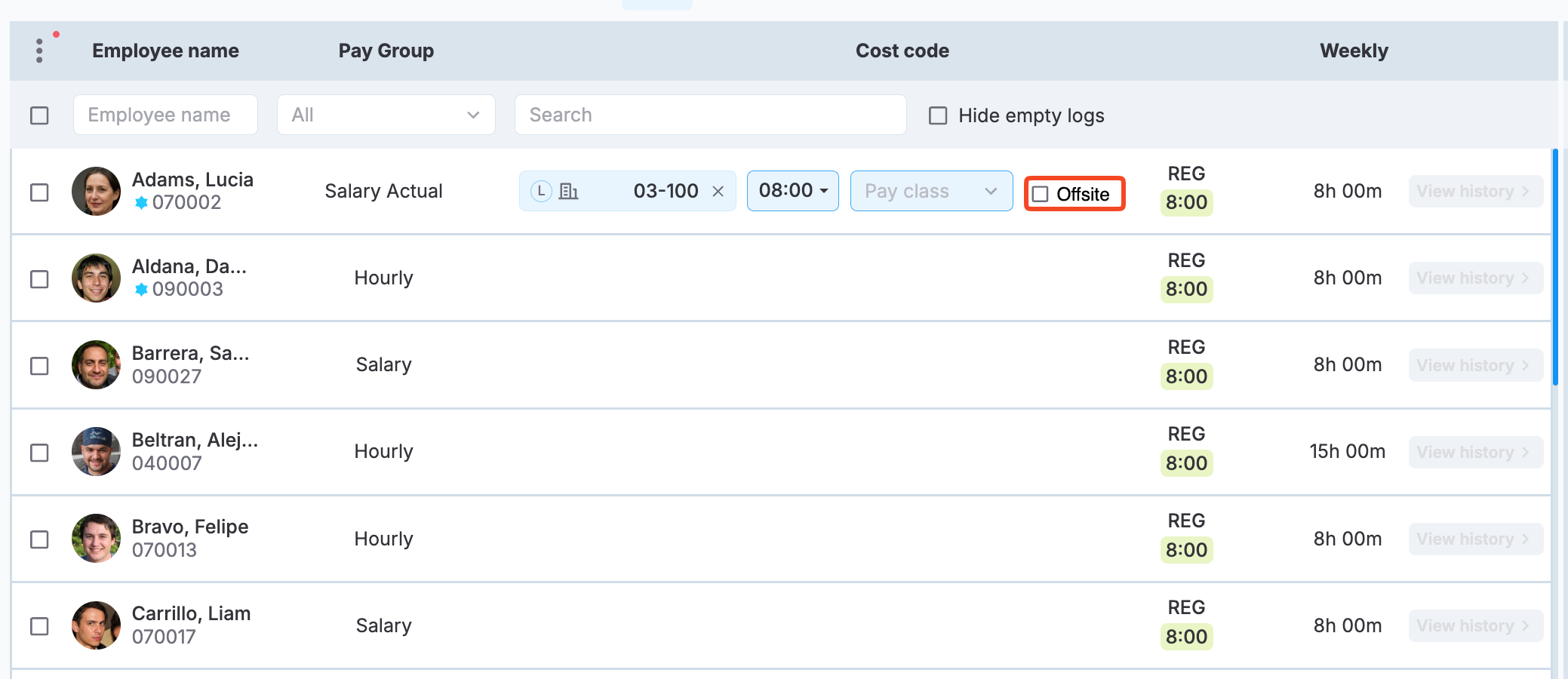
Offisite checkbox in cost coding
✅ Improved
Production quantity unit of measure
Unit of measure options are now easier to understand and set up, reducing the risk of entering production quantities against the wrong unit.
What changed:
- Unit of measure descriptions: Each unit of measure can now have a description explaining what it means. The description appears as a tooltip when you hover over the unit on the Production quantity page, so you can confirm you're selecting the right one before entering data.
- Clearer unit of measure setup: The unit of measure setup screen, under Administration > Production quantity > Unit of measure, has an improved layout that makes it easier to tell a unit's name apart from its description.
- Synced unit visibility: Units of measure that come from a synced source now show that source on the Administration screen, so you can tell at a glance which units are managed externally. You can filter the unit of measure dropdown by synced source.
- Synced units are read-only: Action icons are no longer available for synced units of measure, since these units can't be edited from MobiClocks directly.
Setting pay classes in Cost coding
Setting pay classes on the Cost coding screen is now faster, especially when working across many employees or a large pay class library.
What changed:
- Search within the pay class dropdown: You can now type to filter the pay class list instead of scrolling through it, with partial matches supported.
- Bulk pay class assignment: You can select multiple employee rows and apply a pay class to all of them at once, instead of setting it row by row.
- Bulk hours update: Changing hours on a cost code row now applies the same change across all selected rows that share the same cost code, saving repetitive entry.
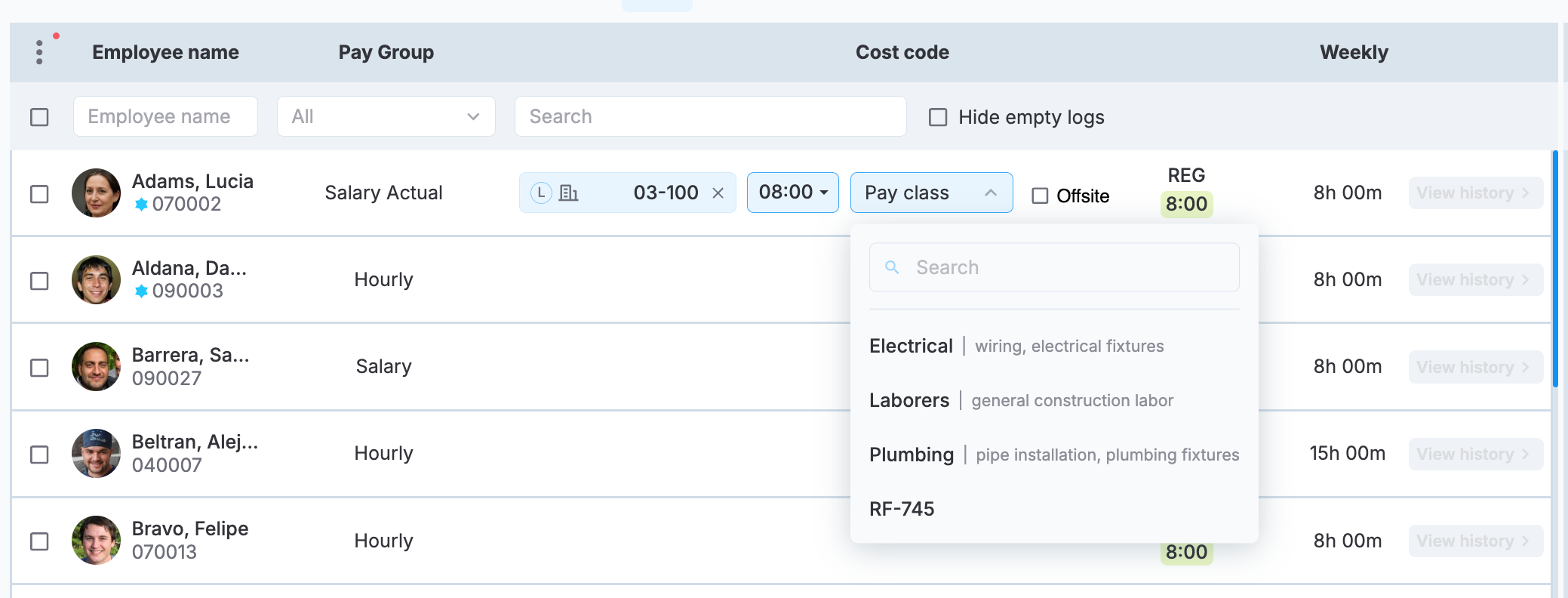
Pay class selection
Selected job site indicator
On pages with a job site navbar, it's now easier to keep track of which job site you're viewing when you have access to many and scroll through a long list.
What changed:
- Pinned job site indicator: The selected job site now stays pinned near the top of the page, next to the date range, so it stays visible as you scroll.
- Consistent across screens: The pinned indicator applies to all the Web App pages with a job site navbar, including Timelogs, MobiLink, Cost coding, and Production quantity.
Unsaved changes warning on Cost coding
Leaving the Cost coding screen with unsaved work is now more forgiving. If you try to leave the screen with unsaved changes, the warning dialog now offers to save and continue, stay on the page, or discard the changes and continue, so you don't have to go back to the screen just to save. You're less likely to lose work by accident, and you no longer have to backtrack to the Cost coding screen just to save changes before moving on.