
June 2026: Permission center, MobiLink module, and more
This release introduces several significant additions to MobiClocks, including Permission center for viewing and managing employee and user permissions across your organization. The release also brings a redesigned MobiLink experience, with subcontractor data now accessible from a dedicated sidebar module and new per-company sharing controls that let subcontractors decide exactly what data their GC sees. Further on, cost coding now includes a full action history so teams can track and collaborate on how time was coded, and report downloads run in the background with a persistent progress indicator and download history. Lastly, we have made improvements to MobiLink navigation and company permissions, audit log performance, and a range of usability updates across the Workforce module.
🆕 New
Permission center
Web App now includes Permission center, a dedicated dashboard that provides a centralized view of all employee permissions (those with a user account) and user permissions. Use it to see which permissions each person has, identify where a permission differs from the role default, and update or reset individual permissions without leaving the employee list.
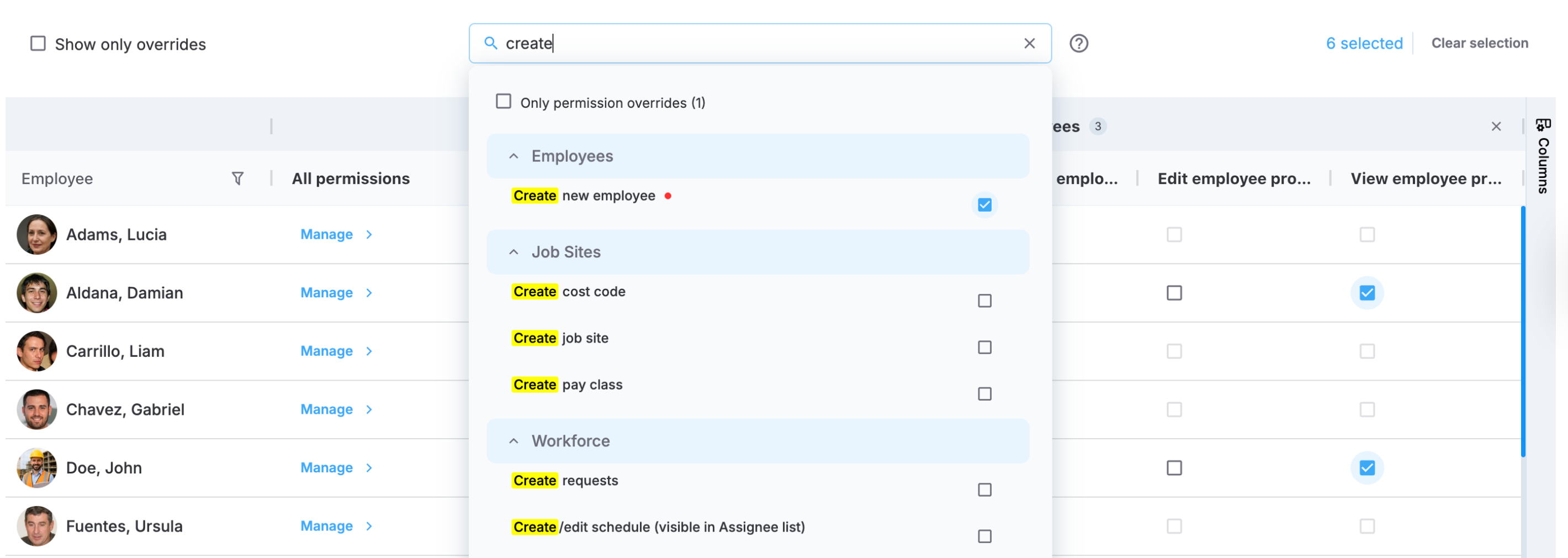
Permission center
What's new:
- Centralized permissions view: Access Permission center from the Employees page to see every employee's and user's permissions in one table, including their role, org unit, and company.
- Configurable permission columns: Use the Search permissions field to add any permission as a column, organized by module. A red dot next to a permission name indicates at least one employee in your current view has that permission overridden.
- Inline permission editing: Select or clear any permission checkbox directly in the table to override that permission for a specific employee. When a permission is overridden, an override indicator appears next to the checkbox showing who applied the change and when.
- Override filters: Use Show only overrides to focus on employees whose permissions differ from their role defaults. In the permission search dropdown, select Only permission overrides to surface only permissions with active overrides.
- Employee filtering: Filter the table by employee name, company, or role to narrow your view.
- Manage employee permissions panel: Select Manage for any employee to open a dedicated panel showing all permissions organized by module, with last-modified details. Switch to the Overrides only tab to see just the permissions that have been individually overridden for that employee.
Benefits:
- Quickly audit permission overrides across your entire organization without opening individual employee profiles.
- Identify employees whose permissions differ from their role defaults at a glance, reducing the risk of misconfigured access.
- Update or reset permissions for any employee directly from the table, saving time when managing large teams.
MobiLink standalone module
General contractors can now access all subcontractor data from a dedicated MobiLink module in the left sidebar, replacing the previous MobiLink tab inside job site details. This makes navigating to shared subcontractor activity faster and more direct.
What changed:
- Dedicated sidebar module: MobiLink now appears as a standalone module in the left sidebar, visible when MobiLink is enabled, at least one subcontractor is connected, and you have the MobiLink tab view permission.
- Consolidated subcontractor data: Select any connected job site from the left panel to view employee activity, punch times, crew tags, job titles, and subcontractor details — all in one place.
- Removed MobiLink tab from job site details: Subcontractor data is no longer accessed through the Job Site page. All MobiLink activity is now centralized in the new module.
- Employee company sharing: Subcontractors can now control how each company's data is shared with their GC on a per-job-site basis. Each company has two independent controls — Share data, which includes or excludes the company's employee records from the share, and Display company name, which controls whether the GC sees the company's actual name or the subcontractor's environment name instead.
Cost coding history
A new history log is now available for cost coding and pay class changes, making it easier for teams to track and collaborate on how time was coded.
What's new:
- View history: A View history action appears next to cost-coded timelog entries. Select it to view a log of all cost coding and pay class actions for that entry, including who made each change and when.
- Logged actions: The history tracks cost codes being added, changed, removed, or auto-applied, as well as pay class additions, changes, and removals.
- System actions: When a cost code is auto-applied based on job site settings in Administration, the history entry is attributed to System.
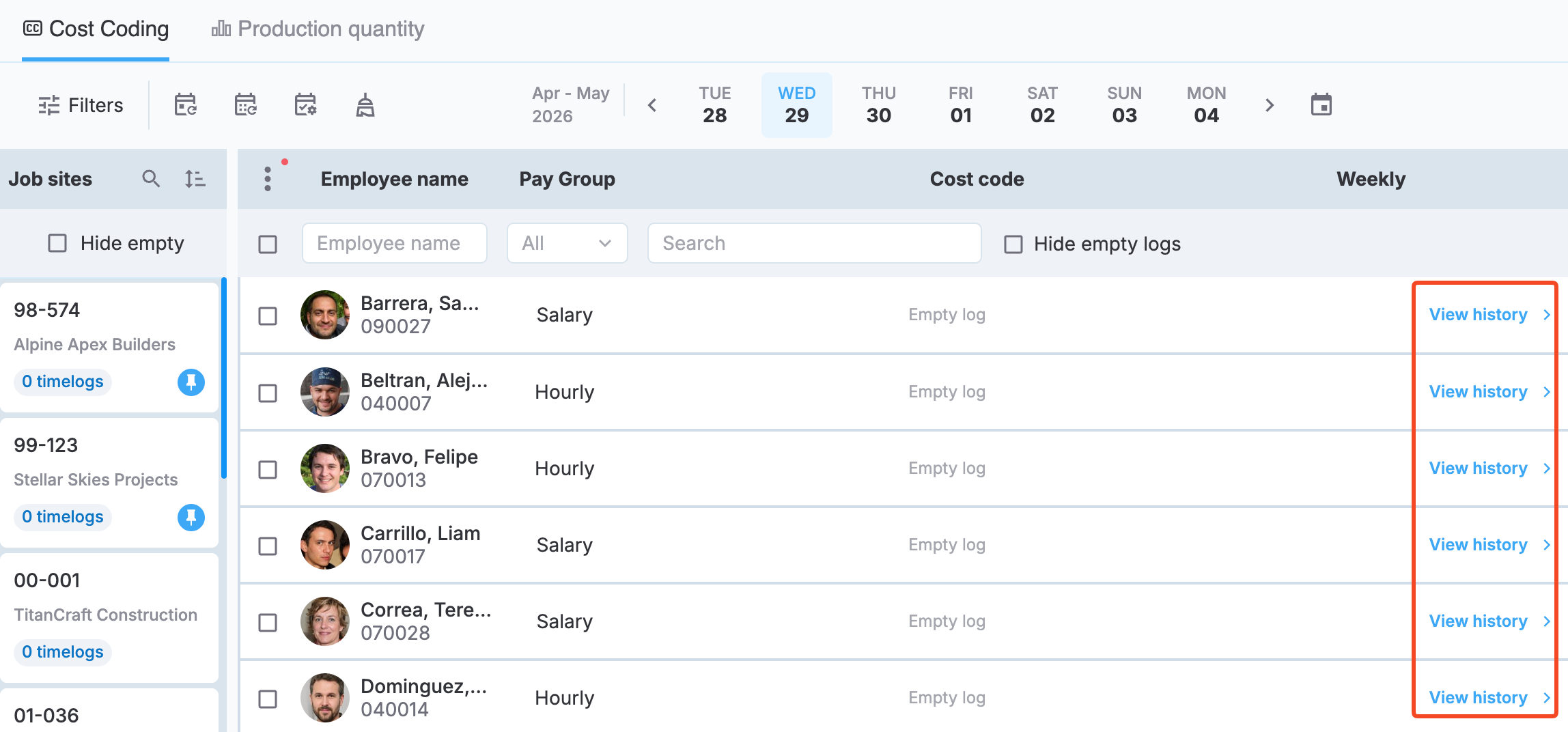
View history action in Cost coding
Pay Class Changes report
The new Pay Class Changes report provides an audit history of pay class assignment changes, helping payroll and administrative teams identify what changed, who changed it, and when. The report is available in Excel and covers two areas: cost coding pay class changes and job site employee pay class changes, each on a separate tab.
Export role permissions to Excel
The Role Permissions list in Administration can now be exported to Excel.
✅ Improved
Report download experience
Report downloads now run in the background with a persistent progress indicator, so you can continue working without waiting for a report to finish generating.
What changed:
- Background downloads: Reports generate in the background while you change filters or continue working. A persistent indicator at the top of the page tracks active downloads.
- Duplicate request prevention: The download button is disabled while a report is being prepared and re-enables automatically when filters change, or when the process completes or fails.
- Download history: A new history section lets you view previous report requests, check their status, and re-download completed reports. Statuses include
In progress,Ready, andFailed.
Workforce module updates
Several usability and UI improvements have been made across the Workforce module.
What changed:
- Planning tab input behavior: Cell selection, arrow key navigation, Enter key saving, and click-outside saving have all been refined for a smoother planning experience. Job title search is now available when adding job titles to planning.
- Bench and scheduling UI: The bulk move to Bench dialog now displays all selected employees and introduces the ability to move multiple employees to the bench at once. Drag-and-drop scheduling highlighting and selection logic has been updated, and the Bench and Staff icons have been refreshed.
- Tab redesign and hover states: Main and sub-tabs on the Workforce job site view and main module have been redesigned. Scheduling cells now show a hover state to make their interactivity clearer.
- Schedule creation dialog: The schedule creation dialog has been redesigned with an updated layout and now supports drag-and-drop scheduling directly within the dialog.
- Planning tab: The Planning tab, including the scheduling section, has been redesigned with an updated layout.
Synced source visibility in Employee Setup
Job Titles and Pay Classes in Administration > Settings > Employee Setup now include a Synced source column, making it easier to distinguish between manually created records and those synced from an integration.
What changed:
- Synced source column: Job Titles and Pay Classes each display a new Synced source column indicating which integration a record was synced from, or that it was created manually.
- Synced source filter: Use the new filter to narrow the list by source. All records are shown by default.
Assigned job sites search and collapsible sections
The Assigned job sites section in employee profiles is now easier to navigate when an employee is assigned to many job sites.
What changed:
- Search bar: A search bar lets you quickly find a specific job site without scrolling through the full list.
- Collapsible sections: Job site groups can now be collapsed and expanded, keeping the list manageable when assignments exceed 20 entries.
Payroll bulk approval reliability
Triggering bulk approval multiple times in quick succession no longer results in duplicated hours. The system now prevents concurrent bulk approvals for the same dataset, disables the button immediately on click, and persists the processing state across page refreshes so that interrupted approvals can be resumed correctly.
Last known GPS location on the timeline
When GPS tracking is active, the timeline now shows the employee's last known location on the map, giving you visibility into their most recent position even when real-time location updates are unavailable.
Move leave requests to a different job site
Leave requests can now be moved to a different job site, including in bulk using the existing Change Job Site functionality.
Audit log performance
Audit logs now load faster, and calendar selection has been improved for a smoother experience.
User Agreement Updated (Version 1.3)
The MobiClocks User Agreement has been updated to Version 1.3. All users with an account will be required to review and accept the updated agreement before continuing to use the platform.
View the updated User Agreement: https://mobiclocks.com/user-agreement/