
March 2026: Phone number sign-in, employee permissions, and more
This release introduces Phone number sign-in, giving employees a new way to access MobiClocks using a one-time password sent via SMS. The release also brings notable improvements to permission management in employee profiles, making it easier to identify, review, and reset individual permission overrides. Alongside these, this release includes a range of refinements to cost coding terminology, job site settings, and other areas.
🆕 New
Phone number sign-in
Employees can now sign in to MobiClocks (Personal App, Web App, and Admin App) using their phone number and a one-time password (OTP) sent via SMS, in addition to the existing email and password method. This is particularly useful for field workers who may not have corporate email addresses or prefer a faster sign-in experience without managing a password.
What's new:
- Phone number sign-in method. Administrators can enable phone number sign-in for any employee user account from the Account & Access tab in the employee profile. Instead of a password, the employee receives a temporary numeric code via SMS each time they sign in. Both sign-in methods can be active simultaneously for the same account and managed independently.
- Flexible account setup. When creating an account, administrators can set up one or both sign-in methods at the same time. If a phone number or email address is already in the employee profile, it's prefilled automatically. If either is missing, it can be added directly during account creation and is saved to the employee profile automatically.
- Simple activation. After the phone number method is set up, the employee receives an SMS with activation instructions. The method shows as
Pendinguntil the employee completes their first sign-in. - Quick, passwordless sign-in for employees. Once activated, employees simply enter their phone number on the sign-in screen and receive a new OTP via SMS.
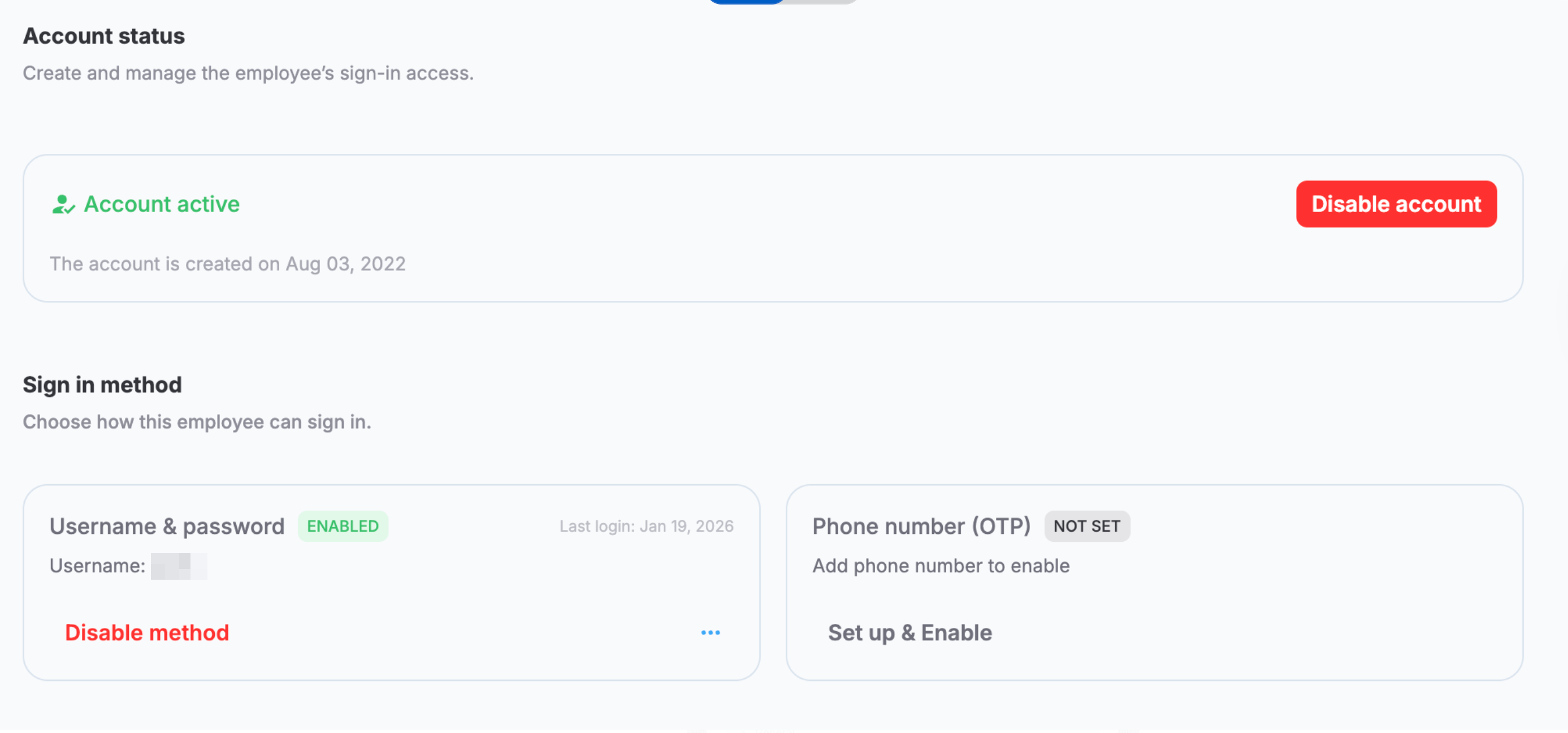
Sign-in methods in employee profile
✅ Improved
Improved permission override visibility in employee profiles
The Role permissions dialog in the employee profile has been updated to make it easier to identify and manage permissions that have been overridden from the role's defaults.
What changed:
- Override indicator. A red dot appears next to each permission that has been overridden from the role default.
- Show only overrides filter. A new Show only overrides filter in the Role permissions dialog displays only overridden permissions, along with a count of how many overrides exist.
- Override count shortcut. If an employee has any overridden permissions, the count appears next to Role permissions in the employee profile. Selecting the count opens the Role permissions dialog with Show only overrides pre-selected.
- Reset to default. A new Reset to default option resets all overridden permissions back to the defaults defined by the employee's role.
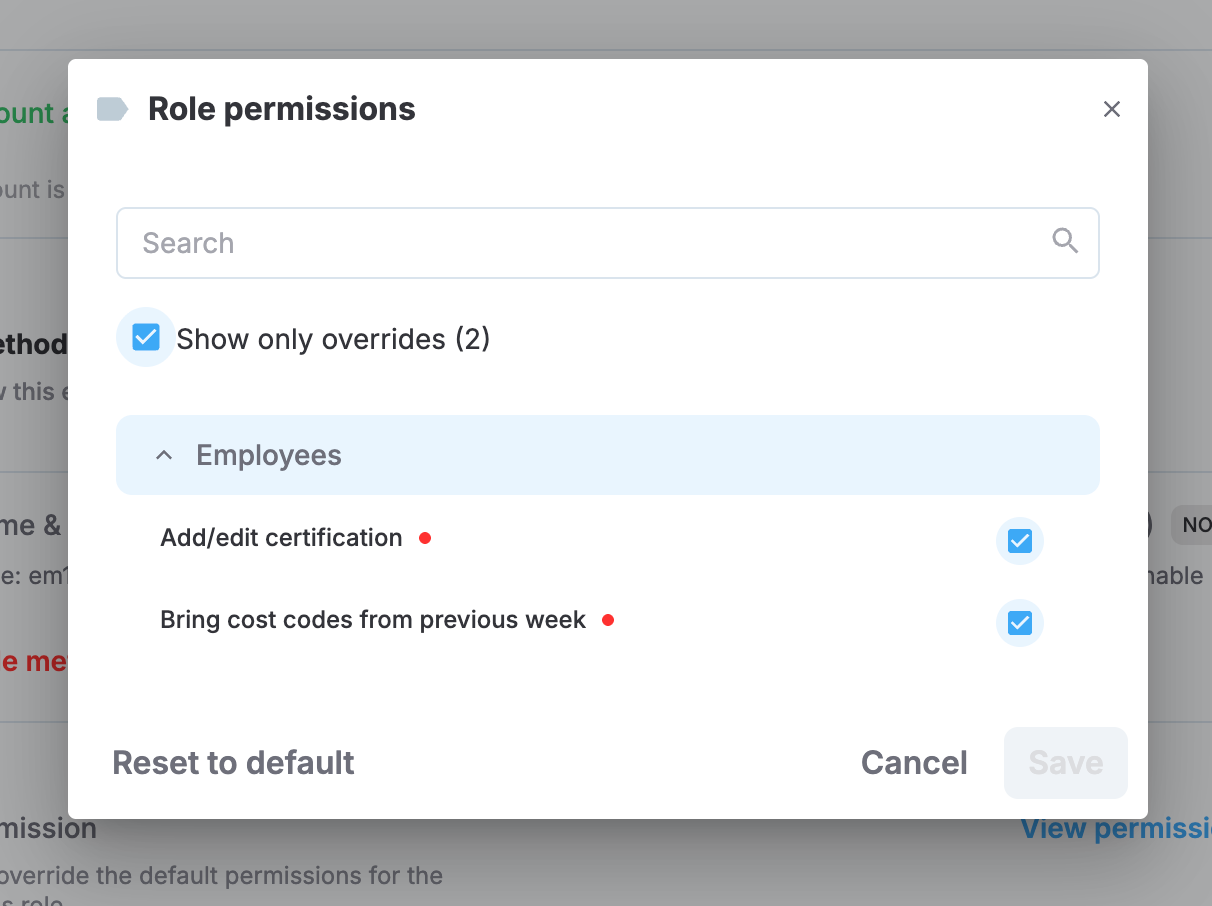
Role permissions dialog with override indicators and Show only overrides filter applied
Renamed "Building" to "Group" in cost coding
The Building field in cost coding has been renamed to Group across all the MobiClocks apps and all reporting outputs. This includes all label variants, such as Building, Building Name, and Building Code, which now appear as Group throughout forms, column headers, tooltips, import/export templates, and reports.
The following standard reports have been updated too:
- Labor Production
- Productivity
- Weekly Payroll
- Timecard Summary
No changes have been made to data or underlying behavior.
Independent control of "Lock hours" and "Auto-adjust punches to work hours"
The Lock hours and Auto-adjust punches to work hours settings in job site settings can now both be disabled at the same time. Previously, disabling both simultaneously was not possible.
For example, when employees punch through Kiosk App outside of scheduled job site hours, and both settings are disabled, the punched times are recorded exactly as entered without being automatically adjusted to match job site hours.
"Ignore job site hours policy" applied for Kiosk App
Employees with the Ignore job site hours policy setting enabled no longer receive Out of working hours flags for Kiosk App punches.
Updated column headings in Production quantity overview
Column headings in Cost Coding > Production quantity > Overview have been renamed to better reflect standard job cost terminology:
- JTD Hours → Prior JTD hours
- JTD Units → Prior JTD units
- Total Hours → Total JTD hours
- Total Units → Total JTD units