
October 2026: Shift management, Report Scheduler, and more
This release brings shift management to MobiClocks, so you can run multiple shifts on a job site, assign employees to them, and carry shift differential hours through to payroll. Report Scheduler moves to Reports and opens up to front-office users with new export reports, filters, and current-day scheduling. Overtime and double time hours now have their own pay classes and cost codes. This release also adds backdated job site assignments, one-step default cost codes for per diem, and new bulk actions on the job site Employees page.
Shift management
Shift management is a major update that brings full support for multi-shift job sites to MobiClocks, from setup through payroll. Define the shifts that run on each job site and assign employees to them, and MobiClocks records the shift on every timelog, calculates shift differential hours automatically, and carries them through to payroll, so you no longer need to track shifts or premium pay by hand.
What's new:
- Shift configuration: Set up shifts in Job site > Working Hours > Shift configuration. Each shift has a name, an ID, start and end times, and an optional shift differential. This section appears when the job site's Working Hours policy is turned on.
- Weekly schedule: Choose the days each shift is open. New shifts are open all seven days by default.
- Shift assignment: Assign a shift to one employee or to many at once from Job site > Employees, using the grid's existing filters, such as job title or crew tag. Assignment is optional. Employees without a shift follow the job site's default working hours.
- Effective dates: When you assign or change a shift, choose an effective date from the start of the current payroll period up to today. MobiClocks recalculates the employee's timelogs from that date forward, including the shift name, differential hours, and flags.
- Punch eligibility: Employees with an assigned shift follow the shift schedule instead of the job site's overall working hours. If the job site is closed for the day but the shift is open, the employee can still punch in.
- Shift flags: Turn on flagging for shifts and set a grace period in the job site's Working Hours settings. Punches outside an employee's shift then raise the Out of Working Hours flag, which follows the same rules as the job site's default schedule, including Critical status and its effect on payroll approval.
- Shift differentials: Create differential Pay IDs in Administration > Pay IDs, and then link one to a shift to track premium hours for specific shifts, such as nights.
- Differential calculation: For employees assigned to a differential shift, MobiClocks calculates differential hours as the payable time between the shift's start and end times on days the shift is open. Differential hours are part of worked hours and never add to the total. For example, if a shift runs from 6:00 PM to 10:00 PM and an employee works from 12:00 PM to 8:00 PM, the timelog shows 8 regular hours, 2 of which are differential hours.
- Timelogs and payroll: Differential hours appear on the timelog next to worked hours with their Pay ID, and as a separate line for the differential Pay ID on the Payroll page.
- Payroll approval: Differential hours aren't cost coded and don't block payroll. They appear as non-cost-coded items during payroll approval and job site review.
- Reports: The Employee Timecard report now includes shift differentials. In addition, the following reports have been updated to reflect the introduction of shifts: Timecard Summary, Punch Details, Employee Missed Punch, and Hours Summary.
- Shift visibility: See the assigned shift on the Timelogs grid, in Employee > Timelogs, on the Payroll page, and in the job sites list on the employee profile.
- Mobile apps: Employees can see their assigned shift in Personal App, and assigned shifts appear on the roster in Kiosk App.
- Moved and split timelogs: When you move or split a timelog to another job site, the new portion uses that job site's shift settings and the employee's assignment there.
- Deleting: You can delete a shift only when no employee is assigned to it, and no timelog references it. Differential Pay IDs work the same way: you can't delete one while it's linked to a shift.
- Copy job site settings: Shifts are included when you copy settings from one job site to another.
- Working Hours Lock: You can't turn on Working Hours Lock while a job site has an active shift. Creating the first active shift turns the lock off automatically.
- Permissions: Shift management doesn't add new permissions. Managing shifts requires the existing Edit Job Site Hours permission, and assigning shifts requires no additional permission.
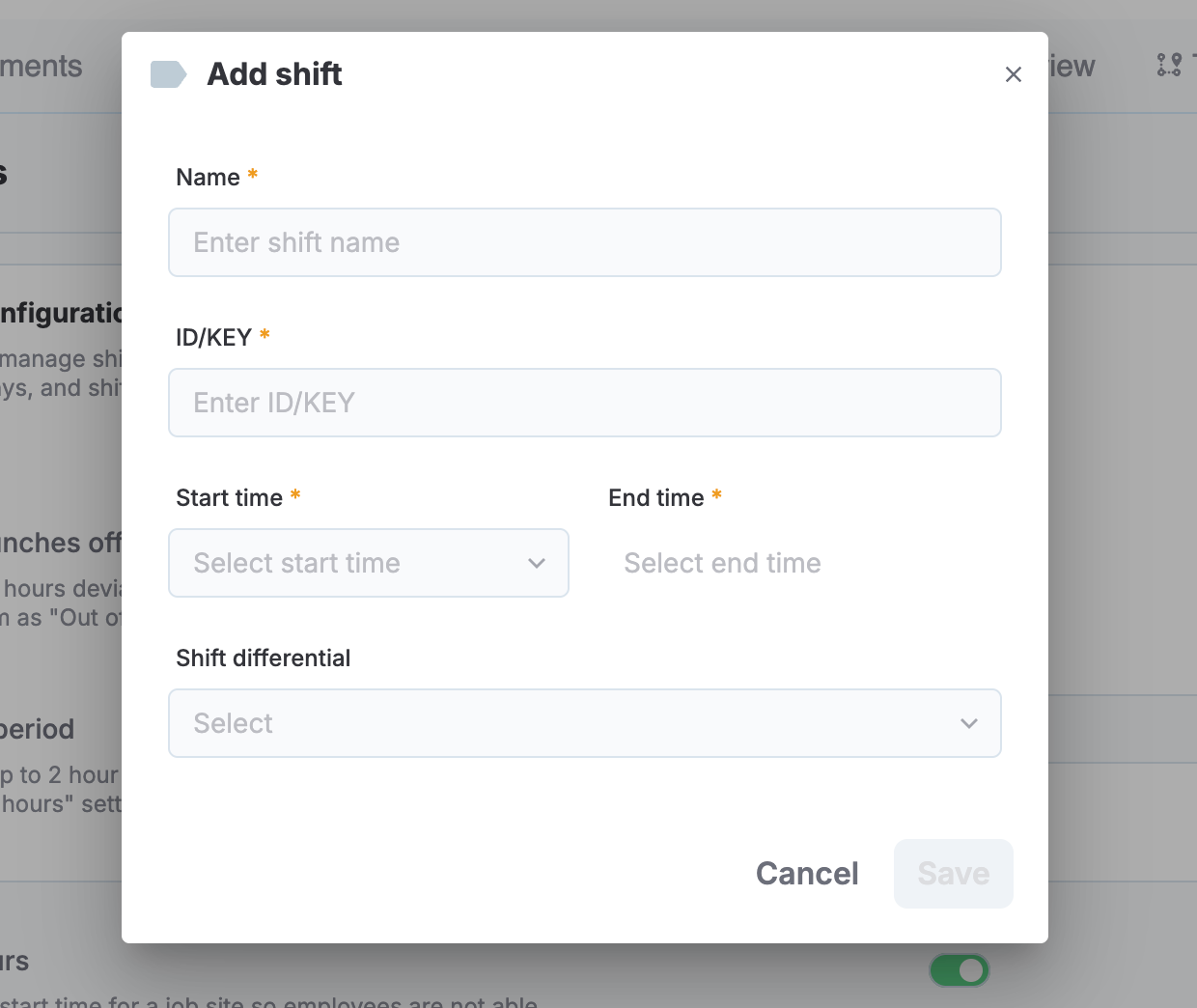
Shift creation dialog in job site settings
Report Scheduler
Report Scheduler moves from Administration to Reports and opens up to more of your team. Project managers and other front-office users can now schedule the reports they need, and new export reports, filters, and delivery options give you more control over what's sent, to whom, and when.
What changed:
- New location: Find Report Scheduler in Reports > Report Scheduler. It's no longer available in Administration.
- Schedule from the dashboard: Select Schedule next to any Dashboard report to start a new schedule with that report already selected.
- Access: The new Manage Report Scheduler permission controls who can view and set up schedules. It's on by default for back-office roles, and you can grant it to front-office roles, such as project managers. Users can schedule only the reports they have permission to run.
- Ownership: Front-office users see and manage only their own schedules. Back-office users can manage any schedule within their organization unit and job site access.
- Schedules list: See each schedule's owner, name, type, report, format, recurrence, recipients, and the status of its three most recent runs.
- Display time zone: Choose whether schedule times appear in the system time zone, your local time zone, or UTC.
- More reports: Data exports now include Clocks Export, Employees Export, Job sites export, and Production Quantity Export. Payroll reports can't be scheduled.
- Run history: Review every run of a schedule, download the generated files, and view detailed delivery logs grouped by company, job site, or SFTP.
- Run statuses: Each run shows Success, Completed with errors, or Failed, so you can quickly spot reports that weren't delivered or had no data. A failed run doesn't stop the schedule.
- Audit logs: Changes to schedules are recorded in Administration > Audit Logs.
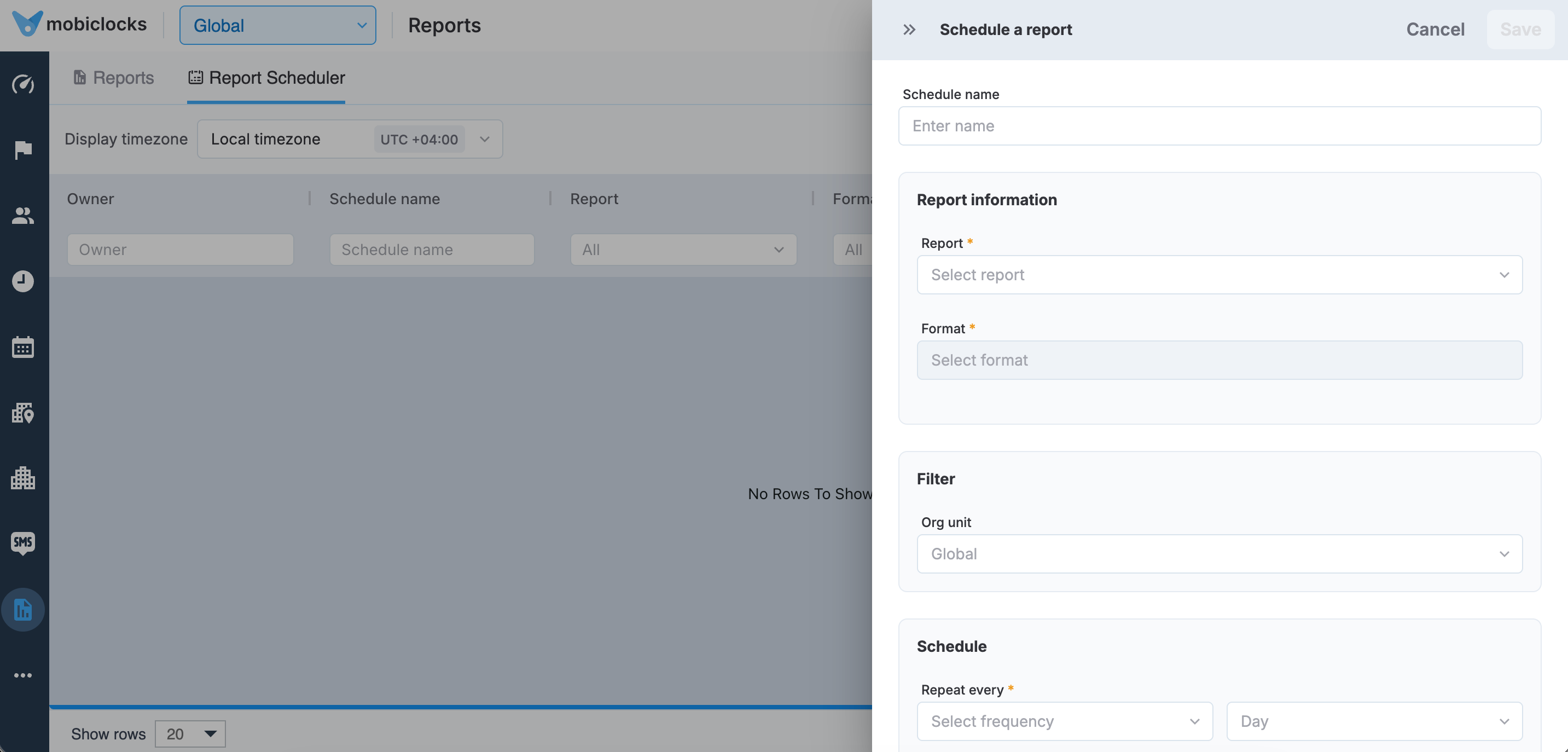
Updated report scheduler
Overtime and double time calculation
Overtime (OT) and Double Time (DT) hours are now handled as distinct hours throughout MobiClocks, with their own pay classes, cost codes, and visibility on timelogs. You get more accurate payroll and job costing when employees work beyond their Regular (REG) hours.
What changed:
- Hours by Pay ID: The Hours column on the Timelogs page and in Employee > Timelogs now shows hours by Pay ID, such as REG, OT, and DT, along with the total.
- Separate default pay classes: Turn on the new Separate default pay classes for OT and DT setting in Job site > Settings to assign different default pay classes to REG, OT, and DT hours. The setting is off by default. When it's off, the employee's default pay class applies to all hours.
- Default pay class per Pay ID: With the setting on, set each employee's default pay class for REG, OT, and DT in Job site > Employees. If you leave the OT or DT default pay class empty, MobiClocks doesn't fall back to the REG pay class, and the pay class for those hours stays blank.
- Cost coding: A default cost code now applies to the REG, OT, and DT hours of the timelog.
- Pay class changes report: A new Type column shows whether each pay class change applies to REG, OT, or DT hours.
Cost code labels
Organize and find cost codes faster by adding labels to them. Create labels for each job site, assign them to cost codes, and filter the Cost coding module by label to see only the cost codes you need.
What's new:
- Label setup: Create, edit, and delete labels in Job site settings > Cost code labels. Each job site has its own label list, with no limit on the number of labels. A label has a name only, with no color. Label names must be unique within a job site.
- Editing and deleting labels: Editing a label name updates it on every cost code that uses it, without a confirmation. Deleting a label asks you to confirm, then removes the label from every cost code it was assigned to.
- Label assignment: Job site > Cost codes has a new Label column, which is on by default and can be managed in the Column settings. A cost code can have any number of labels.
- Ways to add labels: Add labels inline in the table, with the Add label bulk action, or in the Create cost code and Edit cost code dialogs. You can also add labels during cost code import. The bulk action adds to a cost code's existing labels and never replaces them. Labels can't be removed in bulk. The label picker shows only labels from the current job site.
- Integrations: Labels can be added and edited on cost codes synced from integrations. Integrations don't change labels, and imports or updates keep the labels already assigned.
- Labels on cost code cards: Each cost code card in the Cost coding module shows its assigned labels.
- Job site copy: Cost code labels are a new option in Job site copy. Only the label list is copied, not the assignments. If the target job site already has labels, MobiClocks merges the lists and skips duplicates. When you copy cost codes from another job site, their labels aren't copied with them.
- Crew tags layout: The Crew tags section in Job site settings now uses the same layout as Cost code labels. Only the layout changes. Crew tags keep their colors and current behavior.
- Permissions: A new permission, Manage cost code labels, controls who can create, edit, and delete labels. It's enabled by default for back-end roles. Without it, the Cost code labels section is view-only. Assigning labels in Job site > Cost codes uses the existing Edit/Delete cost code permission. Without that permission, labels can only be viewed.
- Export: Labels are included in the cost code export.
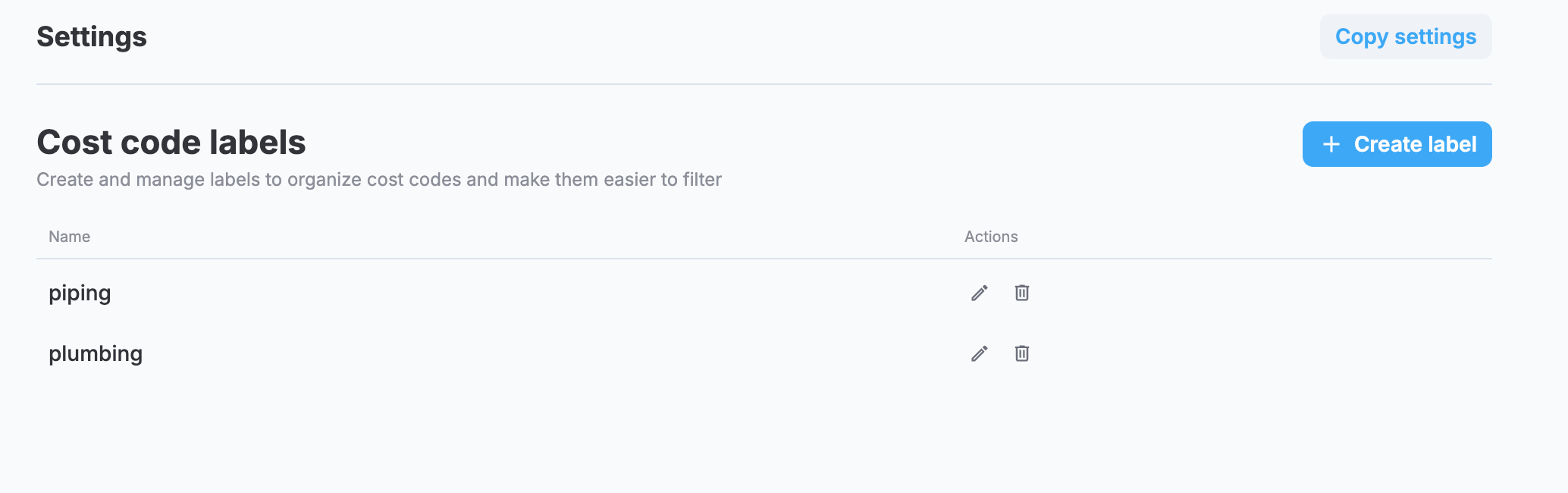
Cost code labels section in job site settings
Field rules for the Acumatica integration
Control which Acumatica data reaches MobiClocks and how it looks when it arrives, field by field, for employees, job sites, cost codes, and payroll items.
What's new:
- Field rules: Manage field rules in Administration > Integrations > Acumatica > Sync rules, with a separate tab for each record type: Employee, Job site, Cost code, and Payroll item.
- Sync and import control: Choose whether each Acumatica field syncs to MobiClocks and whether it's imported. A field that doesn't sync never reaches MobiClocks։
- Unavailable fields: A dash shows that Acumatica doesn't provide the field for that action.
- Transform rules: Clean up field values during sync with trim whitespace, uppercase, lowercase, capitalize, or replace rules. Rules run from top to bottom, so you can combine several on one field.
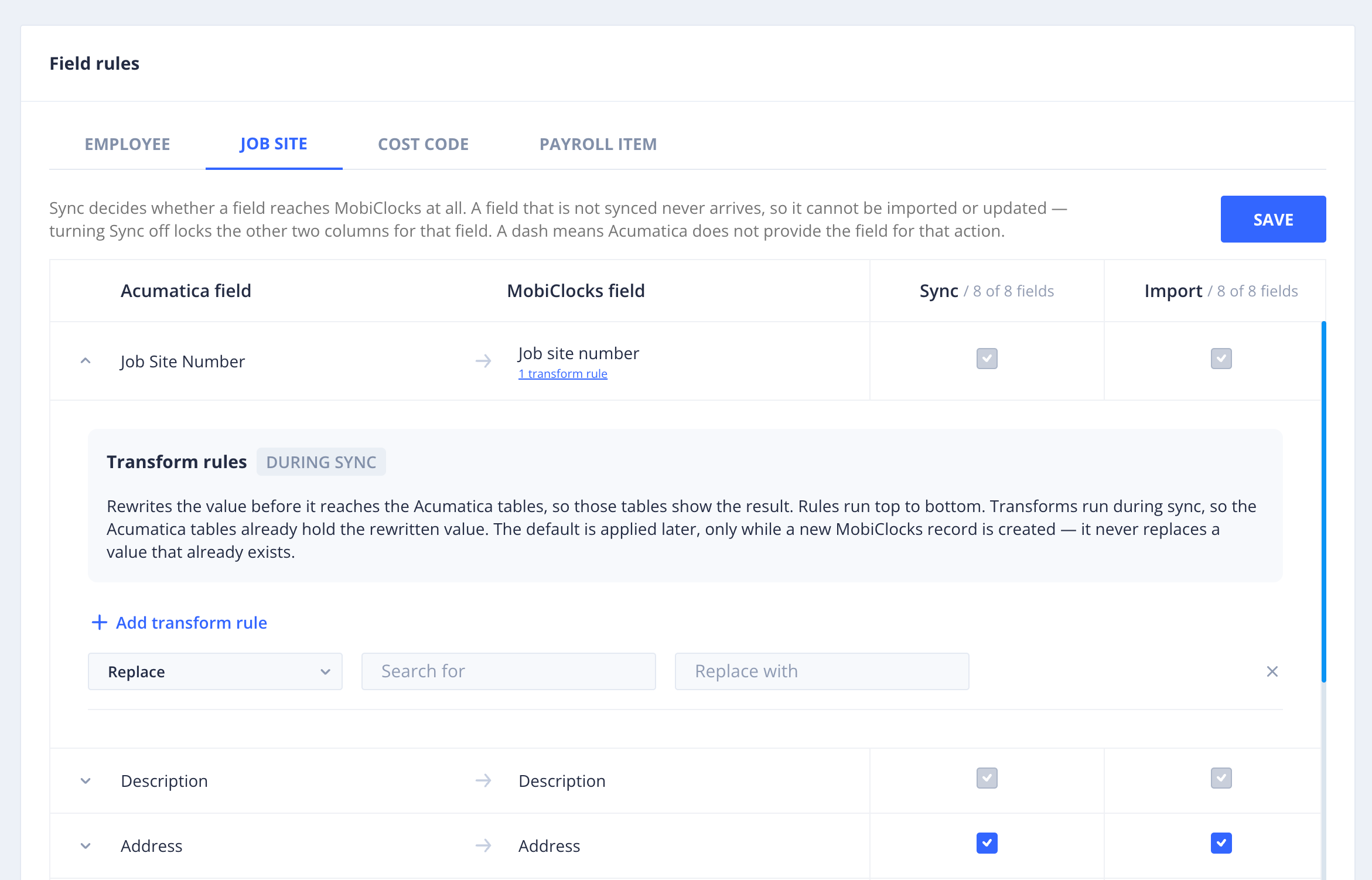
Adding a Replace rule for the job site
Apply default cost codes to per diem entries
You can now cost code per diem entries in one step instead of waiting for the automatic process or dragging cost codes onto each entry by hand.
What changed:
- Apply Default Cost Codes action: Select per diem entries in Cost Coding > Per Diem, and then apply their default cost codes, just as you can for labor timelogs.
- Existing cost codes stay intact: Defaults apply only to entries that don't already have a cost code, so manually applied cost codes are never overwritten.
- Skipped entries: Entries without a valid default cost code, or that can't be modified, are skipped.
Assignment start date for job sites
Assign employees to job sites with a start date in the recent past, so the work they did before the assignment was entered still counts toward per diem.
What changed:
- Assignment start date: Choose a start date when you assign job sites in Employee profile > Assign Job Site or add employees in Job site > Employees. The start date defaults to today, and you can change it before you assign.
- Backdated assignments: Set the start date as early as the first day of the previous payroll week.
- Multiple job sites: One start date applies to all job sites you select in the same assignment. Changing the date, searching, or filtering doesn't clear your selections.
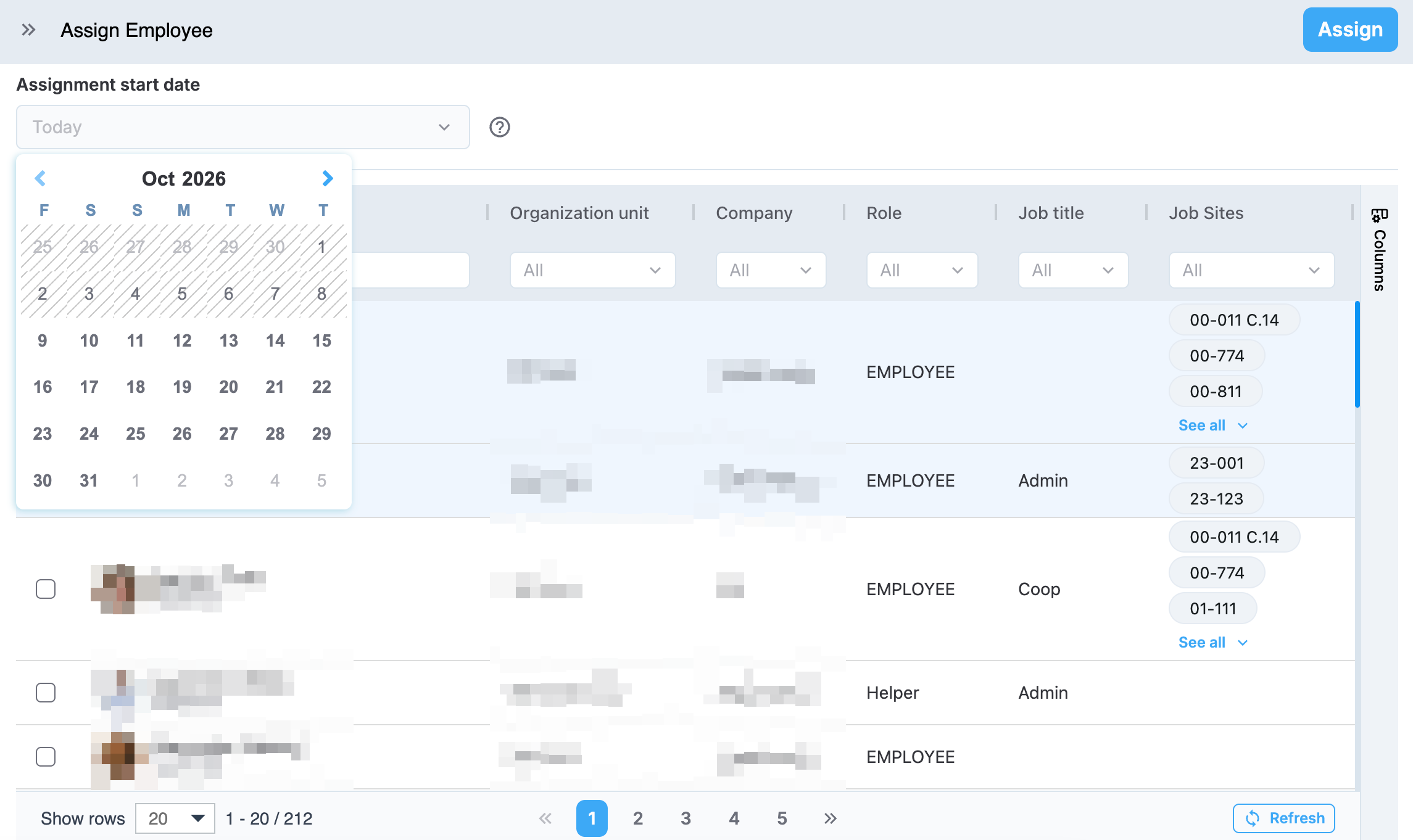
Assignment start date when assigning employees
Bulk actions on the job site Employees page
Update per diem, pay classes, and cost codes for many employees at once from Job site > Employees, instead of editing each employee individually.
What changed:
- Set per diem: Set per diem eligibility, rates, and an effective date for all selected employees in one step.
- Set default pay class: Set the default pay class for selected employees. When separate default pay classes for OT and DT are turned on, you can set Base, OT, and DT pay classes. Otherwise, you set only the Base pay class. All fields are optional, so you can update just the ones you need.
- Set default cost codes: Set default cost codes for all selected employees, even if their current cost codes differ.
- Per-employee validation: MobiClocks checks each employee individually. Valid employees are updated, and employees that can't be updated are skipped and marked with an error icon. Hover over the icon to see the reason, such as an effective date before the employee's job site assignment or a conflict between daily and weekly per diem.
- Availability: Per diem actions appear when Per Diem is turned on for the job site and you have permission to edit employee per diem. Cost code actions appear when Cost Coding is turned on for your environment. Pay class actions appear on certified job sites.
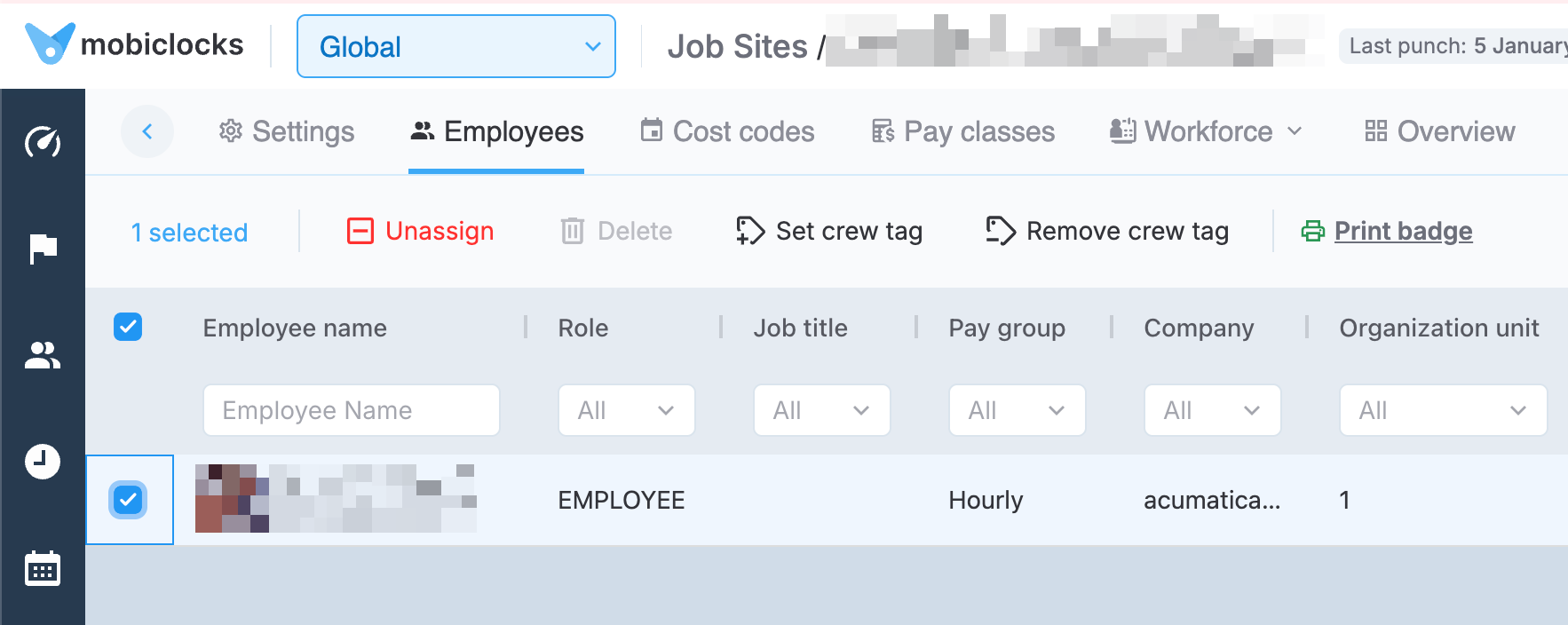
Employees bulk actions
Integration sync logs
Optimized sync logs and detailed log visibility, previously available only for employees, now cover all integrations and all record types. Review logs for employees, job sites, payroll items, and cost codes, each on its own tab.
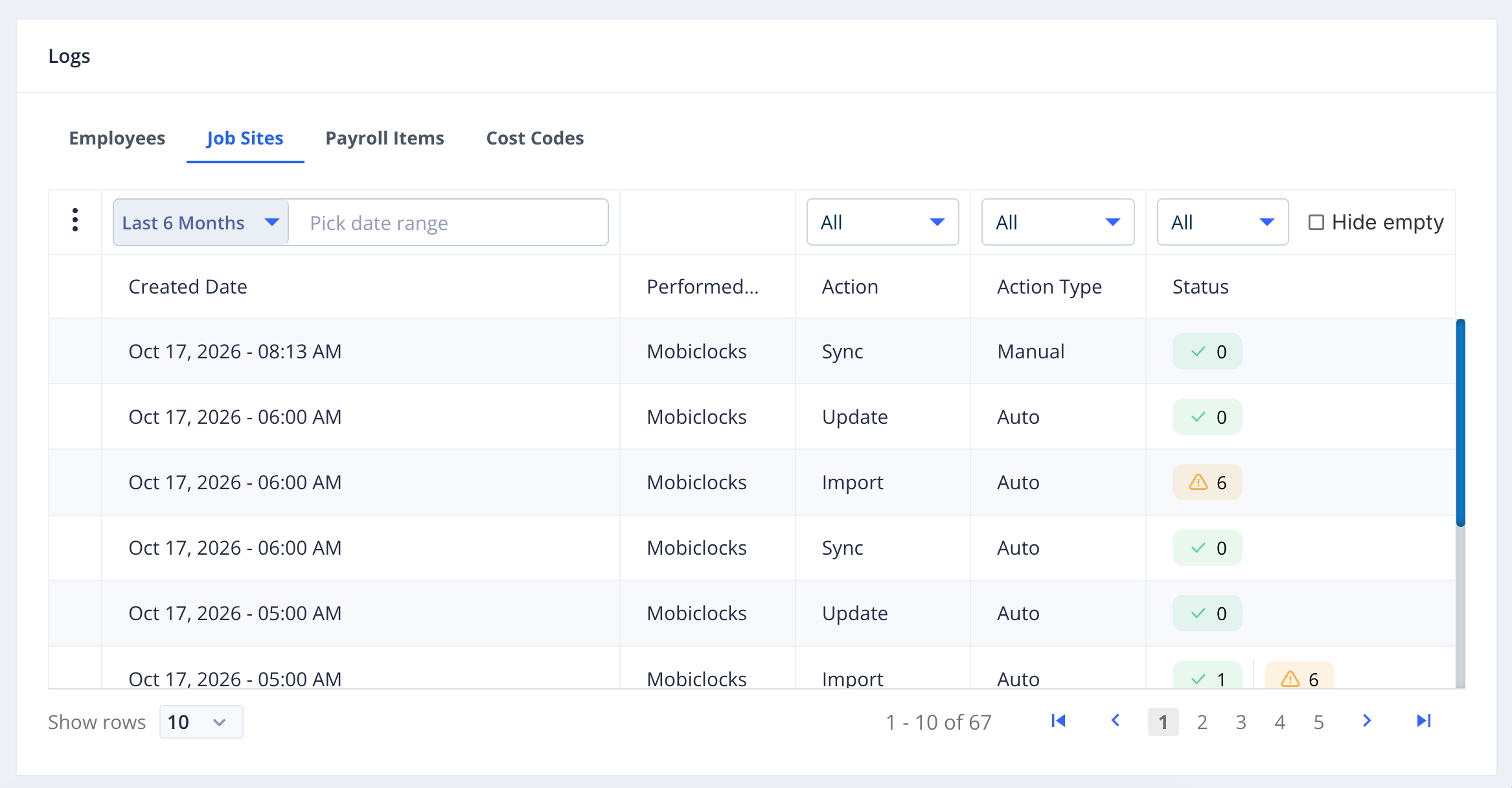
Job site sync logs
Filter cost coding by pay class
Quickly find timelogs with the same pay class on the Cost coding page, so you can bulk code large job sites without scanning every row.
What changed:
- Pay class filter: Filter the Cost code column by pay class on certified job sites, and then select the matching rows for bulk coding.
- Combined filters: Use the pay class filter together with cost code search to show only rows that match both.
Bulk badge printing
Print badges for several employees at once from Job site > Employees. Select the employees, and then use the new print badges button to print all their badges in one step.