
September 2026: Employee templates, guaranteed hours, and more
The September release introduces employee templates for standardizing new employee setup and guaranteed hours for meeting union and contractual minimum-hour requirements automatically. Schedule notifications can now be sent as SMS directly from Workforce, and employee profiles support a preferred language that keeps SMS and account communications consistent for field employees. This release also adds the ability to copy job site settings from an existing site and bulk print employee badges from Job site employees, along with improvements to draft employee activation visibility, multi-select job site filtering across reports and dashboards, custom fast hours options, and satellite view for GPS maps.
🆕 New
Employee templates
You can now set up reusable employee templates to prefill common settings automatically when you create new employees, reducing manual configuration and keeping setup consistent across your organization. From a new Templates tab under Employees, build templates for different roles, pay groups, or job types, then apply the right one whenever you add someone new instead of configuring each field by hand. Templates can be shared organization-wide or kept personal, so you control exactly who has access to each one. In addition, templates can be applied to draft employee profiles.
What's new:
- Templates tab: Create and manage employee templates from a new Templates tab under Employees, gated by the new Manage employee template permission.
- Template fields: Templates can define role, pay group, company, cost coding, comp code, job title, work classification, department, skill tags, user-defined fields, assigned job sites, and general, meal break, rest break, and account settings. Meal break and rest break settings are hidden automatically when the pay group is set to Salary.
- Visibility scopes: Set a template to Global, Organization Unit (if your organization is converted to an enterprise structure), or Personal visibility. Available scopes depend on your role.
- Templates list: Search templates by name or owner, and filter by pay group, company, role, job title, and visibility.
- Manage your templates: Edit and delete the templates you created. Duplicate any template visible to you, including ones created by others. Each duplicate saves as your own Personal template.
- Apply during employee creation: Select a template while creating a new employee to populate its fields automatically.
- Apply to draft employees: Select one or more Draft employees from the Employees list and apply a template to all of them at once, gated by the new Apply template to draft employees permission. If the template would overwrite existing values, review the affected fields and choose which overrides to apply before confirming.
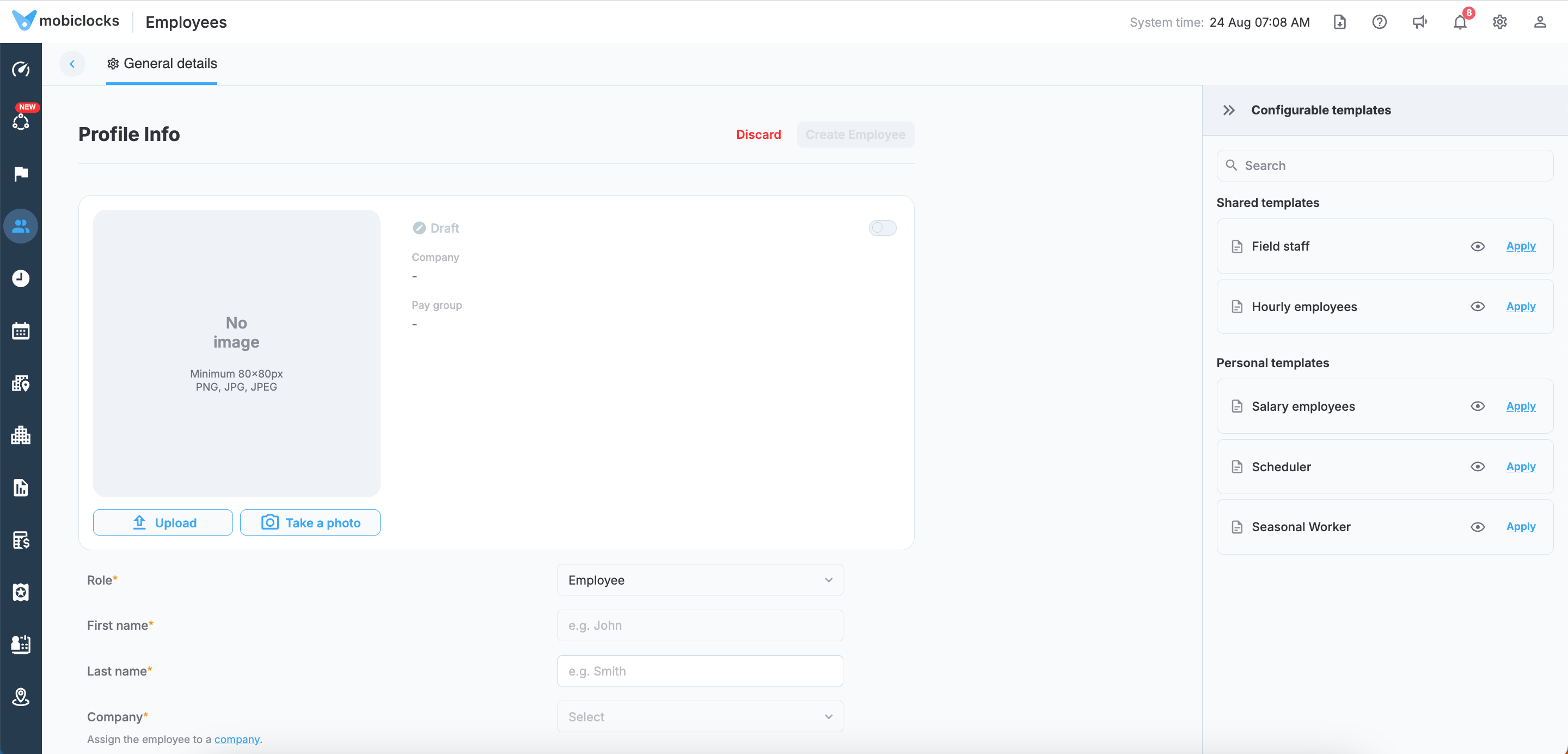
Templates list on the employee creation page
Benefits:
- Faster setup: Populate employee fields automatically instead of entering them one by one.
- Consistent configuration: Reduce configuration errors and mismatched settings across new hires.
- Controlled sharing: Share templates organization-wide, by organizational unit, or keep them personal.
Schedule notifications via SMS
Send SMS notifications straight from Workforce when you add or edit a schedule, so employees get schedule details without manual texting or calls outside the system.
What's new:
- SMS notification composer: Compose and send an SMS notification as part of the Add schedule and edit schedule flows, with support for both English and Spanish. Turn on Spanish and MobiClocks translates your English message automatically.
- Templates: Save a message as a reusable template with Save as template, or start from an existing one using Use template.
- Dynamic fields: Type $ in the message to insert dynamic fields such as recipient name, job site number, job site name, job site address, job site map link, and schedule start date, so schedule details populate automatically instead of being typed out for each recipient.
- Recipient consent: Select recipients for the schedule and see at a glance if any of them haven't given SMS consent yet. Send a consent invite to those recipients from the same screen.
- Message checks: Messages are checked automatically for rude words and grammar issues before sending.
- Character limit: Messages are capped at 480 characters, with dynamic fields counted toward the total.
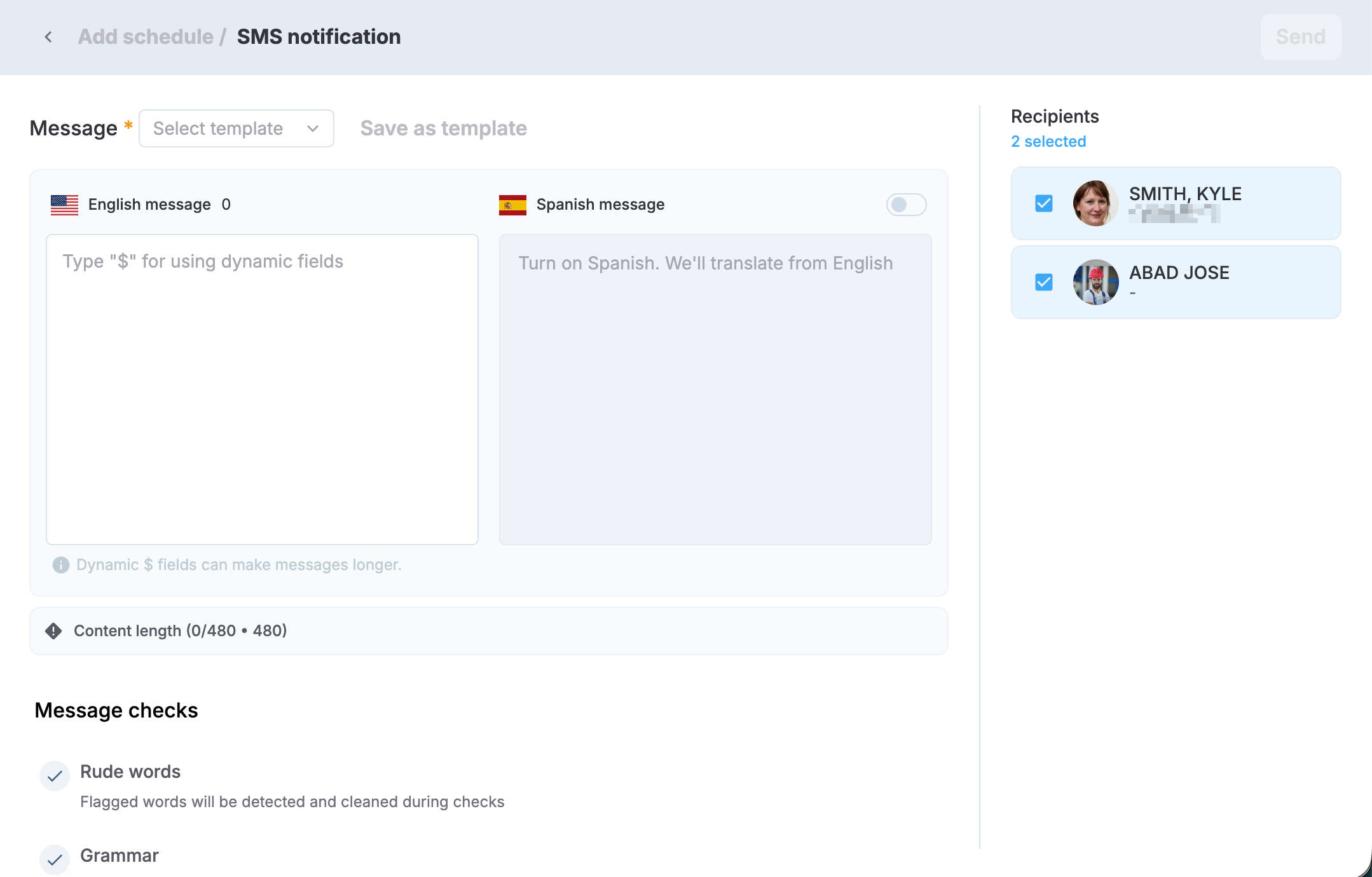
SMS compose screen in scheduling
Benefits:
- Less manual communication: Send schedule details directly from Workforce instead of texting or calling employees outside the system.
- Communication tied to the source: Keep schedule messages linked to the actual schedule record instead of scattered across personal phones and group texts, so what's sent always matches what's scheduled.
- Clarity for employees and admins: Employees get accurate, schedule-specific details straight to their phones, while admins get a single, traceable record of what was sent and when, instead of relying on informal texts.
Preferred language on employee profiles
It's now possible to add a preferred language to field employees' profiles so SMS notifications, consent messages, and account communications reach them in the language they actually use.
What's new:
- Preferred language field: Set a Preferred language field on the employee profile in Web App and Admin App: English, Spanish, or No preference. The field applies to field employee roles only.
- Synced from Personal App: When an employee sets their language in Personal App, their profile updates automatically. Later changes in Personal App continue to update the profile, while changes made on the profile don't affect the Personal App setting.
- Set during creation: Set preferred language when creating an employee, or include it in employee creation templates to apply it automatically to new profiles.
- Consistent communications: Consent messages, SMS notifications, supervisor notifications, and account activation, verification, and password reset communications are sent in the employee's preferred language. If a Spanish version of a message isn't available yet, English is used as a fallback.
- No preference default: Employees without an explicit preference receive communications in both English and Spanish, where both are available.
- Permissions: Setting preferred language follows the existing Edit employee profile permission.
Benefits:
- Clearer communication: Field employees receive SMS and account messages in the language they actually use.
- Less manual translation: Communications switch automatically based on each employee's preferred language, with English as a fallback.
Guaranteed hours
Automatically compensate employees for a guaranteed minimum number of hours when they work close to, but under, that number, satisfying union and contractual minimum-hour requirements without manual payroll adjustments outside the system.
What's new:
- Guaranteed hours policies: Create and manage Guaranteed Hours policies from Administration > Pay policy. There's no limit to how many policies you create.
- Policy configuration: Name each policy, then set a guaranteed hours value and a threshold in minutes. An employee qualifies for an adjustment when their actual worked hours fall within the threshold of the guaranteed amount but are still short of it.
- Employee assignment: Assign a policy to individual employees, or override the assigned policy for a specific employee. Guaranteed hours are off by default at both the feature and employee level.
- Employees list: A new Guaranteed Hours column shows each employee's assigned policy and supports filtering. Selecting the assigned employee count on a policy opens the Employees table, pre-filtered to that policy.
- Payroll and cost coding: Adjustments made under a dedicated Guaranteed hours pay ID aren't available for salaried employees. An Affect OT option in pay ID setup in Administration controls whether these adjustments count toward overtime and double-time calculations, so you decide whether to include them. Adjustments are included in payroll, exported through your existing payroll integrations, and cost coded to the last job the employee worked that day.
- Reporting: Reports that track payable hours include the guaranteed hours adjustment, while reports that track actual labor continue to reflect actual worked hours only.
- Automatic recalculation: If a timelog edit pushes an employee's hours to meet or exceed the guaranteed amount, or below the qualifying threshold, the adjustment is added or removed automatically.
- Safeguards: Deleting a policy or disabling the feature removes the related employee assignments.
Benefits:
- Contract compliance: Meet union and contractual minimum-hour requirements without manual payroll adjustments.
- Preserved accuracy: Actual worked time stays untouched and visible for auditing, separate from the payroll adjustment.
Copy job site settings
Copy configuration from an existing job site into a new or existing job site instead of setting up shared policies from scratch, speeding up onboarding and keeping settings consistent across job sites that share the same rules.
What's new:
- Copy during creation: While creating a job site, select a source job site and copy one or more setting sections into the new job site. Copied values are pre-filled in the creation form for review before saving.
- Copy during edit: From an existing job site's page, select a source job site and copy sections into it. Each section applies independently with its own Apply action and shows an Applied status once committed. If a section fails to apply, only that section shows an error; other applied sections aren't rolled back.
- Copyable sections: General settings, punch time import settings, user-defined fields, geofence zones, GPS settings, working hours policy, meal break policy, rest break policy, payroll burden, per diem, crew tags, and production quantity, depending on what's enabled in your environment. Job site information (name, number, address, dates, time zone, status) and MobiLink settings are never copied.
- Filtered source list: The job sites available as a copy source are limited to ones you have access to, filtered by organizational unit if applicable.
- Permission-aware: Each copyable section appears in the copy panel only if you have the corresponding edit permission for that section.
Benefits:
- Faster onboarding: Skip repetitive manual setup by copying proven configurations from an existing job site.
- Consistent policies: Apply the same breaks, GPS, burden, and per diem settings across job sites that share them.
Last punch activity on job sites
What's new:
- Last punch activity column: The job sites list now includes a Last punch activity column showing Today, Yesterday, or the exact date for anything older, with a filtering option.
- Last punch activity badge: The header of a selected job site now shows a badge with the date of its last punch activity, next to the job site name.
Last punch activity accounts for actual punches from Kiosk App and Personal App, manually created punches, leave requests, and holiday time.
✅ Improved
Custom fast hours options
Set fast hours to values beyond the standard 8 hours when applying quick timelog adjustments, with safeguards that keep the option accurate for each employee's pay group.
What changed:
- More hour options: The fast hours menu now includes
4h,8h,10h,12h, and16h, plus aCustom hoursoption, available from both the bulk actions bar and the three-dot menu on Timelogs and Employee Timelogs. - Redesigned menu and dialog: The bulk actions header, the three-dot menu, and the dialog that opens when setting fast hours are redesigned.
- Pay group aware: Selecting only hourly employees, salary employees on actual hours, or a mix of the two shows the full menu. Selecting only salary employees limits the action to Fast 8 hours, since salary employees are limited to 8 hours, and the custom option isn't offered.
- Mixed selections blocked: Selecting a mix of salary and hourly employees disables Fast hours, with a tooltip explaining that fast hours can't be applied across mixed pay groups.
- No selection: With no timelogs selected, Set fast hours is disabled with a tooltip prompting you to select one or more timelogs first.
- Same time logic: Fast hours continue to calculate from 7 AM based on the job site's time zone.
Satellite view for GPS maps
Switch to satellite view on GPS maps across the main GPS screen, Job Site, and Employee Timelogs, in addition to the standard map view.
What changed:
- Satellite view: All views in Tracking, Job Site geofence zones, and Employee Timelog details now support a Satellite view alongside the standard map view.
- Label visibility: Use the same Labels show/hide option available in job site geofence settings to control label visibility on the satellite view.
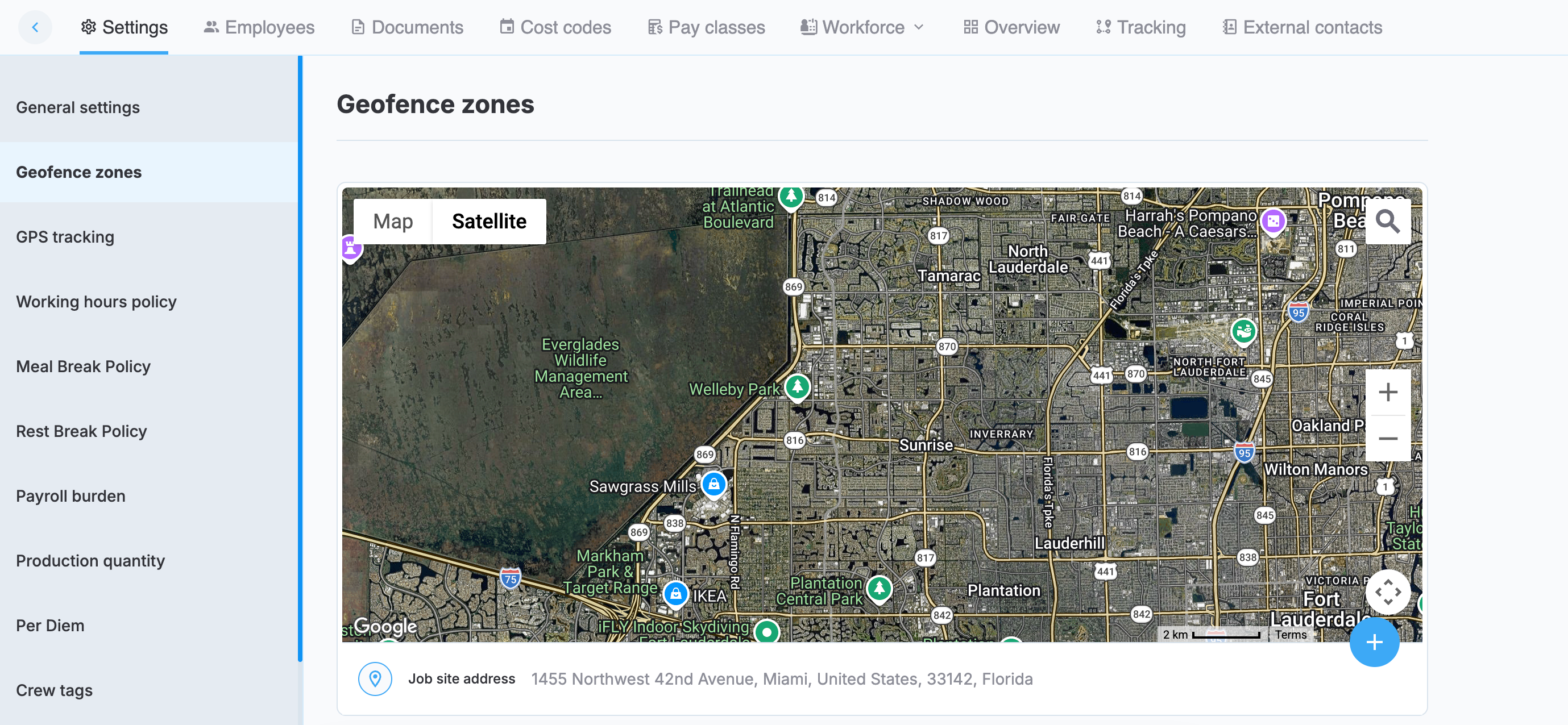
Satellite view in job site geofence selection
Draft employee activation visibility
See clearly when an activation link was sent to a draft employee, so you always know whether to wait or send another one instead of guessing or contacting support.
What changed:
- Status indicator: The employee profile now shows a status indicator confirming whether an activation link was sent, replacing the one-time success message that left no lasting record.
- Timestamp: The profile shows when the activation link was last sent.
- Resend link: A Resend link option lets you send a new activation link directly from the employee profile, protected by a cooldown period to prevent accidental repeat sends.
- Longer expiration: Activation links now expire after 72 hours instead of 24, giving employees more time to activate links.
Benefits:
- Reduced uncertainty: Know at a glance whether an activation link was sent and when.
- Fewer duplicate requests: A visible status and resend option eliminate guesswork and repeat support tickets.
Multi-select job sites across MobiClocks
Select multiple job sites at once in supported reports and modules, including the Flag Dashboard, All Employees, Kiosk Clocks, and applicable Reports.
This makes it easier to work with a specific group of job sites without selecting sites one at a time or choosing All Job Sites and filtering through unrelated results.
Bulk print employee badges from job sites
Print badges for multiple employees at once from Job Site > Employees, respecting any filters you've applied.