
Track and monitor alerts
Monitor employee locations and GPS-related alerts in real time through the Tracking module.
The Tracking module provides real-time visibility into employee locations and GPS-related events across your organization. When GPS tracking is enabled, and employees punch in through their Personal App, their location data is collected and displayed on an interactive map. The module helps you monitor workforce distribution, identify tracking issues, and respond to location-based events as they occur.
The Tracking module is accessed from the left navigation menu in MobiClocks Web App.
Tracked alerts and events
The following alerts and their underlying events are tracked:
- Signal lost: Configured through the Signal Disabled and Signal Lost setting and triggered in case of the following events:
- Connection lost: Note that this event doesn't appear on the interactive map and is available in the event log event log only. In addition, the delay configured through the Signal Disabled and Signal Lost setting does not apply here.
- No data received
- Out of geofence: Employee's last known location was outside the job site's allowed area. This may indicate off-site work, early departure, or GPS drift. Configured through the Out of Geofence setting.
- Signal disabled: Configured through the Signal Disabled and Signal Lost setting and triggered in case of the following events:
- GPS is turned off
- Personal App location permissions are disabled
- App killed
Date picker and alert metrics
At the top of the Tracking page, you have a date picker and a set of clickable metrics that filter the data and help you focus on specific location events and tracking conditions for a selected date.
Date picker
The date picker displays the currently selected date with the day of the week and date number. Use the left and right arrow buttons to navigate between days. The tracking data and alert counts update automatically when you select a different date.
Alert metrics
On-site: Shows the number of employees currently punched in and located within their assigned job site geofence zones. This filter helps you monitor active workforce presence at designated locations.
Off the clock: Displays the number of employees who are not currently punched in. This count includes all employees who have punched out.
Tracking active: Shows the number of employees for whom GPS tracking is active and collecting location data. Location tracking is active only when employees are punched in through Personal App.
Out of geofence: Shows the number of employees who are currently punched in but have been detected outside their job site geofence zones for longer than the configured alert tolerance period.
Signal disabled: Show the number of employees who stopped sharing location becase GPS or lcoation permissions were turned off.
Signal lost: Displays the number of employees whose device signal was temporarily lost. This can happen if Personal App is force-closed, the device enters restricted mode, or the signal is interrupted.
Multi site movement: Indicates the number of employees who have worked at multiple job sites during the selected date.
NOTEAlert tolerance periods for out-of-geofence and location unavailable conditions are configured in Administration () > Settings > GPS. The default tolerance is 15 minutes for both alert types.
Employee list and map view
The Tracking page displays employee information in two synchronized views: a scrollable list on the left side and an interactive map on the right. Both views respond to the selected alert filters, showing only employees that match the active filter criteria.
Employee list
The employee list displays all tracked employees for the selected date, with each employee card showing key information:
- Employee name and number: The employee's full name appears at the top of the card, with their employee ID number displayed below.
- Tracking status indicator: The color and visibility of the status indicator icon is decided as follows:
-
Blue icon: Live location available
-
Grey icon: Location was tracked earlier during the current shift, but live tracking is not active right now.
-
No icon: Location tracking is not applicable for this employee (for example, tracking is disabled for the employee).
The following screenshot highlights the status indicator icon on the employee card.

Status indicator card
-
- Punch status badge: A PUNCHED IN badge appears when the employee is currently punched in and tracking is active. A PUNCHED OUT badge appears if the employee is off the clock.
- Punched in time: Shows when the employee punched in to their current or most recent job site.
- Alerts count: Displays the total number of GPS-related alerts generated for this employee on the selected date.
- Last GPS: Indicates how long ago the most recent location data was received from the employee's device.
Search employees
Use the search field at the top of the employee list to quickly find specific employees by name or employee number. The list filters in real time as you type, showing only matching results.
Sort employee list
Select the sort icon (arrows) next to All employees to open the sort menu. You can organize the employee list by:
- Newest GPS update: Employees with the most recent location updates appear first
- Latest GPS update: Employees with the oldest location updates appear first
- With alerts: Employees who have GPS-related alerts appear at the top of the list
- Name A-Z: Alphabetical order by employee name
After selecting a sort option, select Apply to update the list order. Use Clear to remove the current sort setting or Cancel to close the menu without changes.
Filter employee list
Select the filter icon (funnel) next to the sort button to open advanced filtering options. The filter menu is organized into four categories:
Punch status
- Punched in: Show only employees who are currently punched in
- Punched out: Show only employees who have punched out
- Missed punch: Show only employees with no punch activity for the selected date
- Multi-site movement: Show only employees who worked at multiple job sites during the selected date
Tracking status
- Tracking available: Show only employees with active GPS tracking and available location data
- Tracking unavailable: Show only employees for whom tracking is not available (for example, Kiosk App users or employees that have GPS tracking disabled individually)
Alerts
Filter by alerts. See Tracked alerts and events for the full list of alerts and their underlying events.
Job site
Select one or more job sites to show only employees assigned to those locations. The list displays your organization's job sites with their identifying numbers and names. Select View all to see the complete job site list if you have many locations.
You can combine multiple filters from different categories to narrow results further. For example, you can filter to show only punched-in employees with out-of-geofence alerts at a specific job site.
After selecting your filter criteria, select Apply to update the employee list. Use Clear to remove all active filters or Cancel to close the menu without applying changes.
Interactive map
The map displays employee locations as numbered green pins. Each pin represents one or more employees at that location. When multiple employees share similar coordinates, they are grouped under a single pin with a number indicating the employee count.
Select a pin with multiple grouped employees zooms in on the map, while selecting a pin with a single employee opens an employee details panel with employee tracking details. The map includes the following map controls:
- Full screen: Select the full screen icon to expand the map view
- Map controls: Drag to pan across the map, or use two-finger gestures on touch devices to zoom and rotate
- Zoom controls: Use the plus (+) and minus (-) buttons in the lower right corner to zoom in and out
The following screenshot shows the interactive map on the Tracking page.
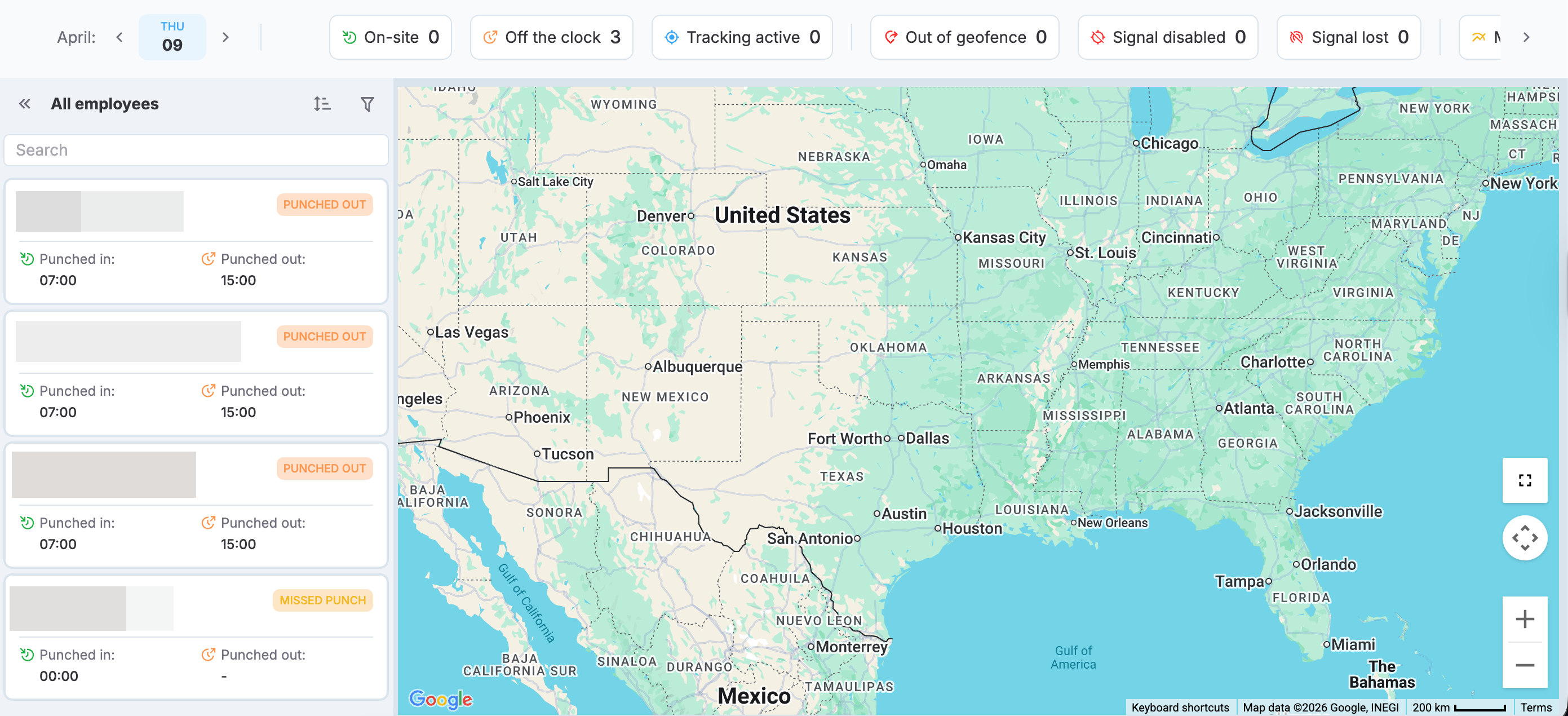
Interactive map
Employee tracking details
Select any employee from the list or interactive map to view their detailed tracking information. The employee details panel opens next to the employee list, displaying comprehensive tracking data while the map updates to show the employee's movement path and alert events. The following screenshot shows the Tracking apge with an employee details panel expanded.
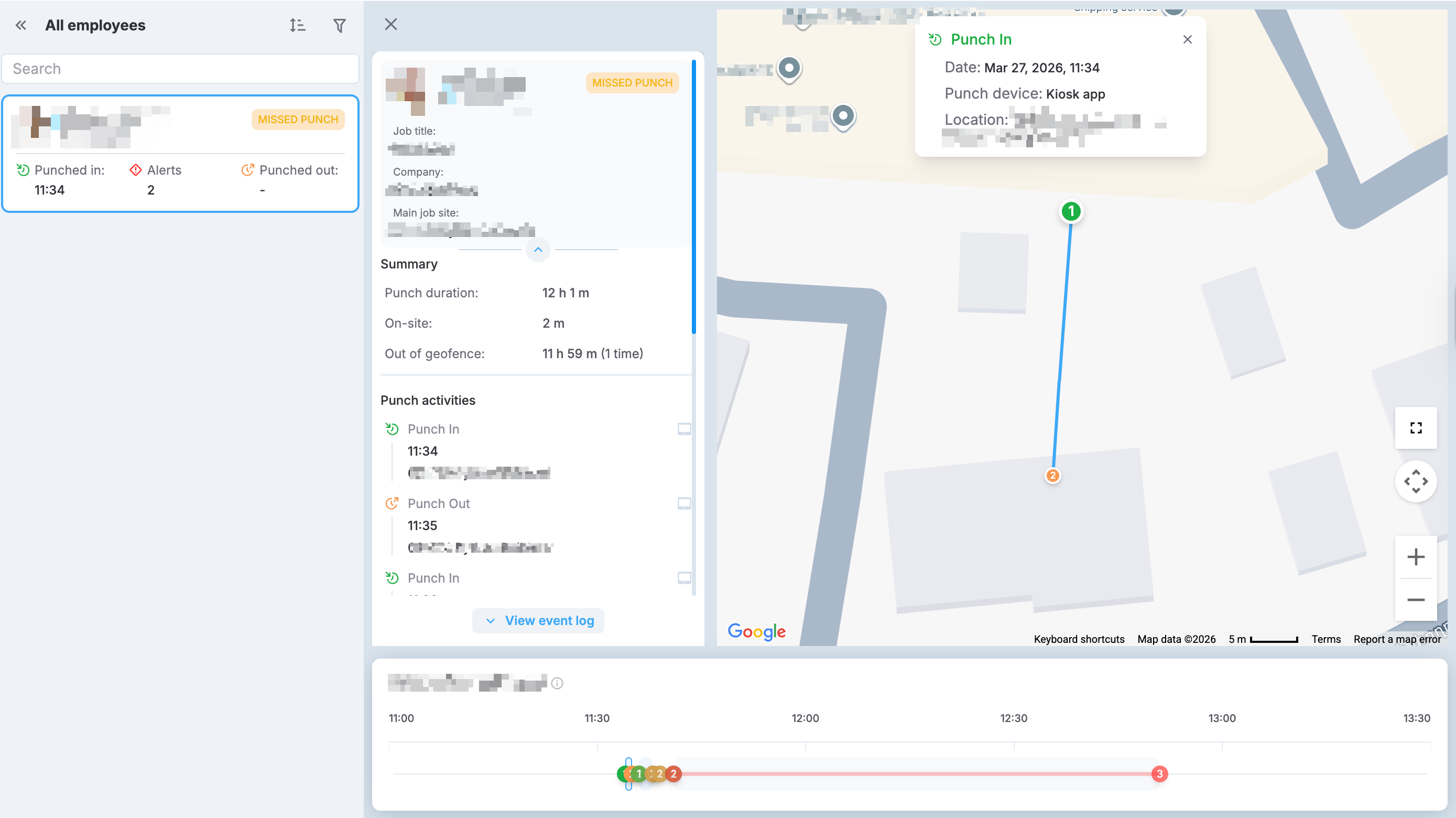
Employee details panel
Employee information
The top section of the details panel shows the employee's profile information:
- Employee name and number: Full name and employee identification number
- Punch status badge: Current punch status (Punched in or Punched out)
- Job title: The employee's current job title
- Company: The company name this employee is associated with
- Main job site: The main job site of the employee
Summary statistics
The Summary section provides key metrics about the employee's tracking activity for the selected date:
- Punch duration: Total time the employee has been punched in, updated in real time for active punches
- On-site: Total time spent within the job site's geofence zone
- Out of geofence: Total time spent outside the geofence zone plus the number of times the employee left the designated area
Values appear as dashes (-) when no data is recorded for that metric.
Punch activities
The Punch activities section lists all punch events for the selected date in chronological order. Each entry shows:
- Punch type: Punch In or Punch Out with corresponding icon
- Time: When the punch occurred
- Job site: The job site number and name where the punch was recorded
This section helps you track when and where the employee started and ended their work shifts.
Event log
Select View event log at the bottom of the employee details panel to open a comprehensive event timeline in a new window. The event log displays all tracking, punch, and device events with precise timestamps.
Movement path and timeline
When viewing an employee's tracking details, the map displays their movement path as a colored line connecting their recorded locations throughout the day. Key events are marked along the path with numbered pins:
- Green pins: Punch-ins
- Orange pins: Punch-outs
- Red pins: Alerts and events. See Alerts for the complete list of alerts and their underlying events.
- Blue pins: Intermediary points with timestamps
- Grey pins: Meal breaks
Select a pin to open pin details, including alert type, duration, and location details. For example, a geofence exit event shows Left the Geofence, the duration since the event occurred, and the specific address where it happened.
The color and style of the movement path can differ as follows:
- Blue solid path: Tracked without any alerts.
- Red dotted path:
- From an App force-closed to an App resumed event.
- From a Location updates stopped to a Location updates resumed event.
- Red solid path:
- From a Geofence out to a Geofence in event.
- From a GPS off to a GPS on event
- From a Location permissions off to a Location permissions on event.
- Grey dotted path: Meal break tracking
Below the map, an interactive timeline visualizes the employee's tracking activity across the selected date. The timeline uses colored segments and numbered markers to represent different tracking states. Numbered markers correspond to the event pins on the map above. The timeline includes a time scale across the bottom showing hours of the day. A vertical indicator line shows the current time or the selected point on the timeline.
Timeline controls:
- Zoom in/out: Zoom in or out on the timeline
- Pan: Drag horizontally to view different time periods
- Select events: Select the numbered markers to highlight the corresponding location on the map
The timeline provides a quick visual overview of the employee's movement patterns, making it easy to identify when alerts occurred and how long tracking conditions persisted.
Timelog details
Apart from tracking employee activities in the Tracking page, you have Tracking summary in the timelog details page. The summary includes some key facts about the employee activity for the selected day and has a View full tracking action to navigate to Tracking to see more details.
The following screenshot highlights Tracking summary in the details page.
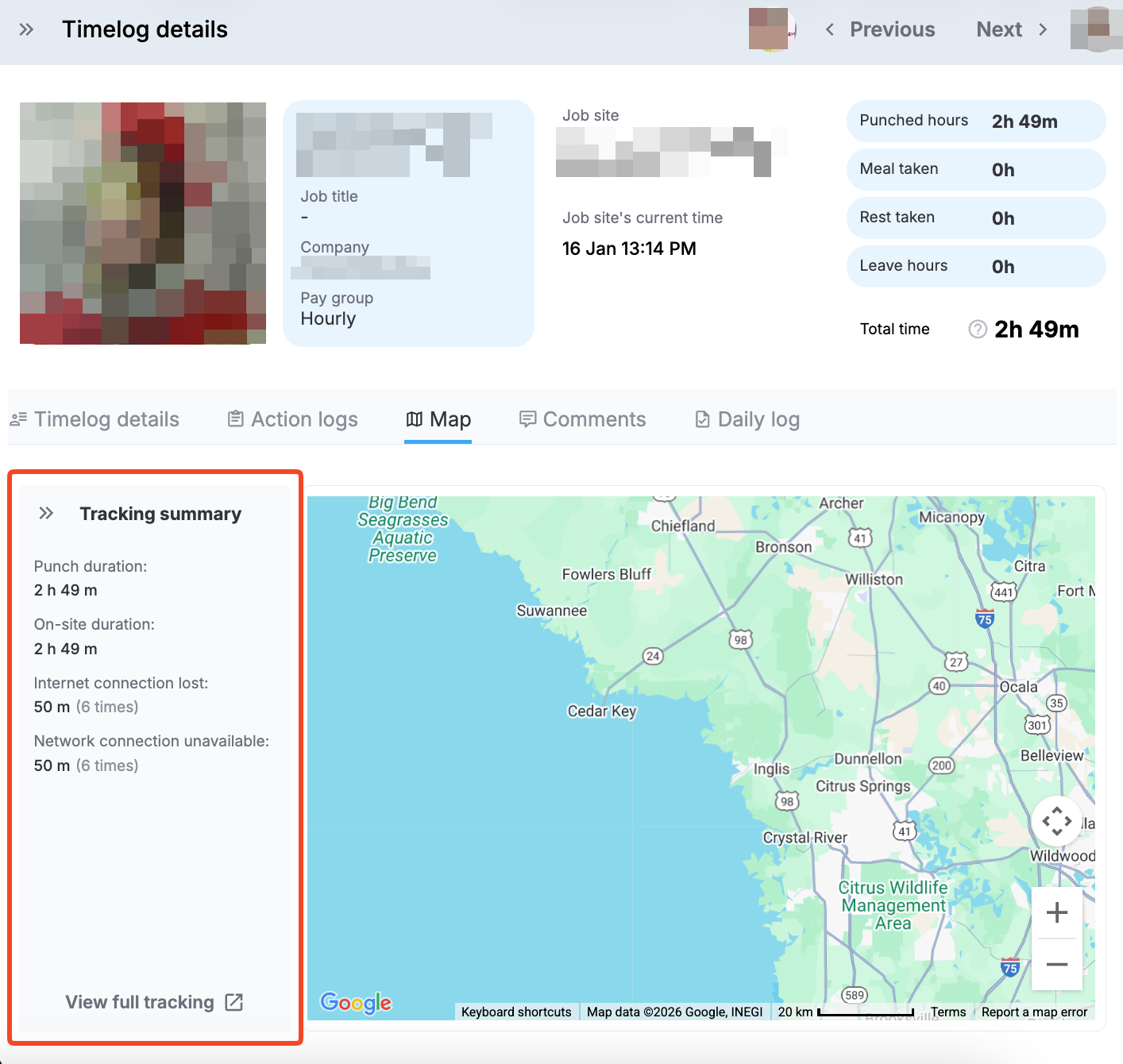
Tracking summary in timelog details
Updated 7 months ago