
Import job sites
What methods are available for job site bulk import.
You can import job sites either manually by uploading a file or by syncing with an integrated platform. This guide discusses these two options.
Manually import job sites
You can use the manual import option to import an Excel file with a list of job sites. This can be useful if you already have a job site database in a third-party system that is not integrated with MobiClocks.
PERMISSIONSYour role needs to have the Import/update job sites permission activated under Administration > Role Permissions > Job Sites to be able to do a manual job site import.
NOTEIn case of a manual job site import, there are no auto-sync options. Therefore, you need to perform the import again manually in case your job site data has been updated externally and you want to update it in MobiClocks as well.
Download the template
To start the import process, navigate to the Job sites section from the left-hand navbar of your MobiClocks Web App. Next, select the Import/Export button and choose the Import option. In the dialog box that opens next, download the Excel template.
The template consists of the following optional and required fields:
- Job Site Number (Required). The job site's unique identifier.
- Country (Required).
- State(Optional).
- City (Optional).
- Street Address (Required)
- Zip Code (Optional).
- Start Date (Optional). The job site's start date.
- End Date (Optional). The job site's end date.
- Certified Payroll (Optional). The job site's certified status.
- User-Defined Fields (Optional). All the existing user-defined fields are included in the template.
NOTEIf your organization is converted to an enterprise structure, the Organization Unit field is included in the template.
Additionally, the template document includes a sheet with placeholder data that you can use to make sure your real data follows the correct formatting. The placeholder sheet is shown in the following screenshot.
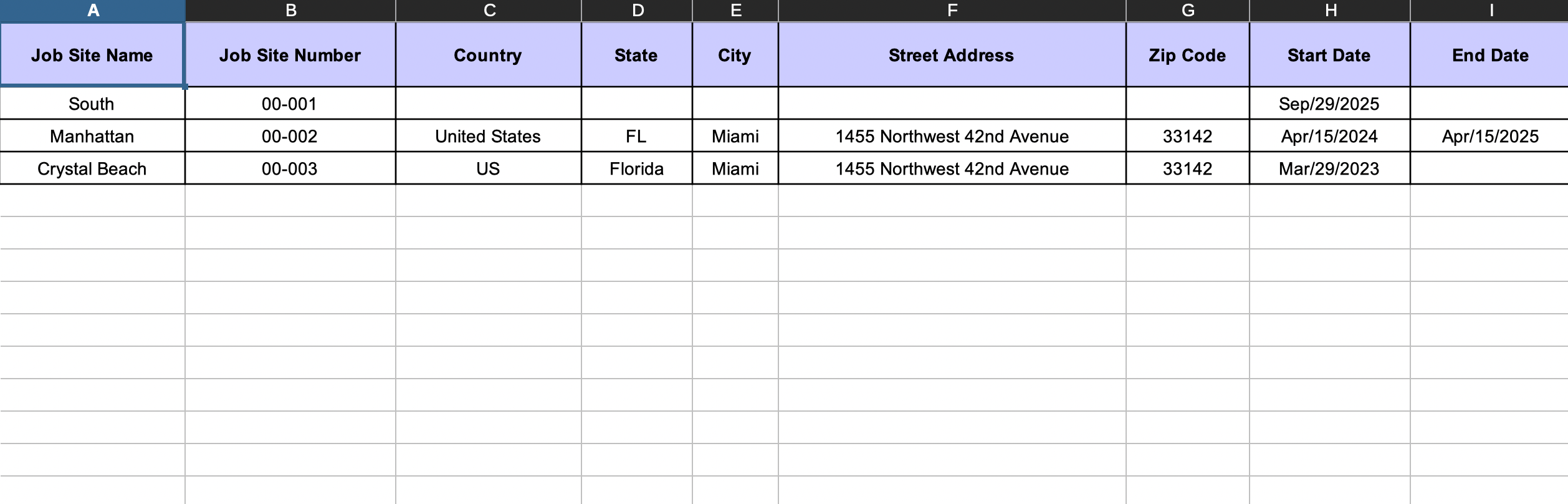
Template with placeholder data
Import job sites
When your document with a list of job sites is ready, in the job site import dialog, select Attach to attach the file and then select Upload to import it.
PERMISSIONSFor each job site field, your role must have the required permission to create or update data. See Job site settings to learn more about the permissions for each job site detail.
In the screen that opens next, you can customize your import as well as see the issues if there are any. First, you have an option to filter the fields that are imported, as highlighted in the following screnshot.
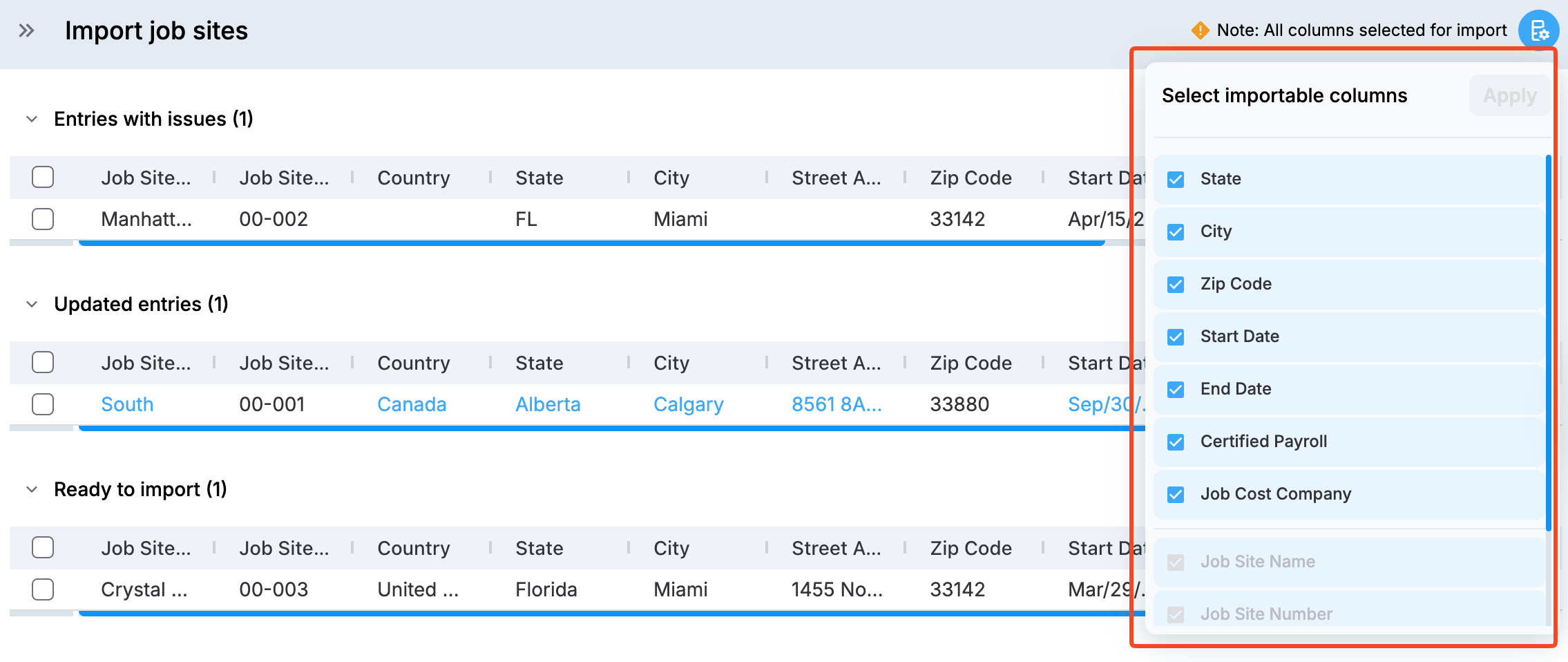
Importable columns filtering
Next, all your imported entries are grouped into the following three categories:
-
Entries with issues: This section includes all the entries that cannot be imported due to missing information or other problems. The entries table has an Issue description field that describes the issues for each entry.
-
Updated entries: This section includes the entries that are going to update existing entries in your environment. Note that if your imported entry has blank cells, they won't overwrite existing values. The fields that are going to be updated are displayed in blue, as shown in the following screenshot.
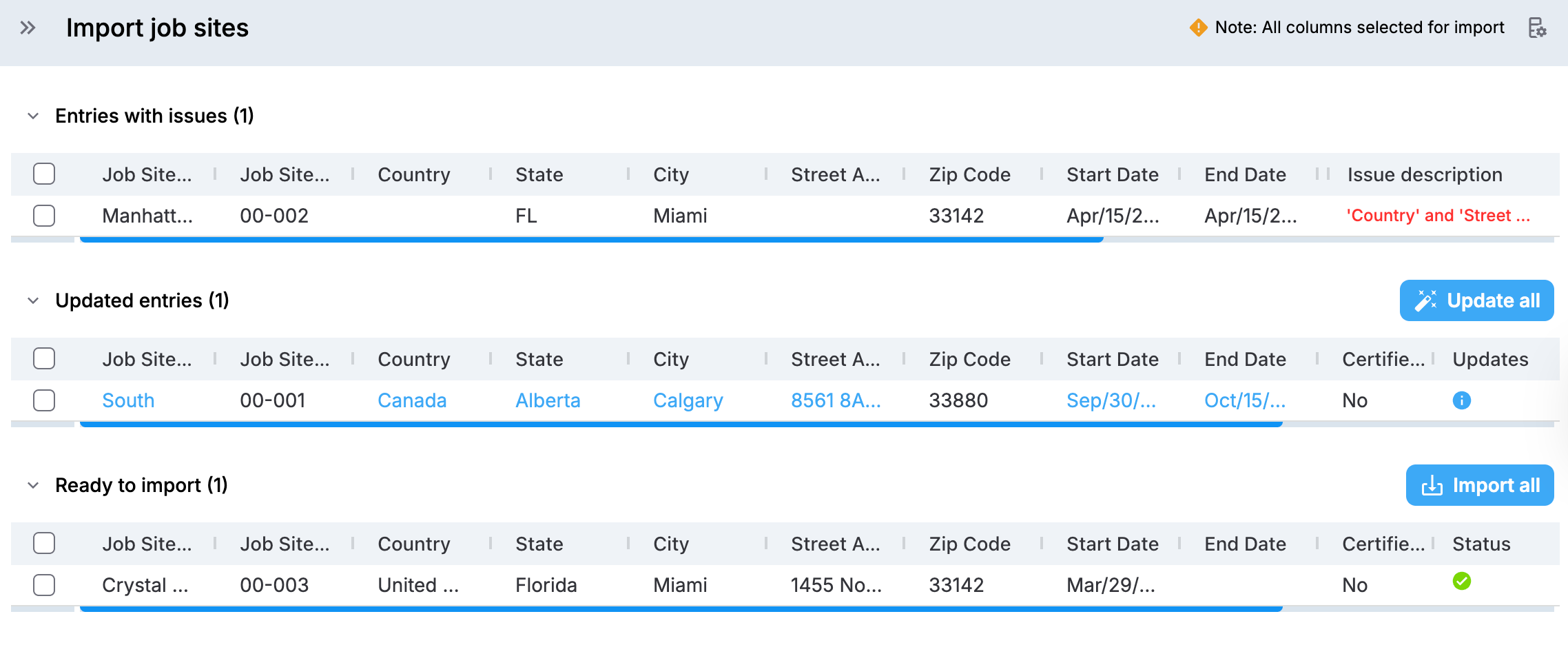
Updatable fields
When you are ready, select Update all to apply all the updates included in this category.
-
Ready to import: This section includes all the entries that are ready to import and can be added to your list of employees immediately by selecting Import all.
Import job sites from third-party platforms
This topic discusses importing job sites from third-party platforms to MobiClocks. MobiClocks has a number of integrations, some of which also support job import. To import the data, you first need to sync it from the connected platform to view it in MobiClocks and decide what to import to your environment. In such cases, the job site sync is a one-way sync and can take place from the third-party platform to MobiClocks only and not vice versa.
The integrations that support job site import have a separate Job Sites tab where the list of job sites is available. The following screenshot shows an example of the Job Sites tab of an HCSS integration.
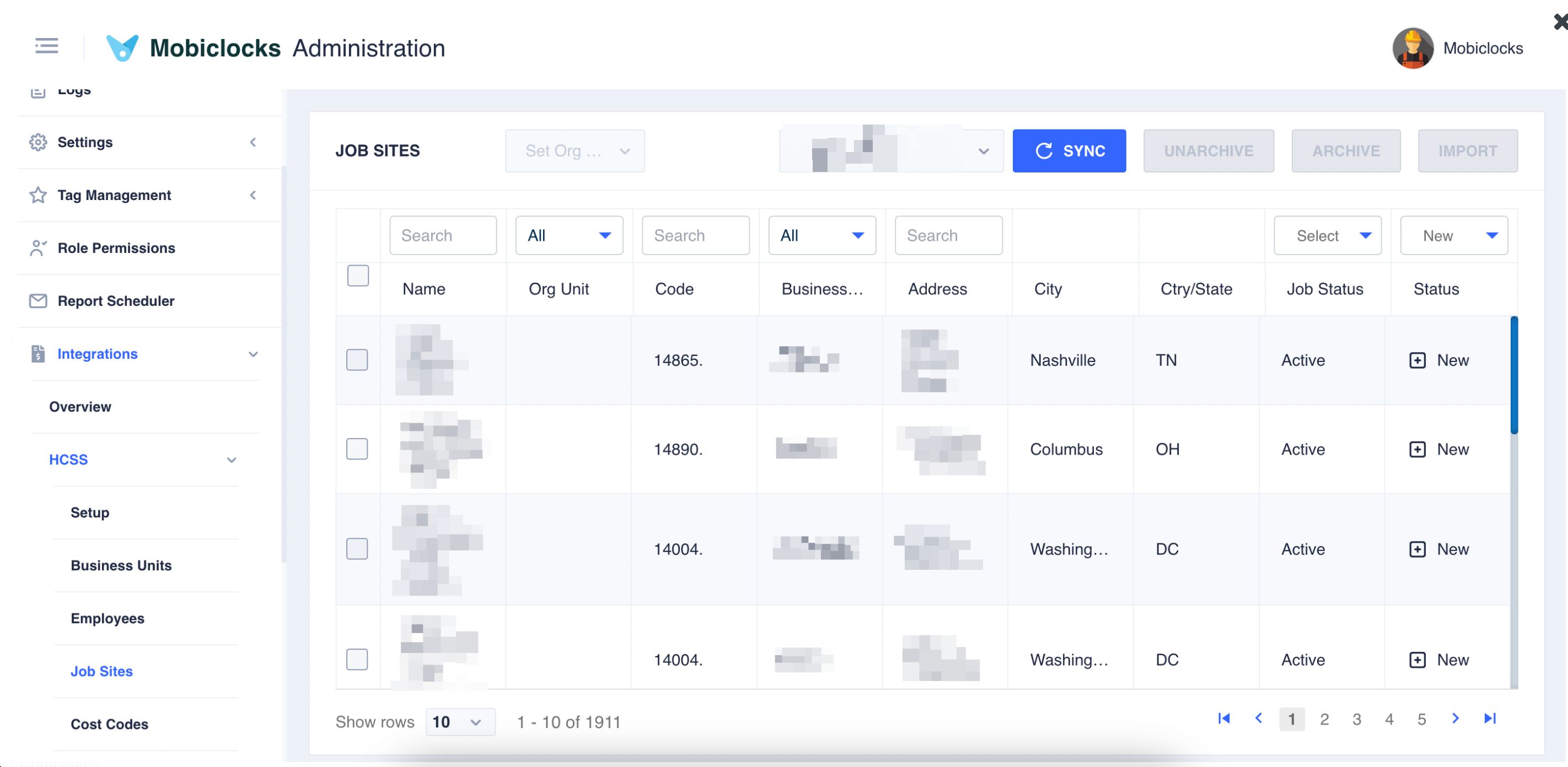
HCSS Job Sites tab
See How integrations work to get familiar with the process of importing data from third-party platforms. If an integration has some additional settings for job site import, these are discussed in the integration's documentation available in the Integrations section.
Updated 4 months ago