
Job site-level per diem setup
Enable per diem for a job site and set job site-level rates, eligibility rules, and cost coding։
Once per diem is enabled at the environment level, a dedicated Per Diem section becomes available in job site settings, where you configure rates and rules for that job site specifically.
PERMISSIONSYou need the Edit per diem settings permission enabled for your role in Administration () > Role Permissions > Job Site to add, edit, or delete job site rates, configure effective dates, and toggle per diem settings for a job site.
NOTEPer diem is disabled by default for new job sites. If you turn on the job site-level toggle, per diem becomes available for that job site, based on the rates and rules you configure.
Job site settings inherit their default values from the environment level only at the time the job site is created. Changes made to environment settings afterward don't affect job sites that already exist.
Per diem types
Choose which per diem rules apply to this job site. As at the environment level, at least one option needs to stay enabled.
- Allow daily per diem: Enables daily per diem for this job site and sets the minimum worked hours required to qualify.
- Allow weekly per diem: Enables weekly per diem for this job site and sets the minimum worked days required to qualify.
NOTEIf you disable weekly per diem for a job site, employees currently assigned Weekly are set to Not eligible, and weekly rates and selection are hidden from the job site's Employees section. The same applies to daily per diem. Historical per diem data for previous weeks stays intact; only the current week is recalculated after the change.
Per diem cost coding
Choose how per diem cost codes are assigned for this job site. For more information, see Per diem cost coding.
Rate defaults
Set rates using a job site default rate, per-job-title rates, or both. Select Set per diem rate to open the rate dialog, then choose a rate type:
- Set as job site default rate: Used as the site-wide fallback rate, applied when a more specific rate isn't used for an employee. Only one job site default rate exists per job site.
- Set by job title: Sets a different per diem rate for each job title on this job site. The job title dropdown only shows titles that aren't already configured for the job site.
For either rate type, the dialog shows Daily per diem and Weekly per diem sections (based on which per diem types are enabled for the job site), each with a Paid rate and, if Paid + Billable is selected at the environment level, a Billable rate. The number of rate fields you fill in depends on the environment-level Per diem rate structure setting and which per diem types are enabled:
- Paid only, Daily or Weekly enabled: 1 rate
- Paid + Billable, Daily or Weekly enabled: 2 rates
- Paid only, both Daily and Weekly enabled: 2 rates
- Paid + Billable, both Daily and Weekly enabled: 4 rates
NOTEA paid rate is mandatory and needs to be greater than zero. A billable rate is optional, and, when provided, may be any non-negative amount.
The dialog also includes:
- Default cost code: The cost code applied to per diem entries generated from this rate. For more information, see Per diem cost coding.
- Effective date: The date the rate takes effect. Defaults to the current day, but you navigate back as far as the start of the previous payroll week if needed.
The following screenshot shows the Set per diem rate dialog for a job site default rate.
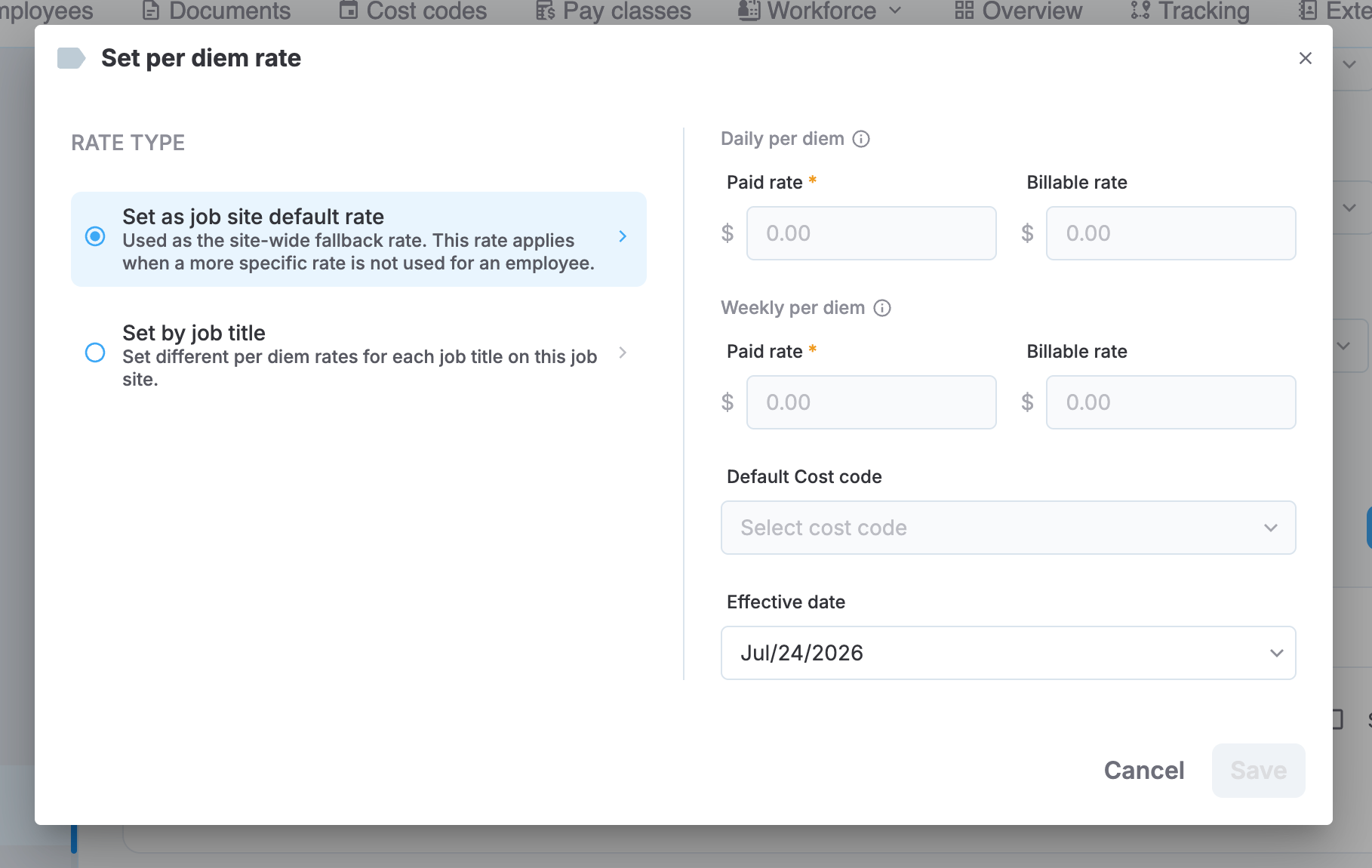
Set per diem rate dialog
Effective dating and history
Every rate change supports an effective date. By default, a new or edited rate takes effect on the current day, but you navigate back as far as the start of the previous payroll week if needed.
Select Show history to view every past version of a rate, including the effective date and amount for each change. Deleting a rate is also recorded as a history event, and the data prior to deletion stays visible in the history.
Per diem and payroll approval
Per diem entries appear on payroll only if Include per diem in payroll is enabled in Environment-level per diem setup. When it's enabled, Per diem entries that don't have a cost code assigned block that job site's payroll card from being approved. Before approving payroll, assign a cost code to any outstanding per diem entries. For more information on payroll review, see Review and export payroll.
Updated 3 months ago