
Define form logic
Use conditional rules to control which fields appear and how they behave based on employee responses.
The Logic tab allows you to create conditional rules that control form behavior based on employee responses. Rules follow an if-then structure: when a specified condition is met, a defined action is performed. This allows you to build dynamic forms that show relevant questions, pre-fill values, or clear fields based on what employees enter.
How rules work
Each rule consists of one or more conditions and one or more actions:
- If specifies the question to evaluate and the condition it must meet (for example, "Equals," "Not empty," or "Contains"). Click Add Condition to add more conditions to the same rule. Additional conditions can be joined with and or or to create more precise logic.
- Then specifies what happens when the condition is met. Click Add Action to apply multiple actions within the same rule. All actions in a rule are joined with and, meaning they all execute when the condition is satisfied.
The following screenshot shows an example of a conditional logic applied to a form.
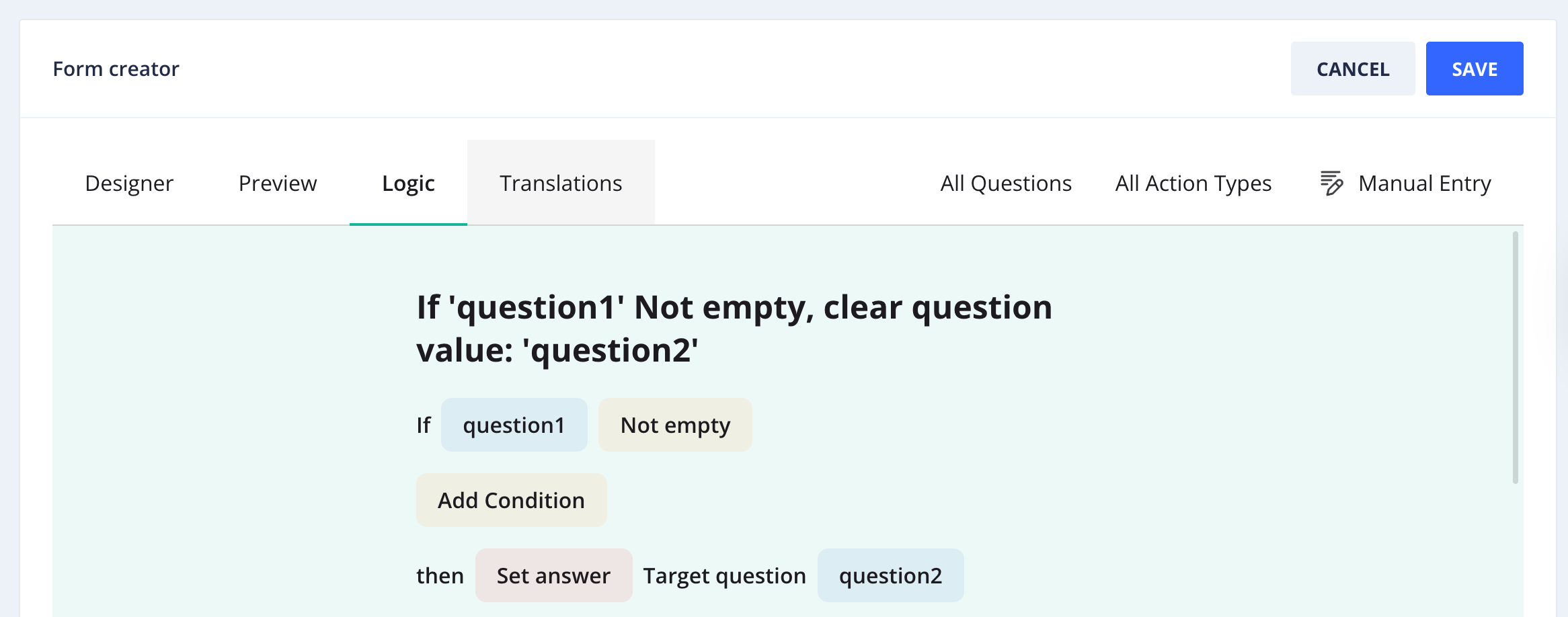
Conditional logic example
When you click Select... in the If part of the rule, a list of all questions in your form appears. Select the question you want to evaluate, then configure the condition and the value to compare against. Then click Select action... to choose what should happen.
Once configured, the rule is displayed as a plain-language summary (for example, "If 'question1' Not empty, clear question value: 'question2'"). Click Done to save the rule, then click Add New Rule to create additional rules.
Filtering rules
The All Questions and All Action Types dropdowns in the top-right of the Logic tab let you filter the list of existing rules by question or action type. Use these filters to quickly locate specific rules in forms with a large number of conditions.
Updated 5 months ago