
Review scheduled vs. worked exceptions
How to use the Exceptions tab to compare scheduled and worked job employees.
In the Exceptions tab of the Workforce module, review scheduled work against actual worked time for a selected date range. The tab is also available in the job site's Workforce view.
This section flags every employee record where the scheduled and worked job site disagree, or where a scheduled employee never worked. Note that the section is read-only, and there is no option to create or modify any data.
PERMISSIONSYou may access the Exceptions tab if you have the View "Exceptions" tab permission enabled for your role in Administration () > Role Permissions > Workforce.
NOTEThe Exceptions tab is turned on by default in Administration () > Settings > Workforce. If it's turned off there, the tab doesn't appear in the Workforce module, even with the permission enabled.
Navigate to the Exceptions tab
From the left-hand sidebar of your MobiClocks Web App, select the Workforce icon, then select the Exceptions tab.
Table fields
The table includes the following fields:
- Employee name: The employee's photo, name, and employee number.
- Company: The employee's company.
- Role: The employee's role.
- Job title: The employee's job title.
- Date: The date of the record.
- Scheduled job site: The job site the employee was scheduled to work, if any. Blank for the
Unscheduled workedstatus. - Worked job site: The job site the employee actually worked at, based on their timelog, if any. Blank for the
No showstatus. - Duration: The total time the employee worked at that job site on that date. Blank for the
No showstatus. - Status: The result of comparing the scheduled and worked job site. See Status values.
Status values
Status is the key column on the tab. It's the result of comparing an employee's schedule against their timelog, and it's shown as a colored label. Each record gets one of four statuses:
- No show: The employee was scheduled but has no timelog for that day. They didn't work.
- Matched: The employee's scheduled job site and worked job site are the same.
- Job site variance: The employee worked, but at a different job site than the one they were scheduled at.
- Unscheduled worked: The employee worked at a job site where they weren't scheduled.
All four statuses appear by default, including Matched. Narrow the table to specific statuses with the Status filter, covered next.
Create custom job site views
The view selector in the upper left corner lets you create custom views, which is a selection of job sites that narrows the table to just those sites.
Perform the following steps to create a view:
- Select the view selector, then select Create view.
- Enter a View name.
- (Optional) Choose a color for the view.
- Select the job sites to include.
- Select Create to save the view.
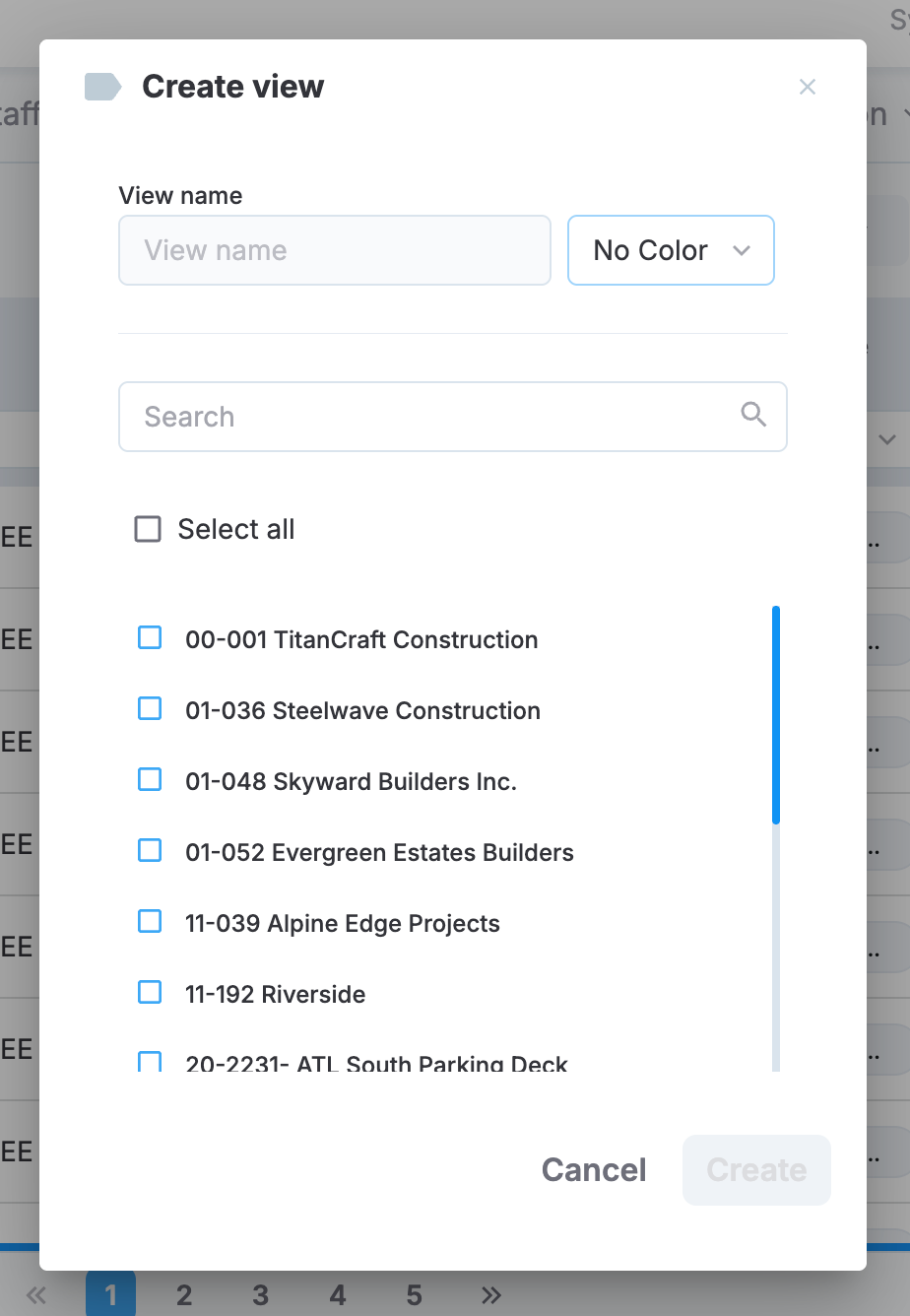
View creation dialog
Select a saved view from the My views list to apply it, or select All job sites to clear the view and see every job site you have access to. Select the pencil icon next to a view name to edit it.
Filter by alerted job sites
The Filter by alerted job sites sidebar surfaces exception counts per job site so you can jump straight to the sites that need attention.
For each job site, the sidebar shows the count of:
- No show
- Job site variance
- Unscheduled worked
Matched records aren't counted here, since they aren't exceptions.
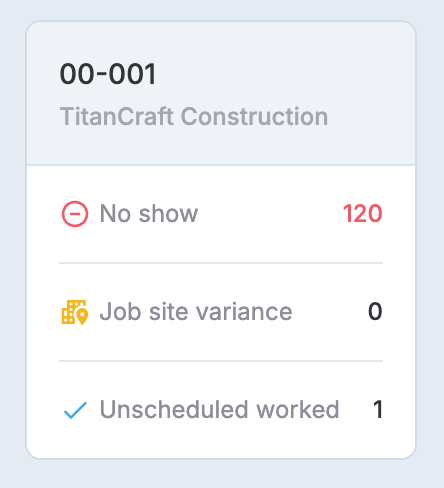
A job site entry in the alerted job sites filter
Use the search field at the top of the sidebar to find a job site by name or number. The sidebar is single-select: selecting a different job site replaces the previous selection.
NOTEIf your MobiClocks environment is converted to an enterprise structure, and you change the Organization Unit, your sidebar job site selection resets.
Updated 2 months ago