
Manage message templates
How to create and manage SMS templates.
Message templates let you save and reuse message content for communications you send frequently. Instead of typing the same message repeatedly, you can create templates for common scenarios and send them when needed. This saves time and ensures consistent messaging across your workforce communications. In this topic, you'll learn how to create SMS templates and how to view and edit existing templates.
Create a template
Perform the following steps to create a template:
- In the Message templates section of the SMS module, select Create template.
- Specify a template name.
- The rest of the steps are similar to the Write the message step in the Send an SMS process.
- When done, select Save to save your template.
View and edit templates
The Message templates tab displays all saved SMS templates in a table. The table contains the following columns:
- Owner. The name of the user who created the template.
- Name. The name of the template.
- Message. The content of the template message.
- Visibility. Indicates who can access the template. Possible values include
Personal(visible only to you),Organization units(visible to users associated with the selected organization units),Job sites(visible to users associated with the selected job site), orGlobal(visible to all users in your organization). The visibility is determined by the sharing settings configured through the share action, which is discussed next. - Actions. Provides the following options for managing templates:
-
Copy: Opens the Create template dialog with the existing template name and message content prefilled. This allows you to create a duplicate template that you can modify as needed.
-
Share: Opens the Share template dialog where you can change the visibility of the template by selecting Personal, Job sites (select the specific job site that gets access), Organization units (the option appears only if your organization is converted to an enterprise structure, or Global. The following screenshot shows the Share template dialog with the Job sites option selected and the job site selection dropdown expanded.
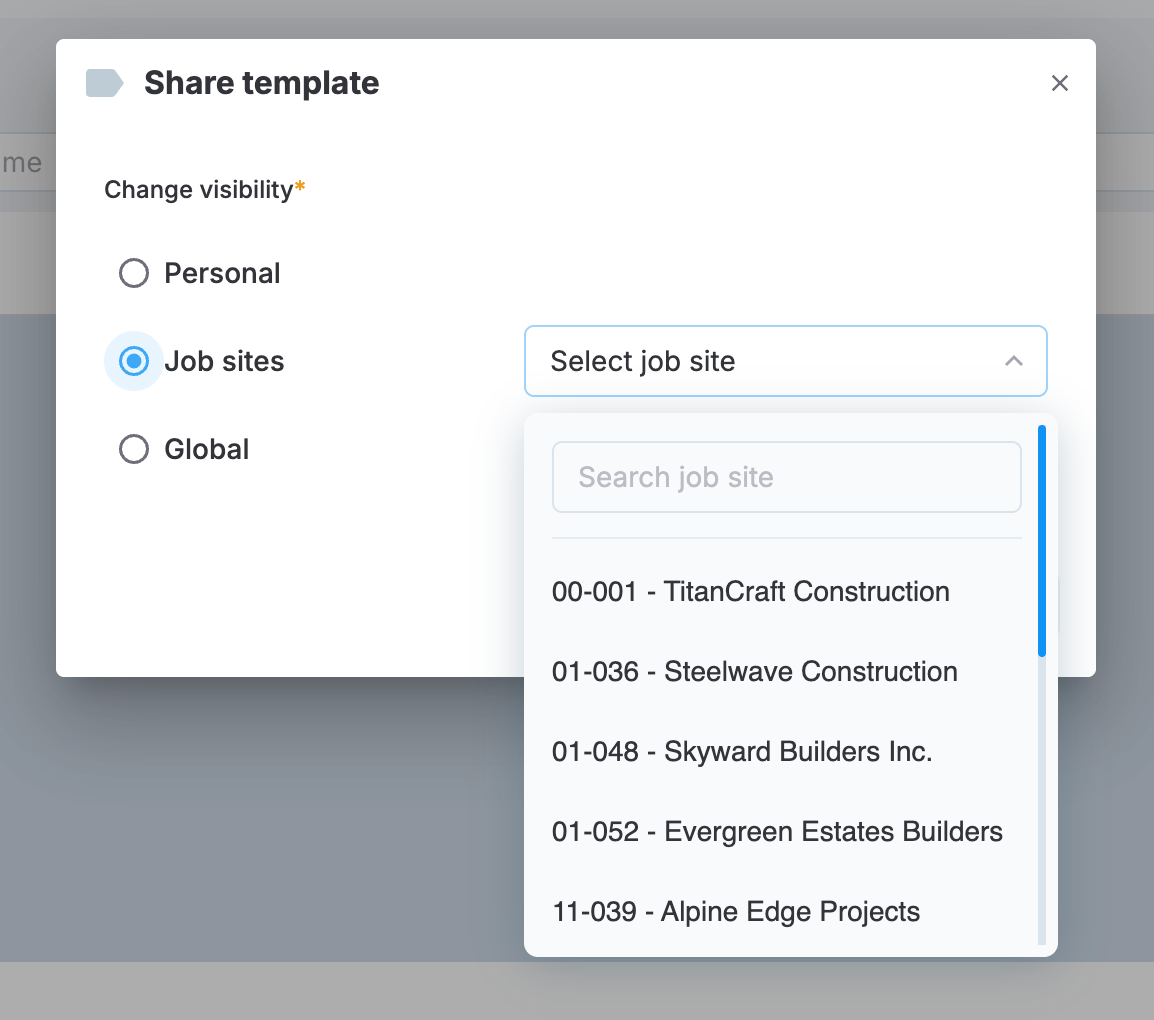
Sharing a template with a job site
-
Delete: Deletes the template.
-
Edit a template
To modify an existing template, select the template row in the table to open the Edit message template dialog. This dialog is similar to the Create a template dialog where you can modify the template name, the English message content, and optionally add or edit the Spanish translation.
After making changes, select Save to update the template, or select Cancel to discard changes.
Updated 9 months ago