
Permission center
Audit and manage employee permissions across your organization from a single location.
Permission center gives authorized users a centralized permissions view of all the users and employees with a user account. Use it to see which permissions each person has, identify where a permission differs from the role default, and update or reset individual permissions without leaving the employee list.
PERMISSIONSYou may access Permission center if you have the Permissions overview dashboard permission enabled for your role in Administration () > Role Permissions > Employees.
By default, this permission is disabled for front-end roles and enabled for back-end roles only.
Overview
To open Permission center, select the Permission center button in the upper right corner of the Employees page. Permission center displays a table of employees and users. Each row represents a person in your organization. The table includes the following fixed columns:
- Employee: The employee's or user's full name and profile picture.
- All permissions: A Manage link that opens the employee's permission details panel.
- Role: The employee's assigned role.
- Org unit. The organization units the employee belongs to, if applicable.
- Company. The company the employee is assigned to, if applicable.
To the right of the fixed columns, you can add permission columns. See Select permissions to display.
VISIBILITY for back-end rolesUsers with back-end roles, such as Admins, see the following entries in Permission center:
- All front-end roles
- Back-end users with the same role or a role with a lower level
In environment converted to an enterprise structure, visibility is additionally restricted by org unit. For example, an global admin assigned to
Org Unit Acan only see other admins and employees belonging toOrg Unit A.
VISIBILITY for front-end rolesUsers with front-end roles, such as PMs or employees, see the following entries in Permission center:
- Employees assigned to their job site only.
- Back-end roles are not visible.
Select permissions to display
Use the Search permissions field at the top of the page to choose which permissions appear as columns in the table.
Selecting the field opens a dropdown organized by module (for example, Employees, Timelogs). Each listed permission can be selected as a column. A red dot next to a permission name indicates that at least one employee in your current view has that permission overridden. The following screenshot shows the dropdown with a red dot next to one of the permissions.
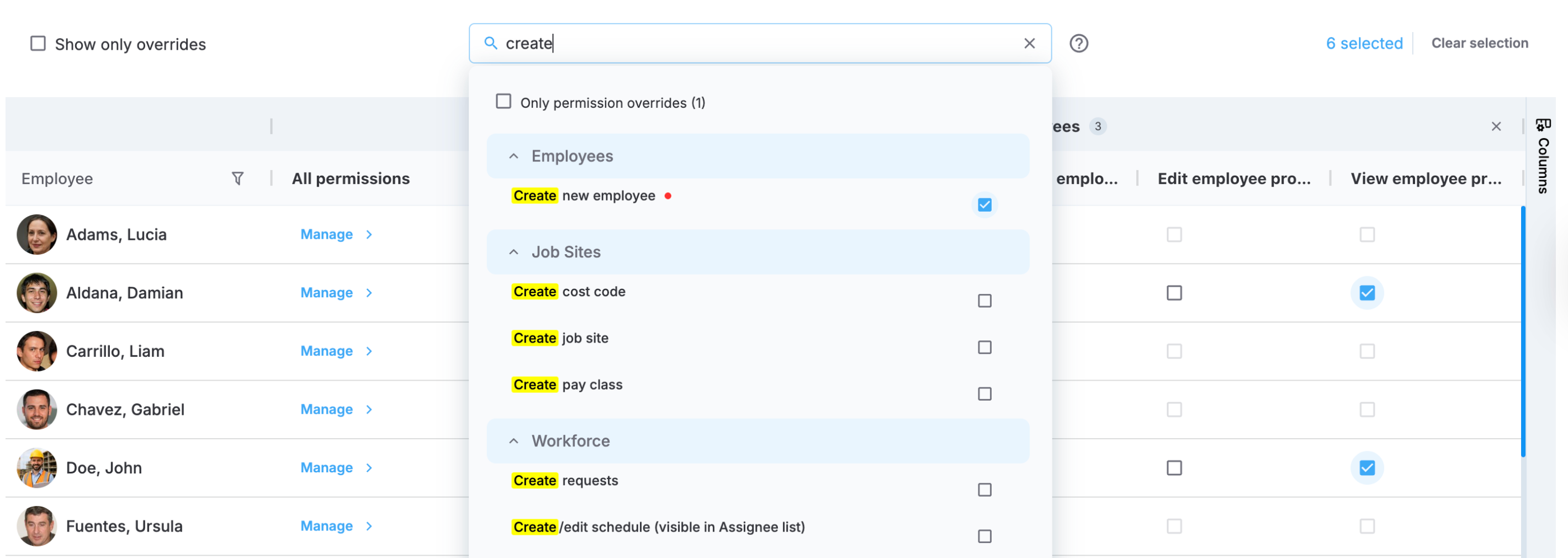
Permission search dropdown
To show only permissions with overrides in the dropdown, select the Only permission overrides option at the top of the list.
After selecting permissions, they appear as columns grouped under their respective module header. The count next to the module name (for example, Employees 3) shows how many permissions from that module are currently displayed. Selecting the module header collapses or expands the group. To remove all columns for a module, select the () next to the module name in the column header.
The number of currently selected permissions is shown in the upper right corner. Select Clear selection to remove all selected permission columns at once.
Filter employees
To narrow the list of employees shown in the table, select the filter icon () next to the Employee column header. The Filter employees dialog opens and includes the following options:
- Employee. Search for one or more employees by name or employee number.
- Company. Limit results to employees in a selected company.
- Role. Show only employees assigned to specific roles.
Select Apply filter to update the table. Select Clear to remove all active filters. All filter options show only data accessible to your account.
If your organization is converted to an enterprise structure, an org unit filter is also available through a selector at the top of the page.
Show only overrides
Select the Show only overrides checkbox at the top left of the table to display only employees who have at least one permission that differs from their role default. Clearing the checkbox returns to the full employee list.
Override permissions
Permission checkboxes in the table are editable. Selecting or clearing a checkbox overrides that permission for the corresponding employee, regardless of the role default. When a permission is overridden, an override indicator () appears next to the checkbox. Hovering over the indicator shows the current permission state, the name of the user who applied the override, and the date and time of the change.
PERMISSIONSYour role needs to have the Employee permission override permission under Web App > Administration > Role Permissions > Employees to be able to override permissions in the employee profile.
NOTESome permissions are system-enforced and cannot be modified or reset. These permissions are displayed in their current state but are not editable. See Role permissionsto learn more.
Manage employee permissions
Selecting Manage in the All permissions column opens the Manage employee permissions panel for that employee. The panel has two tabs.
All permissions tab
The All permissions tab displays every permission available to your organization, organized by module. Each permission entry includes the following columns:
- Permission. The name of the permission.
- Access. A checkbox indicating whether the permission is currently enabled.
- Last modified. The date and time of the most recent change, if any.
- Modified by. The user who made the most recent change, if any.
Overrides only tab
The Overrides only tab shows only the permissions that have been individually overridden for the employee. The columns in this view are:
- Permission. The name of the permission.
- Access. A checkbox indicating the current state, alongside an override indicator (↺) showing that the permission differs from the role default.
- Last override. The date and time the override was applied.
- Overridden by. The user who applied the override.
Hovering over the override indicator for a permission shows the current state, the name of the user who applied the override, and the date and time of the change.
To reset all overridden permissions in a module at once, select Reset to default next to the module name.
Updated 5 months ago