
Timecard
Review your hours, per diem, and cost coding for the selected week.
In the Timecard section of Personal App, you review your own timelogs for the selected week. Use the date picker at the top of the screen to select the period you want to view. The section has three tabs: Overview, Timelogs, and Cost coding.
Overview
The Overview tab shows a summary of your week, as shown in the following screenshot.
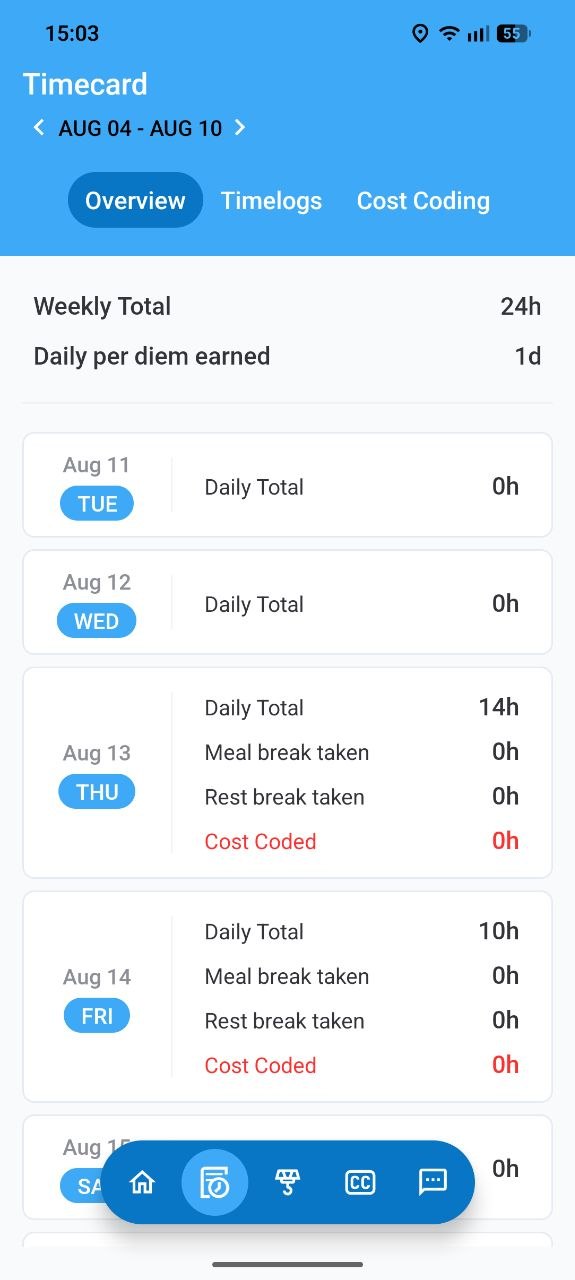
Overview tab in Timecard
At the top of the tab, you have the following information for the selected week:
- Weekly total. The total number of hours you've worked during the selected week.
- Meal break taken. The total duration of meal breaks you've taken during the selected week.
- Rest break taken. The total duration of rest breaks you've taken during the selected week.
- Daily per diem earned or Weekly per diem earned. Depending on your Per diem type, the number of days this week that count toward your per diem, shown as a day count (for example,
4d).
Below that, you have a card for each day of the week with the following details:
- Total worked. The total number of hours you've worked that day.
- Per diem earned. Your per diem status for that day.
Timelogs
The Timelogs tab has the full list of your timelogs generated during the selected week, as shown in the following screenshot.
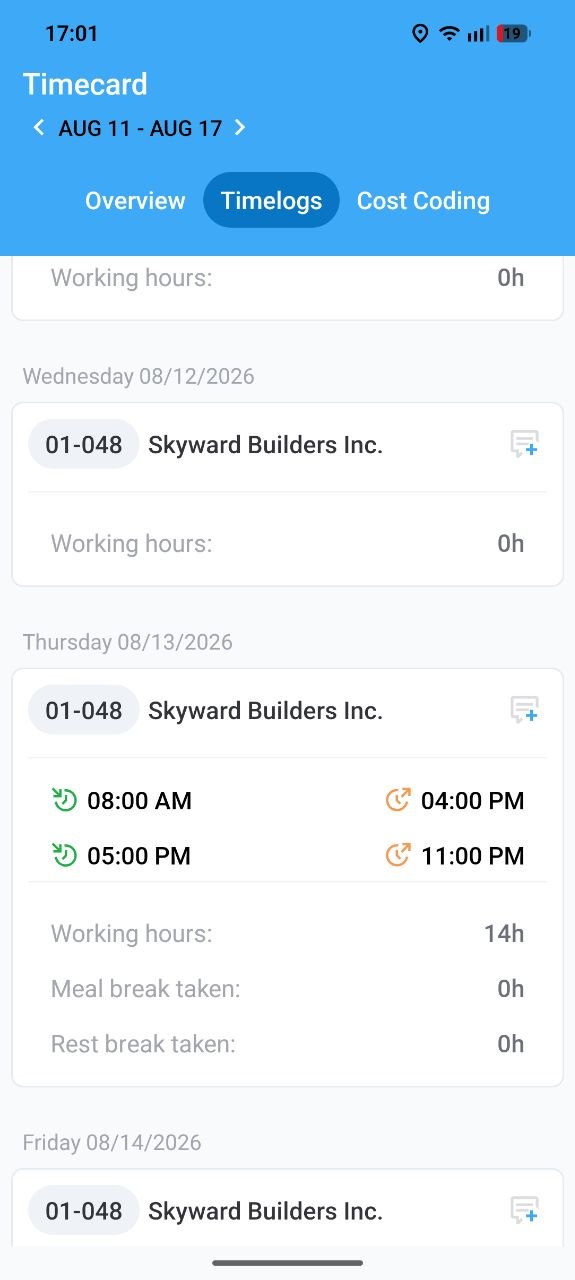
Timelogs tab in Timecard
Each timelog is grouped by job site and contains the following details:
- Job site number and name.
- Punch-in and punch-out times and the overall number of working hours.
- Meal and on of rest break durations if any.
Lastly, on each timelog entry, you have a comment option to add comments to the timelog and see existing comments. See Comments to learn more about timelog comments.
Cost coding
The Cost coding tab works the same way as Crew cost coding, but you cost code your own timelogs instead of your crew's.
Updated 2 months ago