
Access Web App
Learn how to sign in to Web App as a back-end user or employee using email and password or phone number authentication.
To access the MobiClocks Web App, open your environment (for example, example1.mobiclocks.com) in a web browser. The following two sections describe the sign-in process for back-end user and employees. Proceed to the section relevant for you.
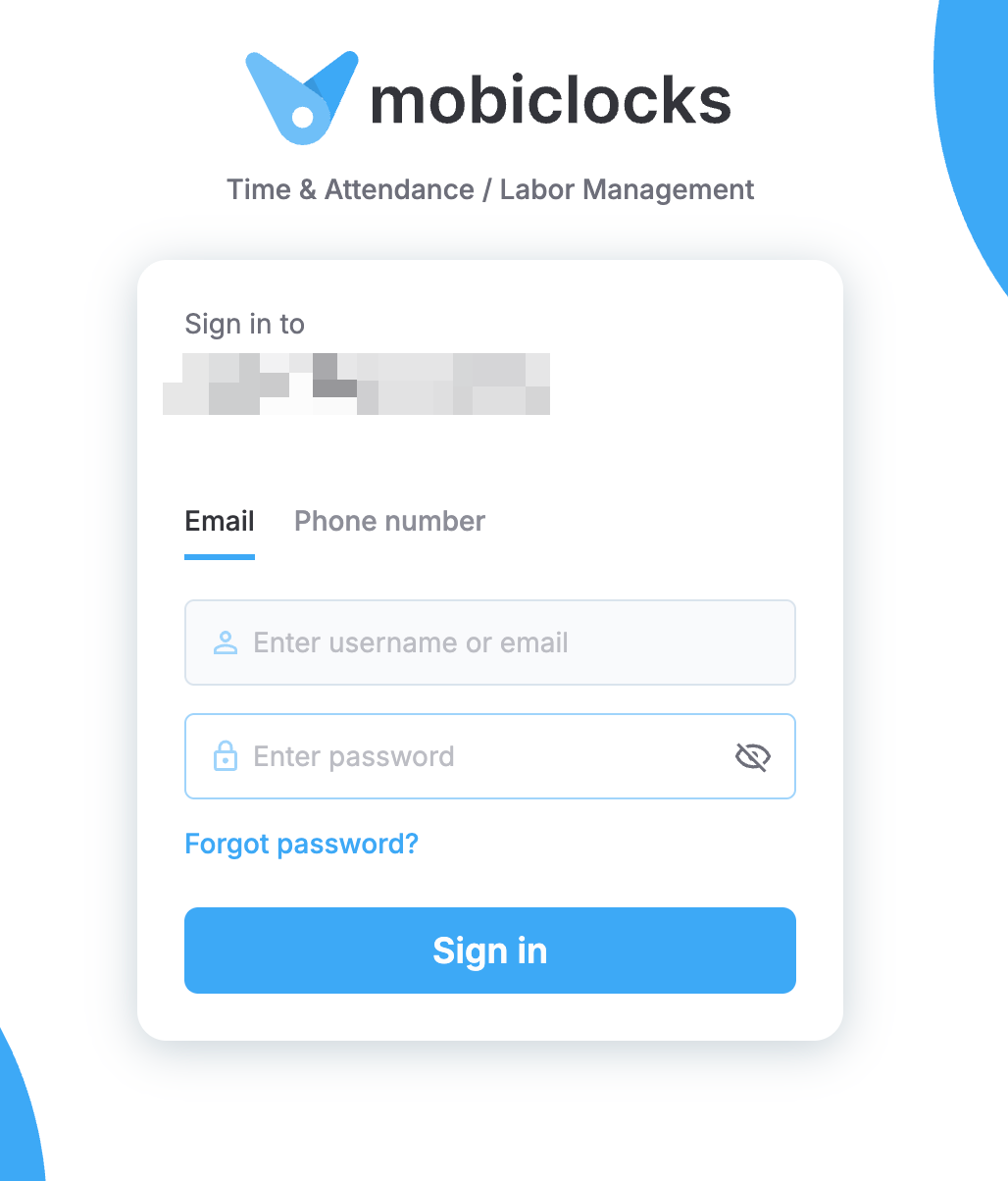
Sign-in dialog
Back-end users
Back-end users are administrators and super administrators who manage day-to-day operations in Web App. Their accounts are created and managed in Administration > Users. To be able to sign in as a back-end user, you must have an account created for your in your MobiClocks environment. The following sign-in methods are available.
Sign in with email and password
To sign in with your email and password, perform the following steps:
- On the sign-in screen, select the Email tab.
- Enter your email address and password.
- Select Sign in.
If you've forgotten your password, select Forgot password? to receive a reset link by email.
Sign in with a phone number
Phone number sign-in is available if a phone number has been added to your user profile by an administrator. See Users for details on how user profiles are configured.
To sign in with your phone number, perform the following steps:
- On the sign-in screen, select the Phone number tab.
- Select your country code and enter your phone number.
- Select Get code. A one-time password (OTP) is sent to your phone via SMS.
- Enter the OTP to complete sign-in.
Each OTP expires after 5 minutes. If yours has expired, return to the previous step to request a new one.
Employees
Employees accounts are created from the employee profile by an administrator. For details, see User account.
Sign in with email and password
To sign in with your email and password, perform the following steps:
- On the sign-in screen, select the Email tab.
- Enter your email address and password.
- Select Sign in.
Sign in with a phone number
Phone number sign-in is available if this method has been enabled for your account by an administrator. See User account to learn more about the phone number sign-in activation process.
To sign in with your phone number, perform the following steps:
- On the sign-in screen, select the Phone number tab.
- Select your country code and enter your phone number.
- Select Get code. A one-time password (OTP) is sent to your phone via SMS.
- Enter the OTP to complete sign-in.
Each OTP expires after 5 minutes. If yours has expired, return to the previous step to request a new one.
Updated 7 months ago