
Per diem cost coding
How cost codes are assigned to per diem entries, and how to review or override them.
Per diem can be earned on days with no worked hours, so per diem entries are cost coded separately from timelogs, in their own Per Diem tab within Cost Coding.
Cost coding conventions here match the rest of Cost Coding. For general information on cost codes and how they're applied, see Cost coding. This topic covers what's specific to per diem.
NOTEThe Per Diem tab is visible only when per diem is enabled at the environment level.
Choose a cost coding method
In per diem job site settings, choose how per diem entries are coded for that job site:
- Labor cost codes: Per diem follows the employee's labor cost codes for that day at that job site. For weekly per diem, the codes from the day the weekly threshold was met are used. If labor that day is split across multiple cost codes, the code with the largest share of time is used, with ties broken by the earliest punch-in.
- Default Per Diem cost codes: Per diem uses a configured default cost code instead of following labor.
Control which cost types are available for per diem
In Administration () > Settings > Cost Codes, each cost type has a Per diem option under the Visibility column. Enable this option to make cost codes of that type selectable when assigning cost codes to per diem entries, whether automatically through default cost codes or manually in Cost Coding > Per Diem.
If a cost type doesn't have Visible in Per diem enabled, its cost codes don't appear as options for per diem cost coding, even if they're used elsewhere for labor cost coding.
Set default per diem cost codes
If you use the Default Per Diem cost codes method, configure default cost codes alongside your other cost code defaults in job site settings:
- Job title-level default: One default per job title at the job site.
- Job site-level default: One default for the job site, used as a fallback.
When assigning a cost code automatically, MobiClocks looks for a job title-level default first, then falls back to the job site-level default. If neither is configured, the per diem entry is left unassigned.
PERMISSIONSYou need the Edit per diem settings permission enabled for your role in Administration () > Role Permissions > Job Sites to change the cost coding method or configure default per diem cost codes.
Work with per diem entries in Cost Coding
Open Cost Coding > Per Diem to view and code per diem entries. As in the rest of Cost Coding, use the week navigation, job site and employee filters, and export.
PERMISSIONSYou need the Per diem cost coding permission enabled for your role in Administration () > Role Permissions > Cost Coding to access the Per Diem tab.
Each row shows an employee, a date, a job site, the paid and billable amounts (if applicable), and the current cost code. Rows appear here even for days where the employee has no labor hours, as long as they have per diem for that day. Daily per diem shows one row per employee per job site per day, while weekly per diem shows one row per employee per payroll week, dated to the last day of that week.
The following screenshot shows the Per Diem tab in Cost Coding, with cost codes applied to two employees.
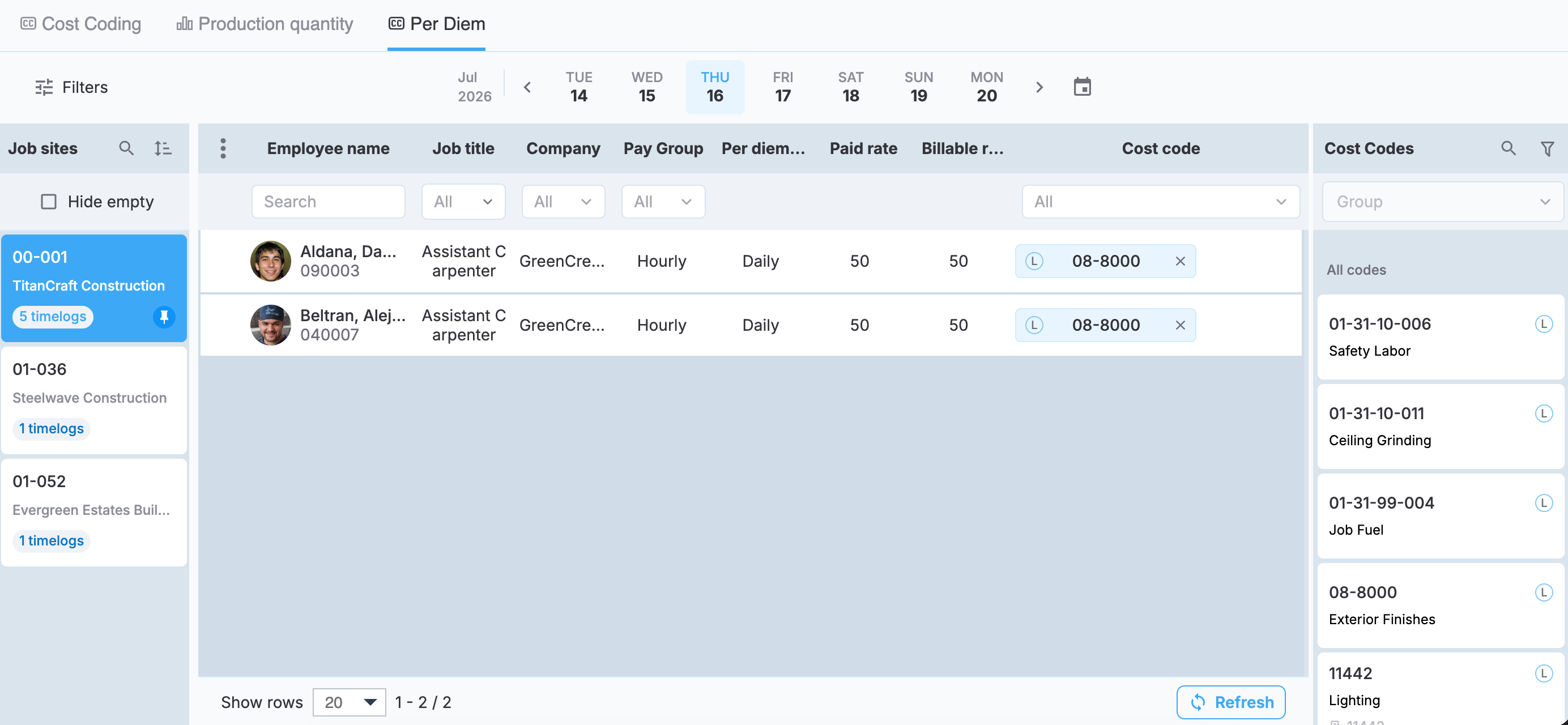
Per Diem tab in Cost Coding
To apply a cost code, drag and drop a cost code from the Cost Codes sidebar onto a per diem entry, the same way you would in Apply cost codes. To remove a cost code from a row, use the remove option next to the applied code.
Apply default cost codes
Instead of waiting for the automatic assignment or dragging a cost code onto each entry, you can apply default per diem cost codes to multiple entries at once:
- Select the per diem entries.
- Select Apply Default Cost Codes.
- Select Save to save the changes.
The action uses the same order as automatic assignment, described in Set default per diem cost codes earlier in this topic: the job title-level default first, and then the job site-level default.
The following screenshot highlights the Apply Default Cost Codes action.
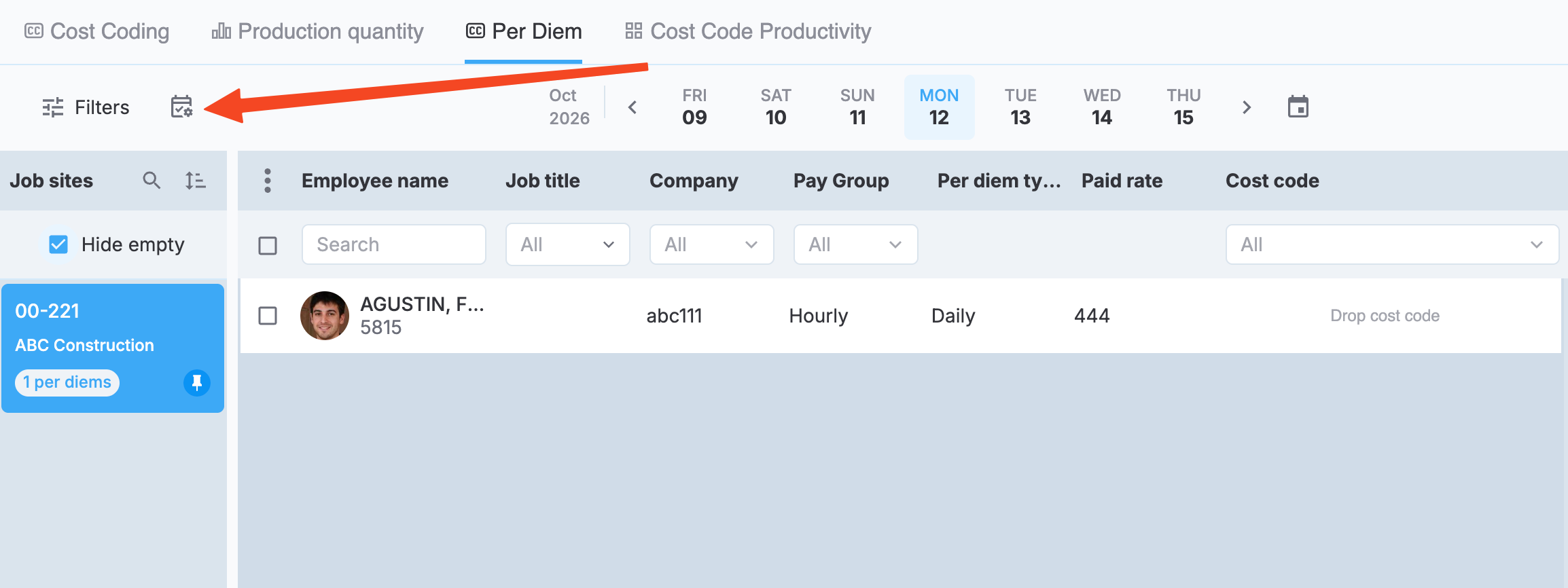
Apply Default Cost Codes action in Per Diem cost coding
Error handling:
- Only applies to per diem entries without existing cost codes. Manually applied cost codes are never overwritten.
- Skips entries that don't have a valid default cost code or can't be modified.
Each use of the action is recorded, so you can review when default cost codes were applied.
Filtering
Under Filters, you have a Weekly non cost coded per diems option to narrow the list to weekly per diem entries that still need a cost code. The number next to the filter shows how many entries currently qualify.
Per diem and payroll approval
Per diem entries appear on payroll only if Include per diem in payroll is enabled in Environment-level per diem setup. When it's enabled, Per diem entries that don't have a cost code assigned block that job site's payroll card from being approved. Before approving payroll, assign a cost code to any outstanding per diem entries. For more information on payroll review, see Review and export payroll.
Updated 8 days ago