
Employee-level per diem setup
Assign per diem eligibility and rate overrides to individual employees, view their per diem calculations, and recalculate entries.
Per diem eligibility and rates are configured at the environment and job site levels, but individual employees often need adjustments such as the employee's per diem type or rate. This topic covers assigning eligibility and overriding rates from the job site's Employees tab, then viewing, editing, and recalculating an employee's per diem entries from their profile's Per diem tab.
Assign per diem eligibility and rate overrides
Once per diem is enabled at the environment level and for the job site, dedicated per diem columns appear on the job site's Employees tab.
PERMISSIONSYou need the View job site/employee per diem rates permission enabled for your role in Administration () > Role Permissions > Job Sites to view the per diem columns.
You need the Edit employee per diem permission enabled for your role in Administration () > Role Permissions > Job Sites to change an employee's per diem type or override their rate.
Per diem type
Each employee row has a Per diem eligibility selector with three options:
- Not eligible: The employee doesn't earn per diem at this job site. This is the default for every employee until you configure otherwise.
- Daily: The employee earns daily per diem when they meet the job site's daily threshold.
- Weekly: The employee earns weekly per diem when they meet the job site's weekly threshold, paid once per qualifying payroll week.
Only per diem types enabled for the job site appear as options. If a type an employee was previously assigned becomes unavailable, either because the job site or the environment disables it, the employee is automatically set to Not eligible. To view or adjust an employee's resulting per diem entries, see View and edit an employees per diem entries.
Use the filter above the column to narrow the list to All, Not eligible, Daily, or Weekly.
The following screenshot highlights the Per diem eligibility column and its options.
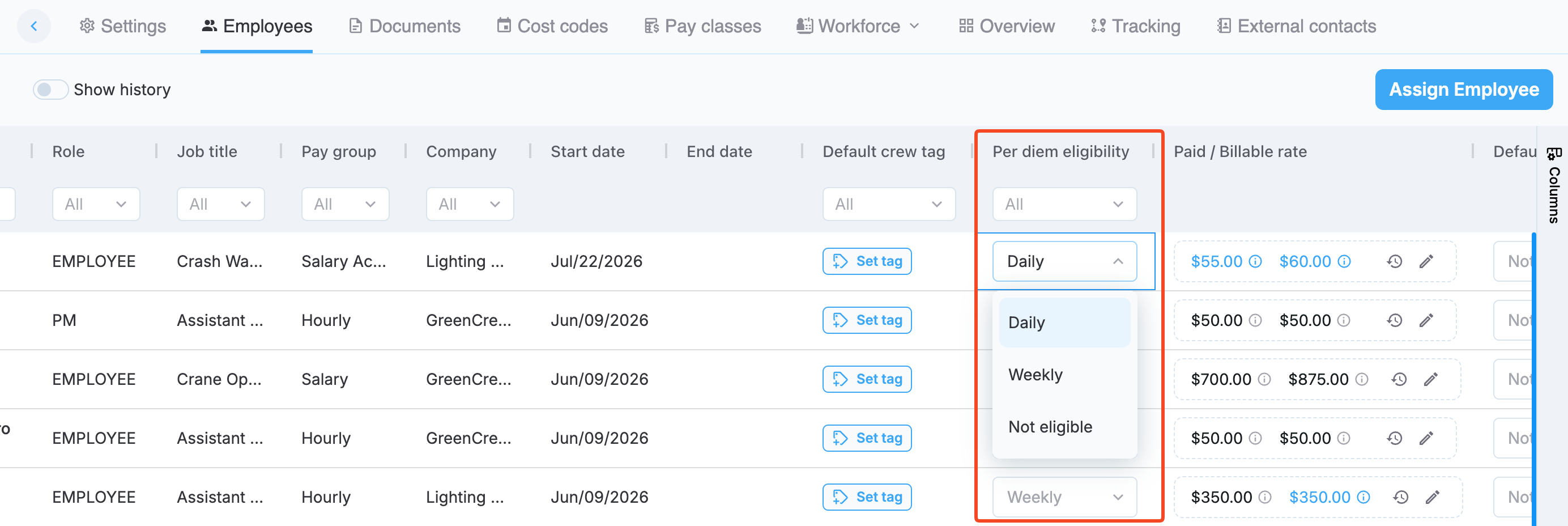
Per diem eligibility column
Rate column
The rate column label and contents depend on the environment-level rate structure:
- Single rate: The column is labeled Paid rate and shows one value.
- Paid + Billable: The column is labeled Paid / Billable rate and shows both values.
The values shown reflect the employee's assigned per diem type. If the employee is set to Daily, the column shows daily rates; if Weekly, it shows weekly rates.
Override a rate
To override an employee's rate, select the edit icon next to their rate. This opens the Manage per diem rate dialog, where you set a custom paid rate, a custom billable rate (if Paid + Billable is enabled), and an effective date.
- Paid rate: Required, and needs to be greater than zero.
- Billable rate: Available when Paid + Billable is enabled and needs to be greater than zero.
- Effective date: Defaults to the current day. You navigate back as far as the start of the previous payroll week, but not forward to a future date.
The dialog shows the rate that currently applies to the employee (labeled by its source, for example Job site rate) alongside the Custom field where you enter the override. Select Set back to default rate to discard the custom value and revert to the standard rate.
The following screenshot shows the Manage per diem rate dialog with a custom paid and billable rate set.
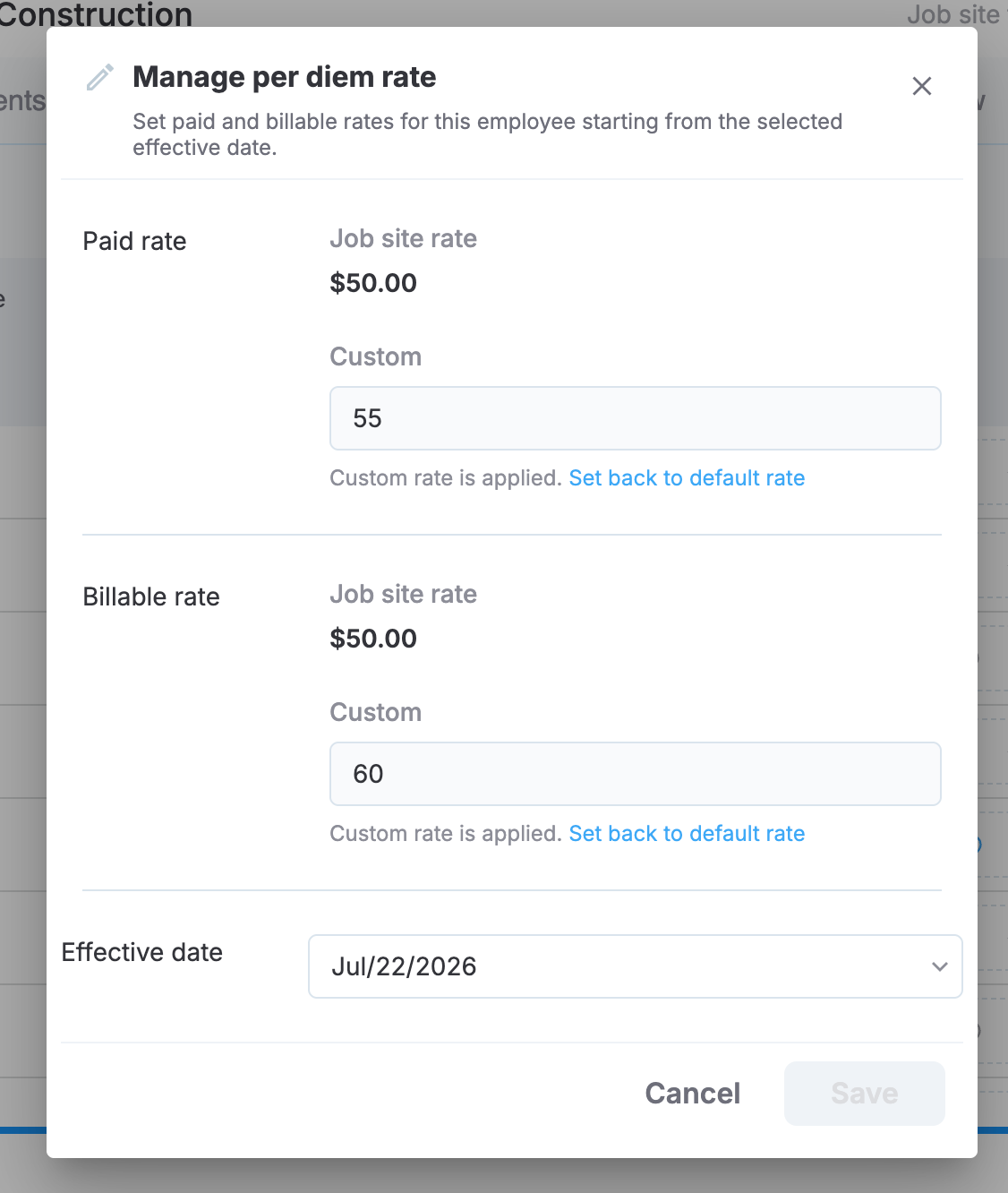
Manage per diem rate dialog
An override doesn't affect per diem entries dated before its effective date. Once in place, the override stays in effect even if the employee's job title changes, or if the job title rate or job site default rate is later updated. It's used until you edit or remove it.
To remove an override, clear the custom rate value. From the effective date you choose, the employee falls back to the standard rate-resolution order: employee override, then job title rate, then job site default rate.
Changing an employee's per diem type or rate preserves their historical per diem data. Only the current payroll week is recalculated to reflect the change. To learn more about reviewing the recalculated entries, see View and edit an employees per diem entries.
Rate source and history
Hover over the info icon () next to a rate to see its source: Job site default, Job title default, or Employee override.
Select the history icon () to view every past rate change for an employee, including the paid rate, billable rate, and effective date for each version.
View and edit an employee's per diem entries
Per diem information no longer appears on the employee's Timelogs tab. Instead, navigate to the employee's Per diem tab to view every generated and calculated per diem entry for that employee.
PERMISSIONSYou need the Per Diem Adjustments permission enabled for your role in Administration () > Role Permissions > Employees to add, remove, or adjust an employee's per diem entries from this tab.
Use the date navigation at the top of the tab to select a payroll week. The table shows the following columns:
- Day: The date the entry applies to. For daily per diem, this is the worked day. For weekly per diem, this is the last day of the payroll week (for example, Sunday).
- Rule: Whether the entry is Daily or Weekly.
- Job site: The job site the per diem was generated from.
- Worked time: The hours worked that day. Not shown for weekly per diem entries.
- Paid: The paid amount for the entry.
- Billable: The billable amount for the entry, if Paid + Billable is enabled.
- Source: Whether the entry is calculated (generated by the system) or manual (added by a user).
- Modified by: Who last changed the entry.
If the employee has more than one job site with per diem enabled on a given day, each job site's daily per diem appears as its own row. Weekly per diem always appears as a single row for the payroll week.
The following screenshot shows the Per diem tab, with daily and weekly entries across two job sites.
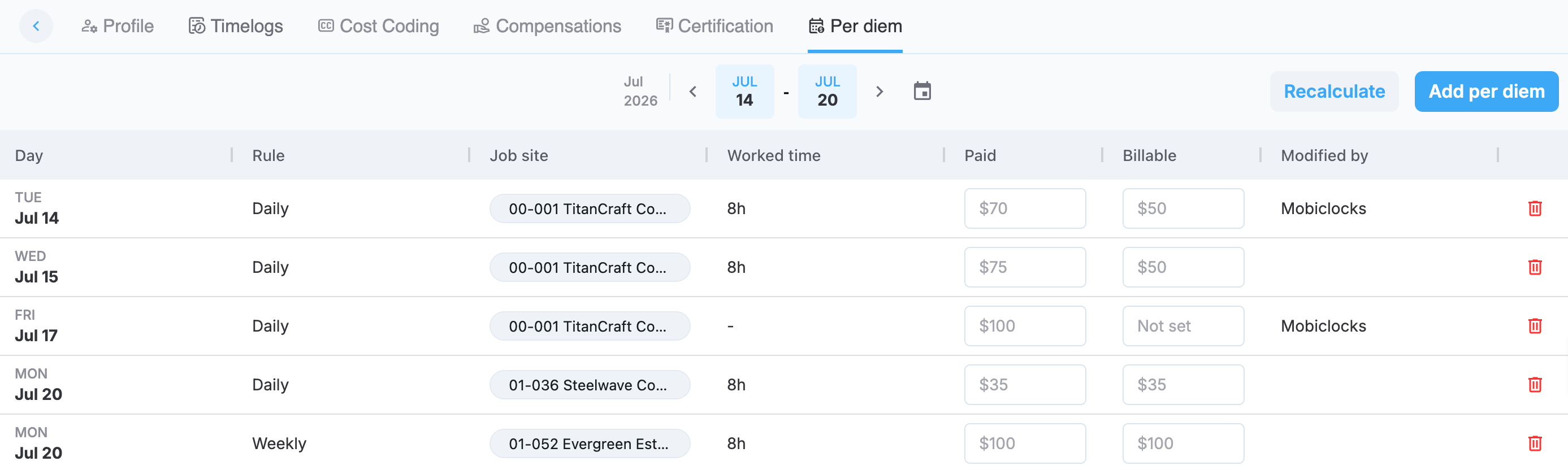
Employee Per diem tab
Add a per diem entry
Select Add per diem, then fill in the following:
- Date: The day the entry applies to. Choose from the days in the current payroll week.
- Job site: Select from the job sites where the employee has
DailyorWeeklyper diem eligibility. Job sites where the employee isNot eligiblearen't listed. The employee's per diem type for the selected job site appears automatically. - Paid rate: Required.
- Billable rate: Available if Paid + Billable is enabled.
Select Save to add the entry.
The following screenshot shows the Add per diem dialog.
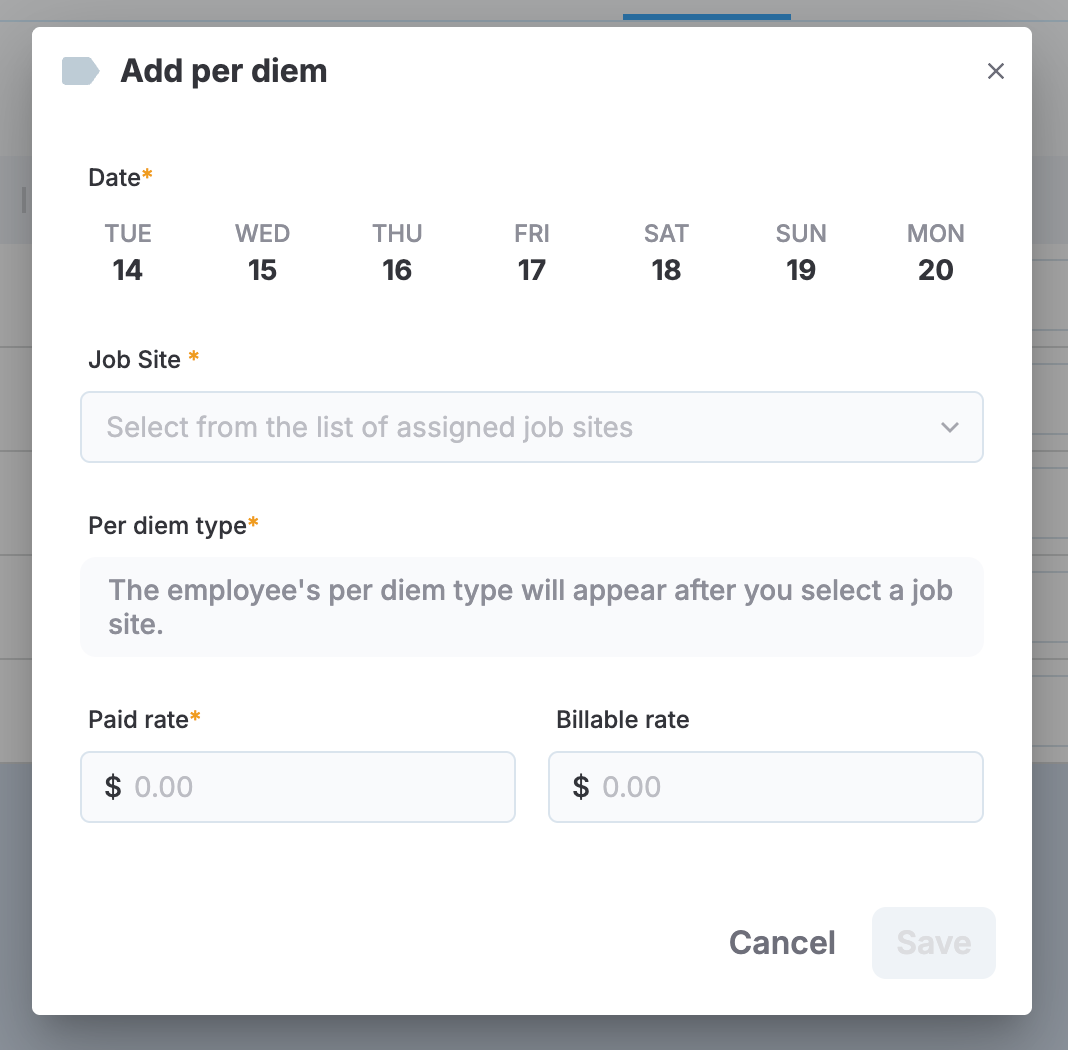
Add per diem dialog
Edit or remove a per diem entry
To adjust a paid or billable amount, select the relevant field directly in the table. To remove an entry, select the delete icon next to it.
A manual entry can be deleted using the delete icon next to it, while a calculated entry can't be deleted. To remove per diem for that entry instead, set its paid rate to 0.
NOTEManually adding, editing, or removing a per diem entry turns off recalculation for that employee's per diem for that payroll week. The employee and week are skipped during recalculation on the Payroll page until no manual changes remain for that week.
Reset per diem
Select Reset to delete all per diem entries for the employee for the current payroll week, including calculated, manually edited, manually added, and manually removed rows, along with their assigned cost codes, and immediately recalculate per diem for the week based on the employee's current configuration.
WARNINGReset deletes every per diem entry and cost code for the week, including any manual changes, then immediately recalculates per diem for the week. This action can't be undone.
NOTEReset isn't available from this tab if payroll has already been approved for any job site the employee belongs to.
Automatic recalculation
Per diem is recalculated automatically, without affecting manual changes:
- Once daily, for every employee.
- Immediately, for a single employee, when their timelogs change: a timelog is manually added, edited, or added through the fast-entry or bulk-actions options, or a leave request affecting per diem is added.
Automatic recalculation skips any row you've manually edited, added, or removed, and keeps the cost code assigned to a per diem entry even if its amount changes as a result. Splitting a timelog, changing its job site, or bringing time from a previous week doesn't trigger automatic recalculation.
To manually trigger recalculation for a job site's payroll, use Recalculate on the Payroll page. For more information, see Review and export payroll.
Updated 3 months ago