
Shift management
Set up job site shifts, assign employees, and track shift differentials.
Shift management lets you run several shifts on a single job site and assign employees to them. For example, a job site that operates around the clock can have night, day, and evening shifts, each with its own working hours and weekly schedule. MobiClocks records the assigned shift on every timelog, calculates shift differential hours for premium shifts, and carries them through to payroll.
PERMISSIONSYou can add, edit, archive, and delete shifts if you have the Edit "Job Site Hours" policy permission enabled for your role in Administration () > Role Permissions > Job Sites. Assigning shifts to employees doesn't require an additional permission.
How shifts work
Shift management is built around the assigned shift:
- The shift assigned to an employee, not the time they punch in, determines which shift their work belongs to. MobiClocks never assigns or changes a shift automatically.
- When an assigned employee punches in, the shift is captured on the timelog.
- Punches outside the shift's working hours aren't blocked. Instead, you can have them flagged. See Flag punches outside the shift.
- Assigning a shift is optional. Employees without a shift follow the job site's default working hours policy.
Set up shifts
Shifts are configured for each job site separately, in Job site > Settings > Working hours policy > Shift configuration. The Shift configuration section appears when the job site's working hours policy is turned on.
Each shift in the list shows its ID, name, start and end times, and the shift differential, if any. Expand a shift to see its weekly schedule.
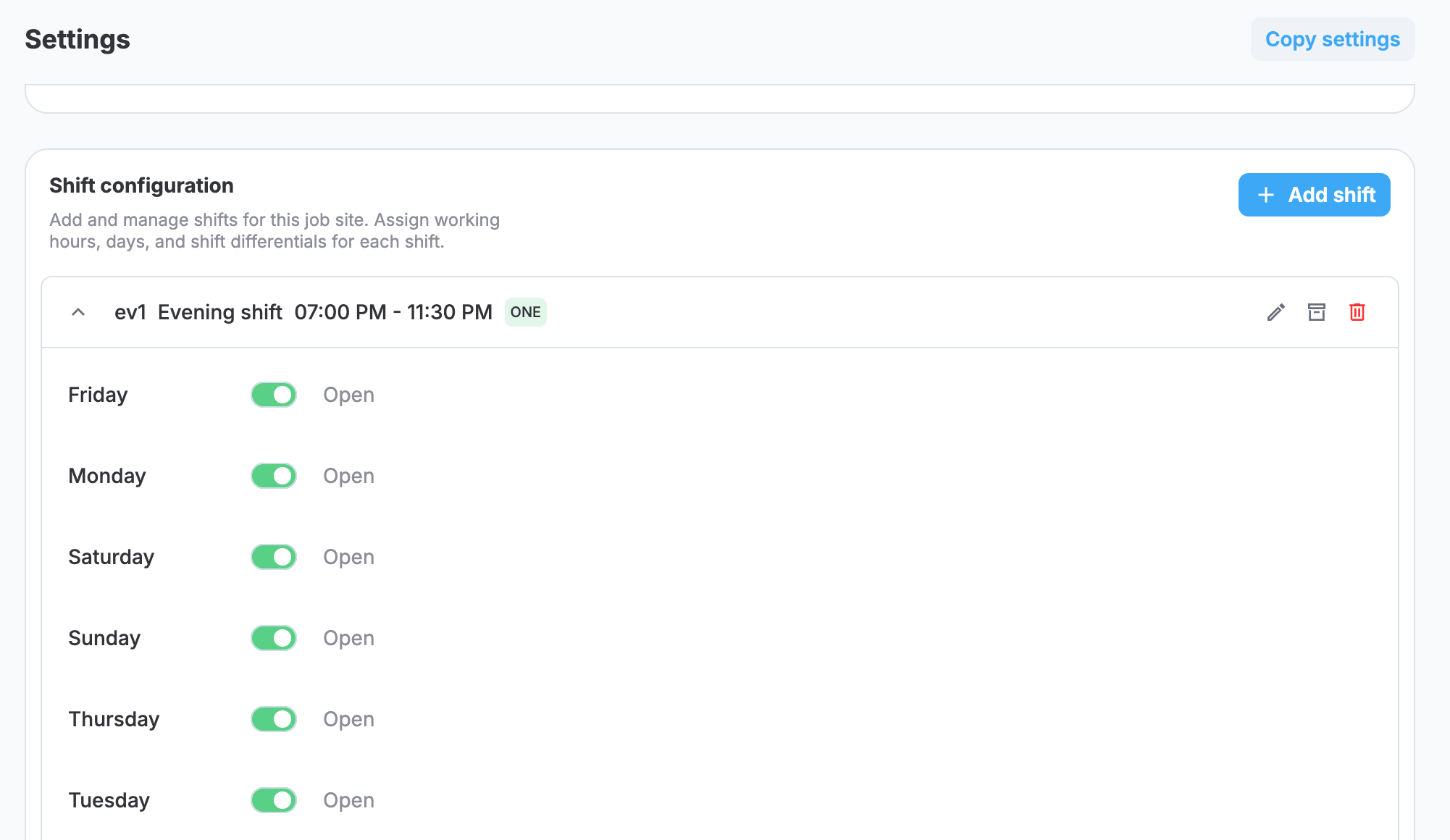
Shift configuration in job site settings
Add a shift
To add a shift:
- In Shift configuration, select Add shift.
- In the Add shift dialog, fill in the following fields:
- Name: The name of the shift, for example,
Night shift. - ID/KEY: A unique identifier of the shift. The ID is shown together with the name throughout MobiClocks, for example,
003 - Night shift. - Start time and End time: The working hours of the shift.
- Shift differential (optional): The shift differential pay ID for premium hours worked during this shift. See Shift differentials.
- Name: The name of the shift, for example,
- Select Save.
The following screenshot shows the dialog for adding shifts.
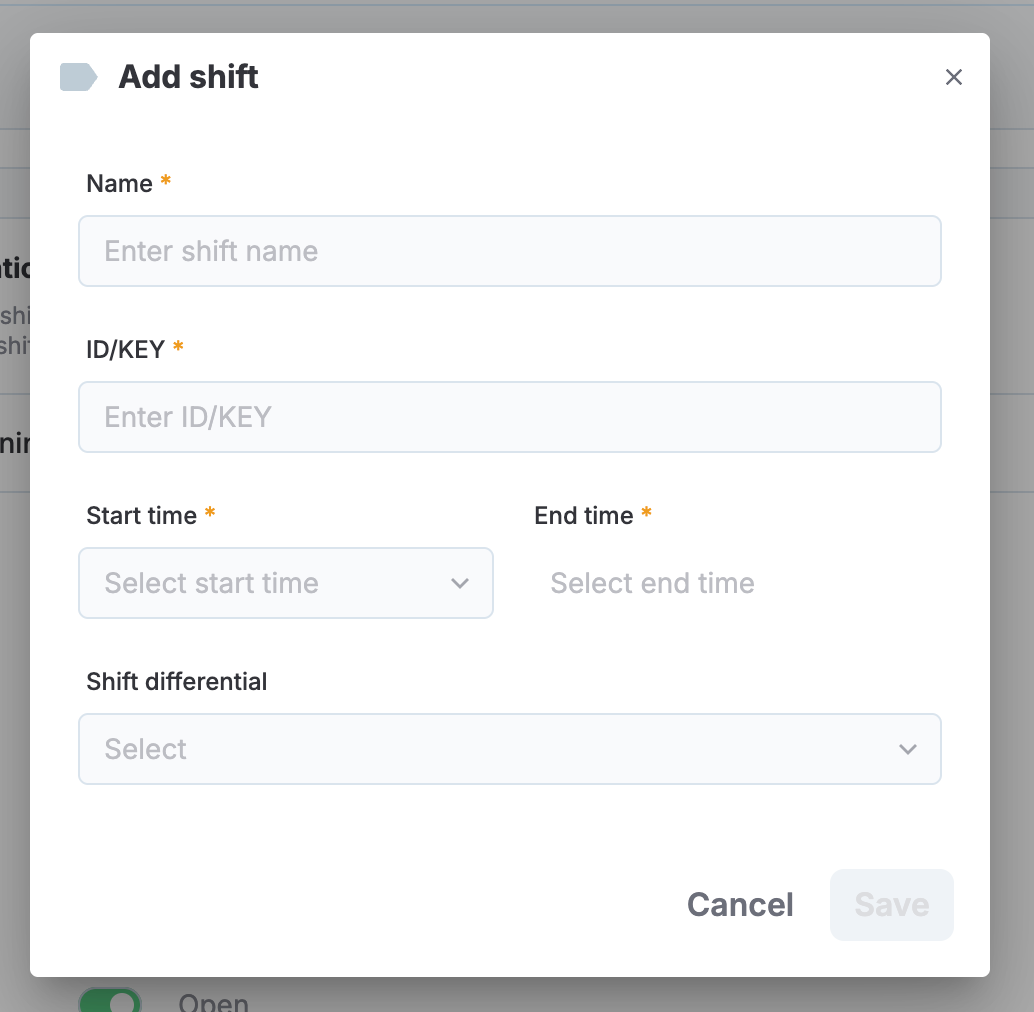
Shift adding dialog
Set the weekly schedule
Each shift has its own weekly schedule. New shifts are open all seven days of the week by default. To change the schedule, expand the shift and turn the toggle off for each day the shift is closed.
The following screenshot showd the weekly schedule options.
Shift weekly scheduling
Working Hours Lock
You can't turn on Working Hours Lock for a job site that has an active shift. When you create the first active shift on a job site, Working Hours Lock is turned off automatically.
Copy shifts to other job sites
Shifts are included when you copy settings from one job site to another using Copy settings in job site settings.
Assign employees to shifts
You assign shifts in the Shift column of the job site's Employees tab. Because shifts belong to a job site, an employee can have a different shift on each job site they're assigned to.
To assign a shift to an employee:
- Go to Job site > Employees.
- In the employee's row, select the Shift field.
- Under Select shift, select a shift. To remove the employee's shift, select No shift.
- Under Effective date, select the date from which the assignment applies.
- Select Apply.
The following screenshot shows the dialog for assigning a shift to a job site employee.
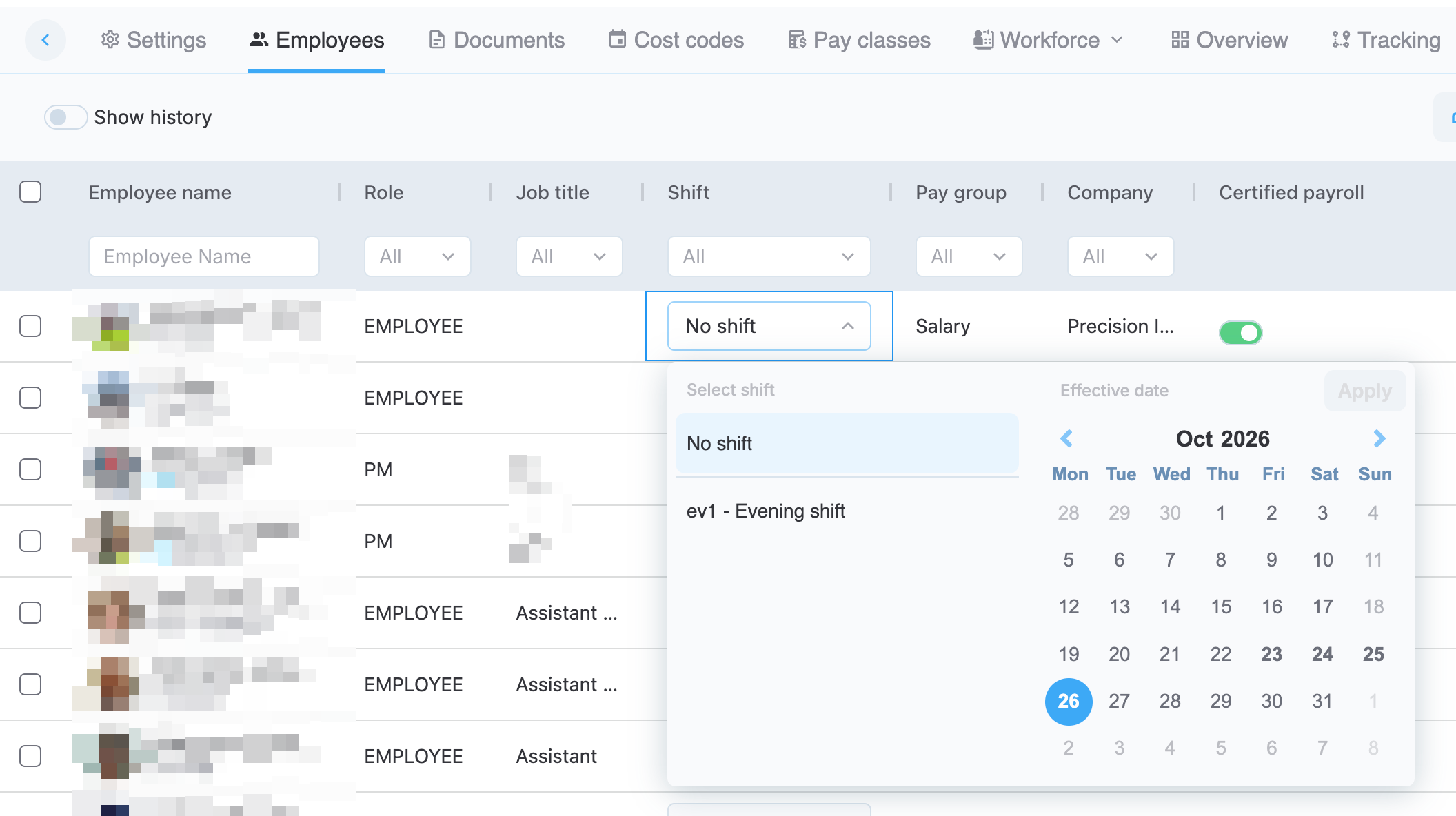
Assigning a shift to a job site employee
To assign a shift to several employees at once:
- Go to Job site > Employees and select the employees. You can use the filters, such as Role or Job title, to narrow down the list first.
- Select Assign shift.
- In the Assign shift dialog, select the Shift and the Effective date. The effective date defaults to today.
- Select Set.
You can also filter the employee list by Shift to see which employees are assigned to a specific shift.
Effective date
When you assign, change, or remove a shift, you choose an effective date from the start of the current payroll period up to today. MobiClocks then recalculates the employee's timelogs on the job site from the effective date forward, including the following:
- The shift captured on each timelog
- Shift differential hours
- Out of Working Hours flags
Timelogs before the effective date keep their original shift.
Punch eligibility
Employees with an assigned shift follow the shift's weekly schedule instead of the job site's. For example, if the job site is closed on Saturday but the employee's shift is open, the employee can still punch in on Saturday.
Employees without a shift follow the job site's default working hours.
Flag punches outside the shift
Below the list of shifts, you have the following settings for flagging punches that fall outside an employee's assigned shift:
- Flag punches off shift working hours: When this setting is on, punches outside the working hours of the employee's shift are flagged as Out of Working Hours.
- Grace period: How far a punch can fall outside the shift's working hours before it's flagged, from 5 minutes up to 1 hour. Select None to flag every punch outside the shift.
The Out of Working Hours flag works the same way for shifts as for the job site's default working hours, including its Critical status and its effect on payroll approval. The flag is informational and doesn't block the punch. See Flags to learn more.
Shift differentials
A shift differential is extra pay for work on a specific shift, such as a night or weekend shift. In MobiClocks, a shift differential is a special pay ID that you link to a shift. MobiClocks identifies which hours qualify for the differential, while the premium rate is applied in your payroll system.
Create a shift differential pay ID
To create a shift differential pay ID:
- Go to Administration () > Pay ID, and then select the Shift Differentials tab.
- Select Create.
- Fill in the following fields:
- Name: The name of the pay ID, for example,
NIGHT. The name must be 2 to 7 characters long and can contain only uppercase letters (A-Z), digits (0-9), and underscores (_). - Description: A description of the shift differential.
- Name: The name of the pay ID, for example,
- Select Save.
To link the pay ID to a shift, select it in the Shift differential field when you add or edit a shift. The following screenshot shows the dialog for creating shift differentials.
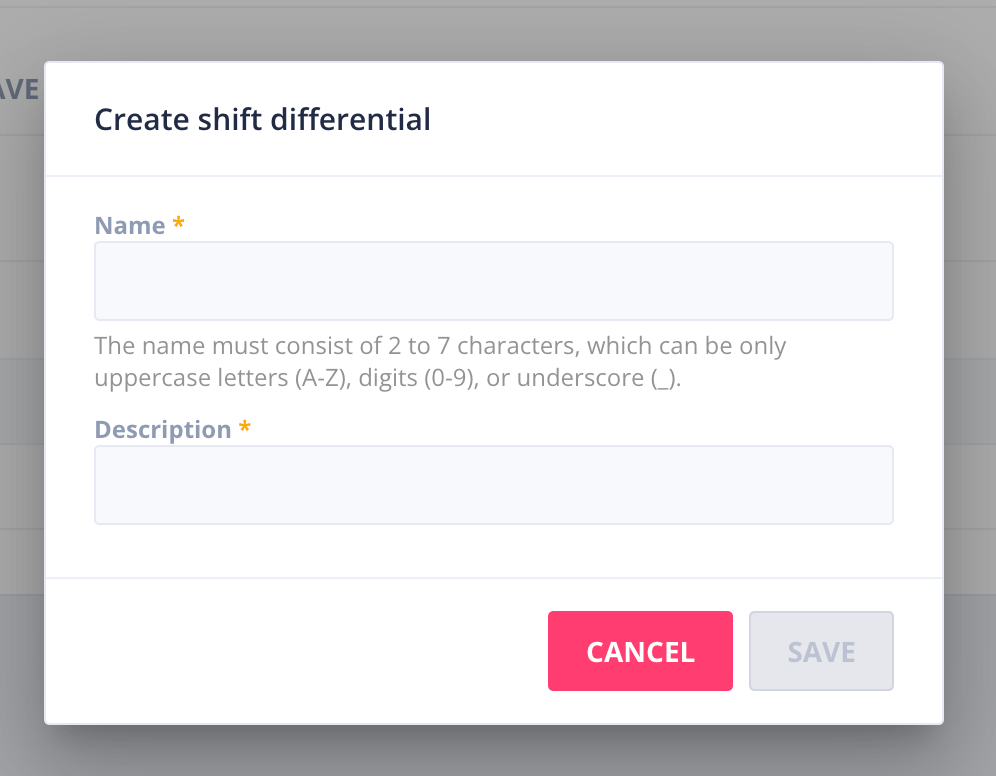
Shift differential creation dialog
How differential hours are calculated
For employees assigned to a shift with a shift differential, MobiClocks calculates differential hours as the payable time that falls between the shift's start and end times on the days the shift is open.
Differential hours are part of the employee's worked hours, not additional hours, so they never increase the total. For example, if a shift runs from 6:00 PM to 10:00 PM and the employee works from 12:00 PM to 8:00 PM, the timelog shows 8 regular hours, 2 of which are differential hours.
Differential hours in timelogs and payroll
Differential hours appear in the following places:
- Timelogs: Next to the worked hours, with the shift differential pay ID. See Timelogs table.
- Payroll: As a separate line for the shift differential pay ID on the Payroll page.
Differential hours aren't cost coded and don't block payroll. During payroll approval and job site review, they appear as non-cost-coded items.
Payroll review and publishing
When you review a job site's payroll, the Shift column shows the shift captured on each timelog. Differential hours appear as a separate row with the shift differential pay ID. These rows aren't cost coded and don't block payroll approval.
When you publish payroll, MobiClocks sends the shift name together with the base hours. For shifts with a shift differential, it also sends the shift differential pay ID with the employee's total qualifying hours. For payroll publishing setup, contact MobiClocks support.
Edit, archive, and delete shifts
Each shift in Shift configuration has the following actions:
- Edit (): Change the shift's name, ID, working hours, or shift differential.
- Archive (): Retire a shift without changing existing timelogs. Archiving a shift unassigns it from all employees.
- Delete (): Permanently delete the shift. You can delete a shift only if no employee is assigned to it and no timelog references it. Otherwise, archive it instead.
Archived shifts are listed in a separate Archived section below the active shifts. To restore an archived shift, select Unarchive on it. To collapse the section, select Hide archived.
You can't delete a shift differential pay ID while it's linked to a shift.
Moved and split timelogs
When you move a timelog to another job site or split a timelog between job sites, the portion on the new job site uses that job site's shift settings and the employee's shift assignment there. See Edit a timelog to learn more about moving and splitting timelogs.
Where shifts appear
Apart from job site settings and the job site's Employees tab, shifts appear in the following places:
- Timelogs: The Shift column of the timelogs table shows the shift captured on each timelog, and you can filter the table by shift. The same applies to the timelogs in the employee profile.
- Payroll: The Payroll page shows the shift for each employee.
- Employee profile: The list of assigned job sites shows the employee's shift on each job site.
- Personal App: Employees can see their assigned shift in the Personal App on iOS and Android, but can't change it.
- Kiosk App: Assigned shifts appear on the roster in the Kiosk App.
- Reports: The following standard reports include shifts:
Updated about 2 hours ago